
Users - Creating and maintaining
Via the button ‘new’, new users can be created. By clicking on the hyperlink in the column ‘full name’ an existing user can be opened for maintenance.
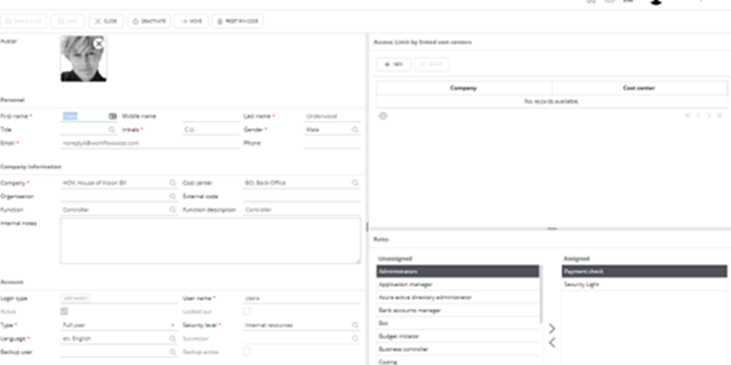
Avatar
By clicking on this, you will see a pop-up to a file picker where you can select an avatar. By default the formats .PNG, .jpg and .jpeg are allowed. The file size is limited to 100kb. This avatar is displayed in several places in the application next to the users name.
Personal
First name: Enter the first name.
Middle name: Enter the middle name.
Last name: Enter the last name.
Title: Enter the title.
Initials: Enter the initials.
Gender: Enter the gender.
Email: Enter the mail address of the user.
Phone: Enter the phone number of the user.
In case the application setting Users.RolePlayersSummary.ShowPhoneNumber is set to True, then in the info message (icon to see in who’s worklist a certain transaction is) the phone number can be displayed.
Company information
Company: Enter the company to which the user belongs.
Cost Center: Enter a cost center to which the user belongs (not required). (Also see: “Appendix 1: security levels and access to transactions”.)
Organisation: Enter an organisation where the user is seen as the organisation. This is used in the expense claim module.
External Code: Enter an external code.
Function: Enter the function of the user by using the browser.
Function description: Enter the function of the user.
Internal note: Enter an internal note.
Account
Login type: Indicate if an user can login using username and/or email address. If nothing is selected, only login via Microsoft Active Directory is allowed. If left empty, an informational message is displayed when saving.
User name: This is the username an user can use during login.
Active: Checkbox is set to True/ False by using the buttons ‘Activate’/’Deactivate’.
Locked out: When an user tried to login with incorrect password, the account is blocked after 3 false attempts, this checkbox is set to ‘true’ when this situation occurs. An email is send to the user to create a new password.
Type: Indicate if this is Full or Portal user (to assign the license). Or select ‘none’ if no license is assigned.
Security level: Enter the security level of the user. (See “Appendix 1: security levels and access to transactions”.)
Language: Default set to the language of the company.
Successor: If an user is deactivated, entering a successor is required. The entered successor is mentioned here.
Backup user: The user entered in this fields will get a permanent delegation on the worklist of the current user, when the ‘backup active’ setting is set to True.
Backup active: Only available when ‘backup user’ is filled. When set to True, a permanent delegation is created.
Access
This section of the user maintenance screen lets you configure access rights per user. The default access rights depend on the application setting: Useraccess. This setting has three options:
Unlimited access
Limit by linked Companies
Limit by linked Cost Centers
By default, this behavior is set to Limit by linked Cost Centers. Hence, in the user maintenance screen, it becomes possible to assign specific cost centers to this user.
Roles
Here roles can be assigned.
When a role is added or which already transactions are in progress (for example the role ‘coding’), you will get a message when saving the user.
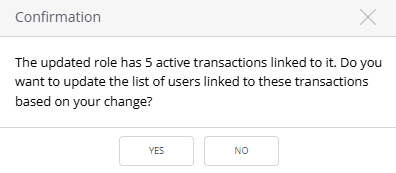
When clicking ‘yes’ the transactions which are assigned based on this role are also linked to this user. The user will see them in the worklist. When clicking ‘no’, only new transaction are placed in the users worklist.
When the role is deleted, a similar message appears to either remove transactions from the user or leave them assigned to the user is shown.
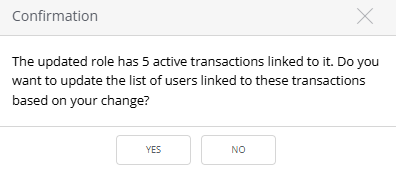
When clicking ‘yes’ the transactions which are assigned based on this role are deleted from the worklist of this user. They will no longer be in the worklist of this user. When clicking ‘no’, the current worklist stays intact. New transactions will not be assigned to this user.