
Users - Buttons in user maintenance
The user maintenance screen contains several action buttons. This page explains them.
Save & Close: After changing/ creating users, all changes can be saved here. One will return to the overview of users.
Save: After changing/ creating users, all changes can be saved here. One will remain the current user.
Close: One will return to the overview of users.
Activate: Only visible for not activate users. Via this button an user can be activated. An email will be send to the entered email address, enabling the user to activate his account.
Deactivate: Only visible for active users. Via this button an user can be deactivated. A pop-up will appear where you have to select a successor:
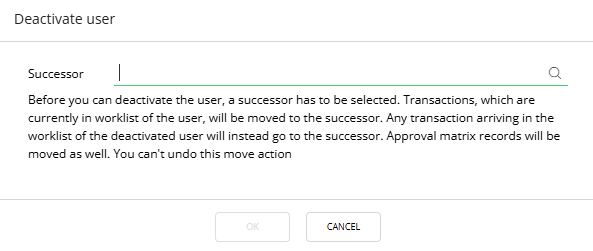
Roles of this user copy to the successor. Mandates copy to the successor; current mandates for this user deactivate and expire. Worklist items transfer to the successor. Transactions assigned to this deactivated user forward to the successor.
Move: Same actions as for deactivation are executed, only the user is not deactivated.
Reset pin code: The pin code of an user can be reset. The first time this user will login, a pop-up will appear where the user can determine the (new) pin code.
Re-Login of the user whose PIN has changed is required