
User Requests from Customer
User request by the customer
From the customer side supplier management, users of Onventis Buyer can request a system access to their system (i.e. requests, sales orders, etc.) for their known contact persons of the supplier which are stored in their system.
Buyer users have the option of requesting system access from the supplier.
Variant 1: Requesting system access
When a customer’s user requests his supplier to create a system access for a user, all administrators of the Supplier Portal account are notified about this customer request and can process it on the Customers page.
The following options are available in the Portal:
Approve: Create the requested contact person as a new user using the data provided by the customer. The user is then assigned to the customer as a contact person and has system access to the supplier account with this customer. He or she receives an e-mail with a link through which he or she can set a password and access the customer via the portal.
Reject: If you do not want to create this contact person (for example, because the person does not belong to your company), you can dismiss the request. Since your customer is not automatically informed of this, we recommend that you contact your contact person at your customer.
Migrate user: If the contact person requested by your customer already has a user account in the Onventis Supplier Portal (same email address as unique identifier) you can simply select this account when processing the request. If he or she does not yet have system access to the customer or has not yet been assigned as a contact person, these assignments are then created.
As soon as the contact person has been assigned, the responsible vendor managers on the customer side are informed of this by e-mail.
Contact Person Requests from Buyer
Suppliers can respond to incoming user/contact requests from Buyers.
Key Enhancements
Customer List View shows an icon when requests exist.
Clicking “Users” opens new User Request tab (tab hidden when no requests).
Admin can approve or reject each request.
Approval Flows
If requested email matches an existing portal user
Dialog offering “Link User”.
On approval:
User is linked.
Assigned as contact to the customer (and org unit if applicable).
If not matched
Dialog offering “Create New User”.
On approval:
New user is created.
Assigned as contact to customer (and org unit if applicable).
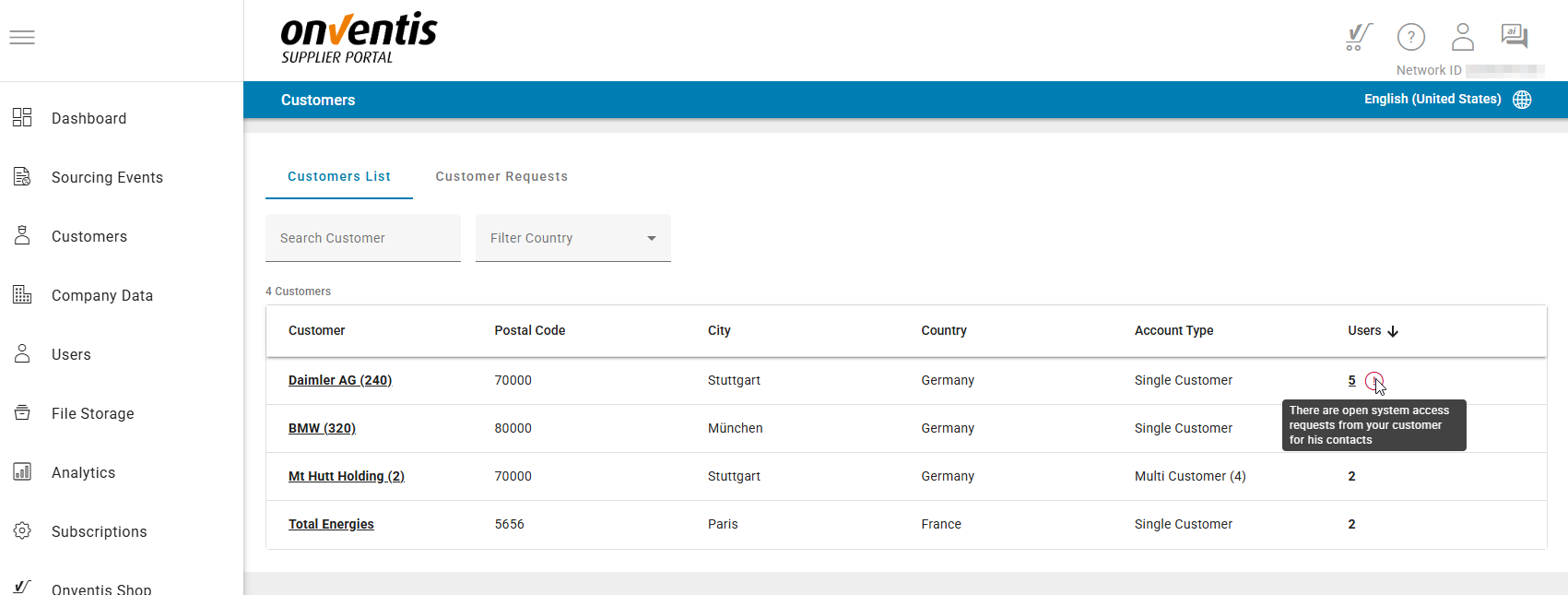
Customer list - notifications
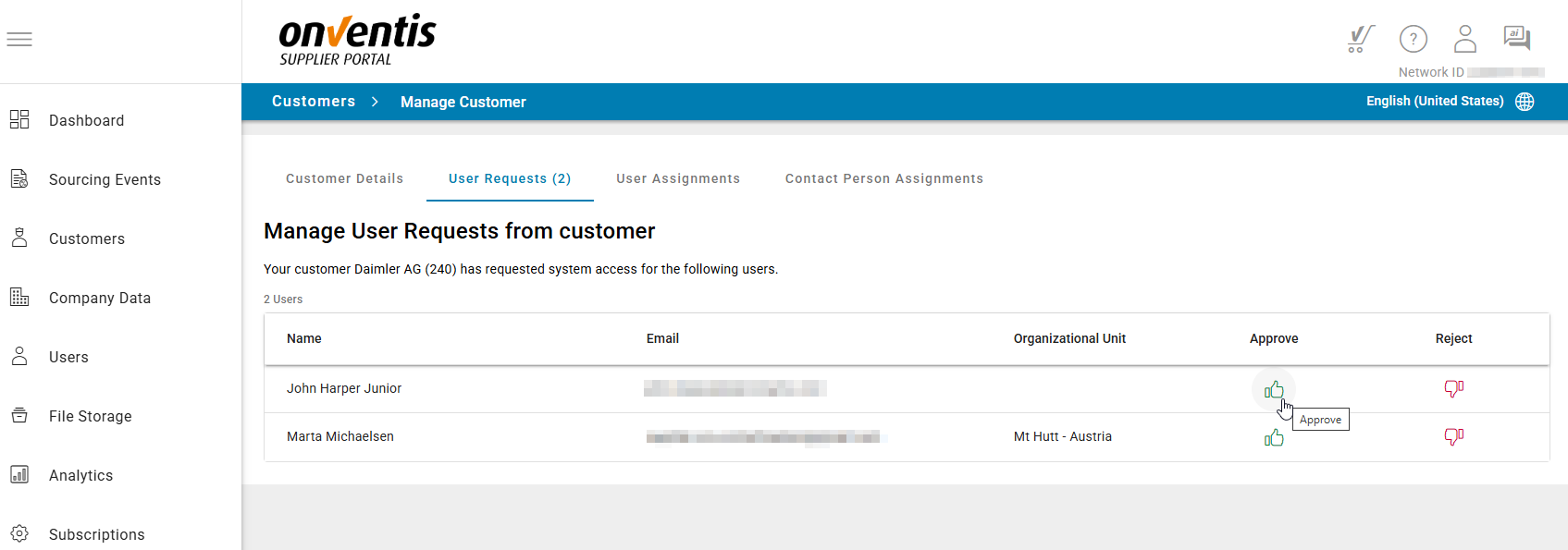
Manage user reuqests from customer - Approve or Reject
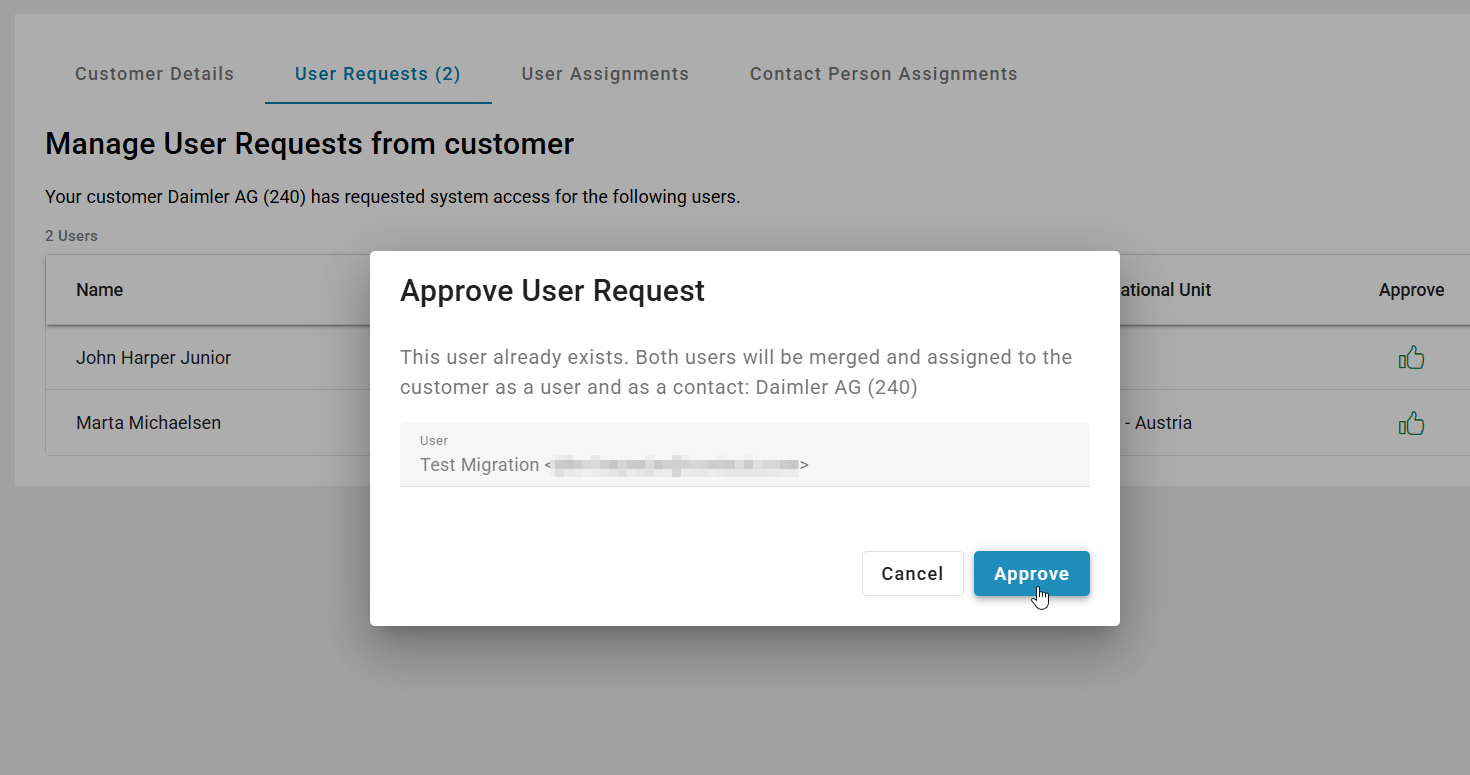
Approve user request from customer and migrate user to existing one (same email address)