
Semantic Search

Semantic Search enables CLM users to find the most relevant contracts based on meaning, even when the exact wording is unknown or not used.
Instead of relying on literal keyword matches or predefined conditions, Semantic Search understands context, intent, and synonyms and returns contracts that best match the semantic meaning of a query.
This makes it easier to discover contracts related to a business topic, obligation, or concept across large contract portfolios.
🗺️ Overview
Semantic Search (AI Search) is a free‑text, intent‑based search experience available from the Contracts Repository.
It searches across the latest versions of contract documents within the user’s organization and ranks results by semantic relevance, not exact keyword occurrence.
🧩 Important:
Semantic Search does not support complex logical conditions or calculations (for example: “Find contracts expiring this quarter”). For such use cases, use Contracts Grid filters.
🧑🦱 Who Can Use This
All CLM users who have access to the Contracts Repository can use Semantic Search.
💡 Note: Search results are always restricted to contracts the user is permitted to access.
💼 Where Semantic Search Is Available
Semantic Search is available on the Contracts page.
The search input:
Accepts free‑text queries
Displays a guidance placeholder, e.g.:
“Enter keywords or phrases to search contracts, e.g. Supplier obligations, Termination rights, Data protection clauses.”Triggers search when the user presses Enter
💡 How Semantic Search Works
Search Input & Query Handling
Users can enter free‑text queries (minimum 1 character, maximum 1000 characters)
Text is truncated visually if the field space is limited
Search can be entered in any language
A loading indicator is shown while results are retrieved
Contracts returned in results are ranked by relevance score.
Search Scope
Semantic Search:
Searches only latest document versions
Searches across contracts of the user’s organization
Ignores Contracts Grid filters and sorting
Performs semantic matching using meaning, synonyms, and language context
Search Results Page
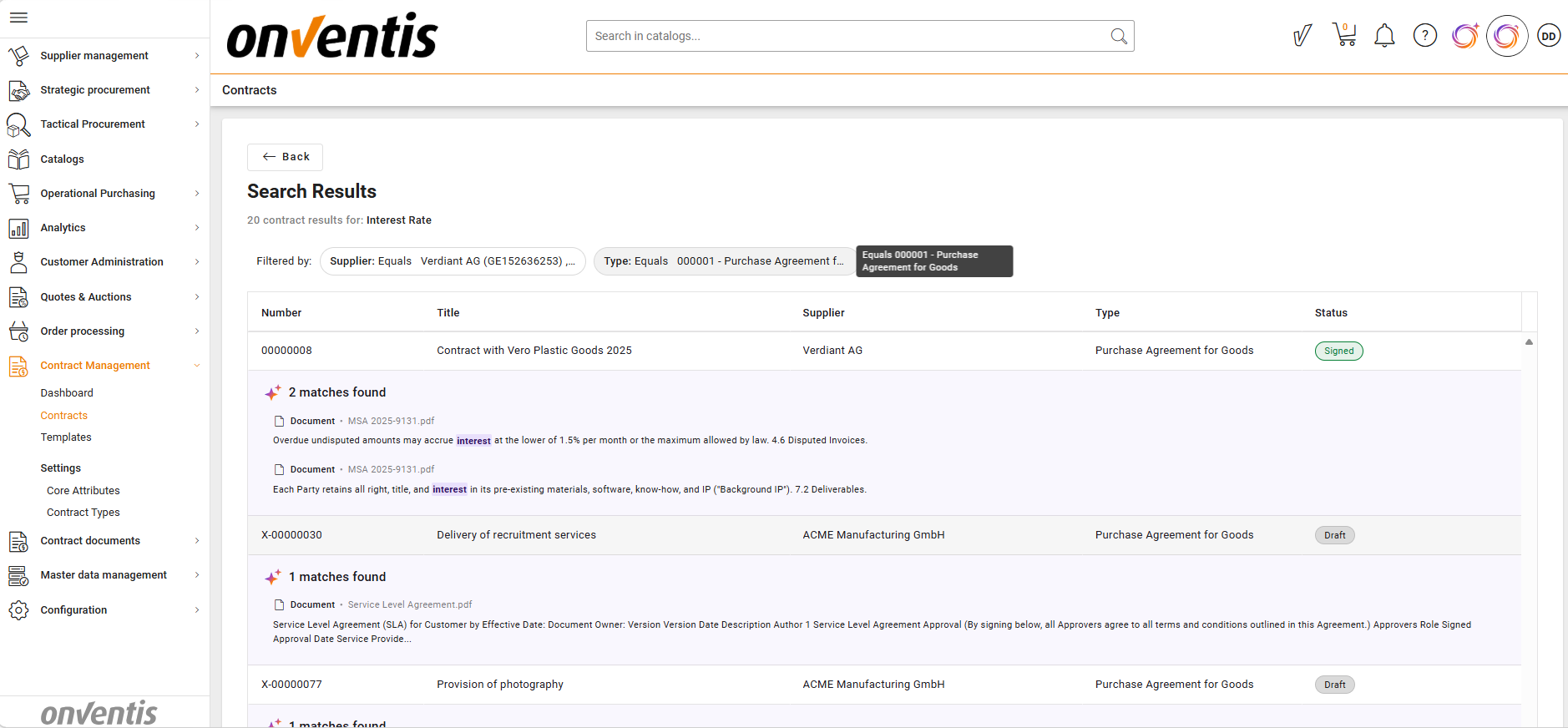
After search is triggered, the user is redirected to a dedicated Search Results page.
The page displays:
The original search query text
Number of matching contracts
Number of matches per contract (not per document)
Top 20 contracts, sorted by highest relevance (%)
Each contract result includes:
Latest document version name
Multiple text snippets where matches occurred
Highlighted matched terms
Expand / collapse control to show all matches
Users can:
Open a contract in a new tab
Click Back to return to the Contracts Grid with its previous state preserved
🔎 Filtering During Semantic Search
Semantic Search supports optional filtering by main contract attributes, applied together with the search query.
Available filters:
Supplier
Type
Status
Template
Start Date
End Date
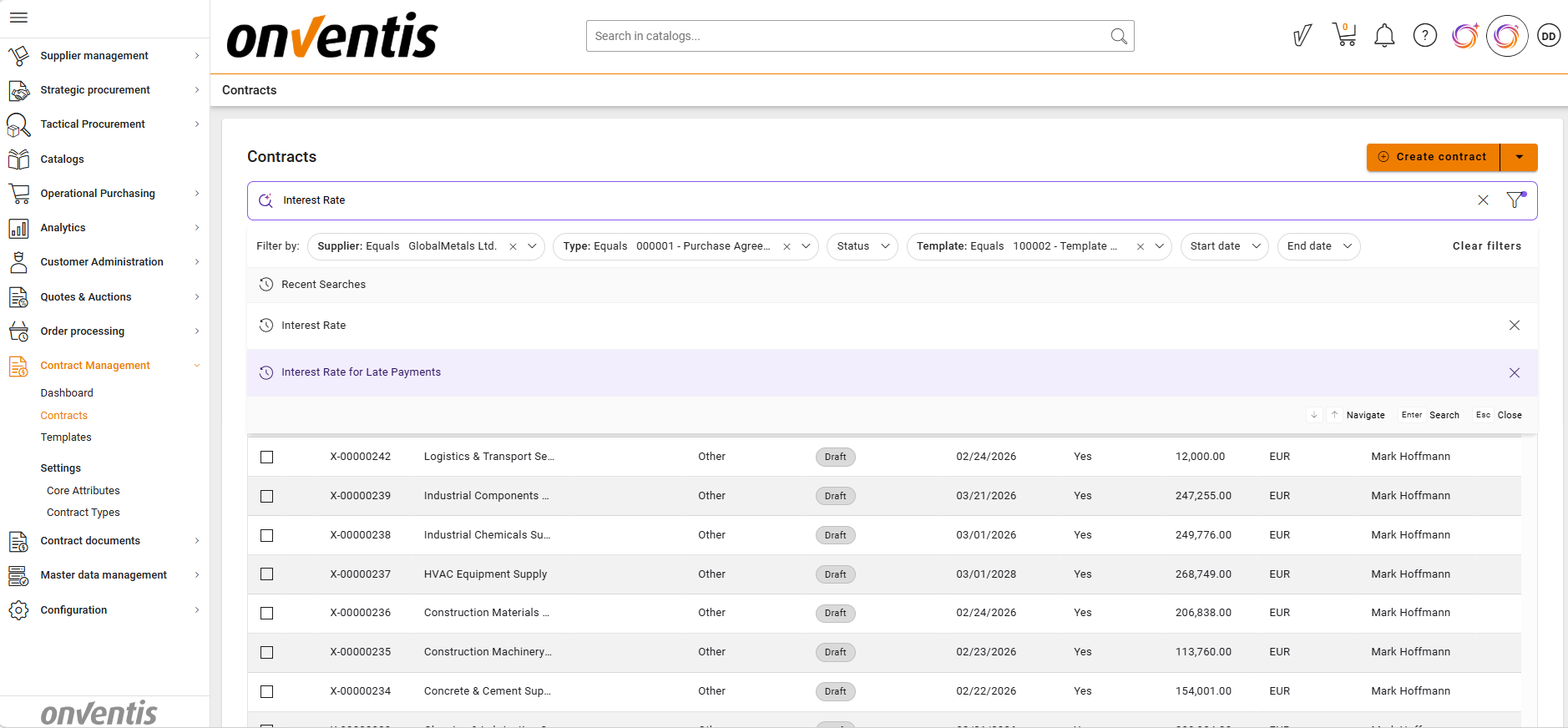
🔎 Recent Searches
Users can view and reuse their 5 recent queries:
Recent searches are shown when starting a new query
Users can quickly select and rerun previous searches
📌 Typical Use Cases
Intent‑based contract discovery
Find contracts even when the exact wording is unknown.
Cross‑language search
Search in one language and retrieve relevant contracts written in another.
Portfolio analysis
Identify contracts related to specific business topics, risks, or obligations.
Legal and compliance review
Quickly locate contracts containing specific concepts or clauses.
Best Practices

💡 Tips for Effective Use:
Use descriptive, intent‑based phrases rather than single keywords
Combine search text with filters to narrow results
Refine queries if results are too broad or empty
Reuse frequently used search queries
Use Semantic Search for discovery, and Grid filters for structured queries