
Permissions on Contract Level

This update introduces a flexible permission model, giving organizations greater control over who can view and edit contracts.
🗺️ Overview
Previously, access in CLM was managed only through predefined user roles, without the ability to set permissions for specific contracts. With this enhancement, individual users or user groups can now be granted View or Edit rights directly at the contract level. This makes collaboration more precise, secure, and aligned with real business responsibilities.
🧑🦱 Who Can Use This
CLM Power Users can share and manage user permissions for contracts.
CLM Power Users can always view and edit all contracts.
Ownership and administrative rights override permission restrictions.
Individual users with the CLM Business User or CLM Power User license and user groups that have the CLM-access enabled can be selected to receive View or Edit permissions.
💻 New permission levels
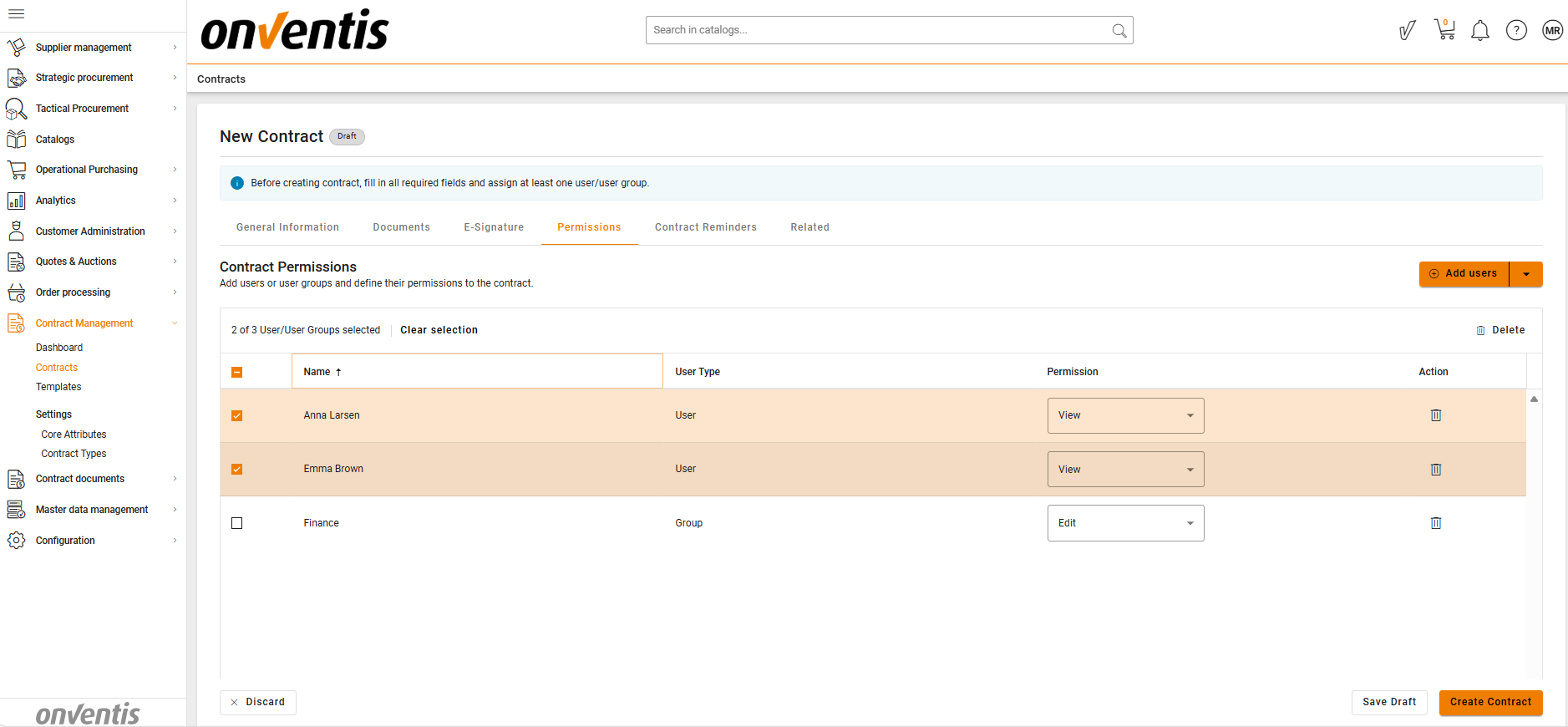
Permissions can be assigned to:
Individual Users, and
User Groups.
Depending on their permissions, users may have the following access levels:
Viewer – Read-only access.
Editor – Can modify contract details, add related contracts, and upload files. (Does not include status transitions and user permission changes.)
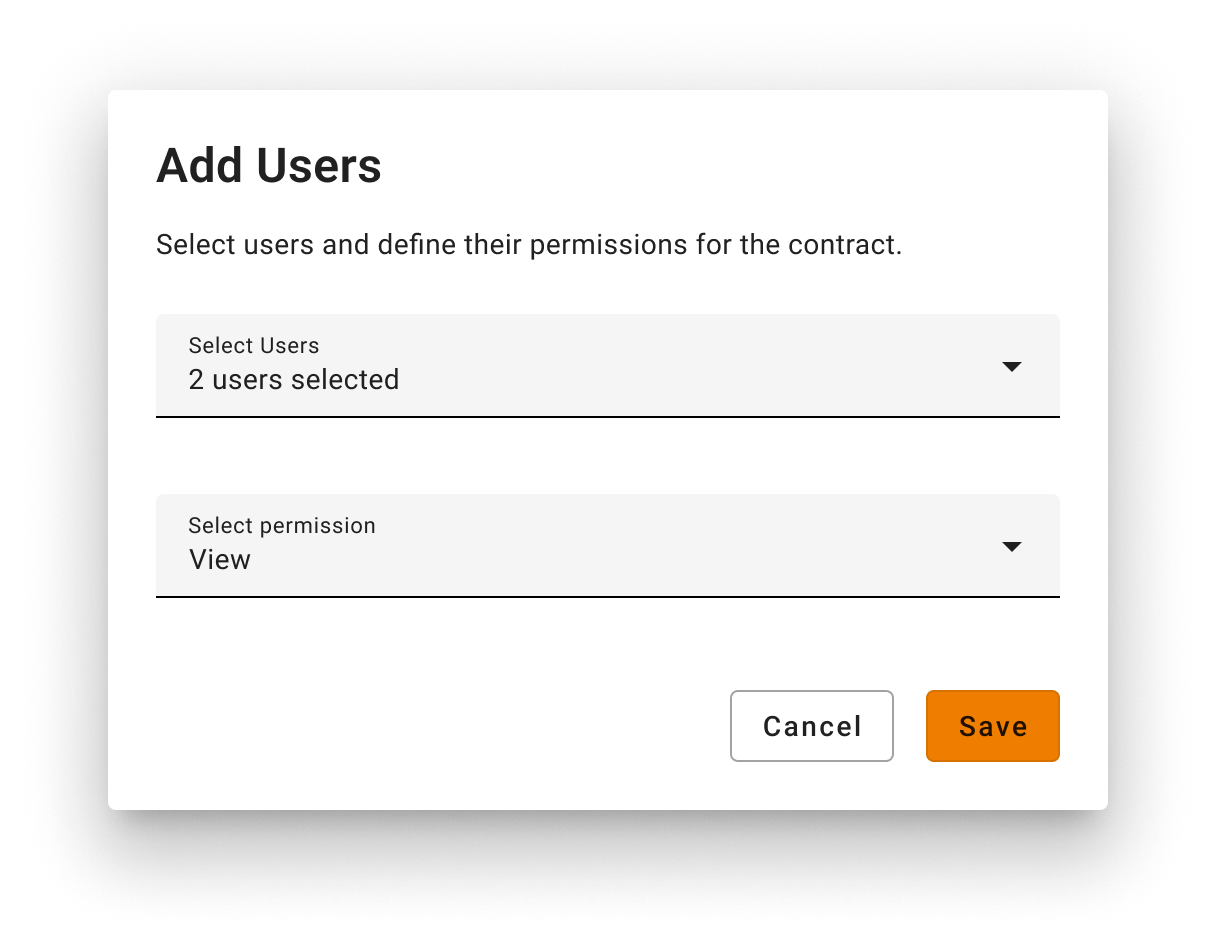
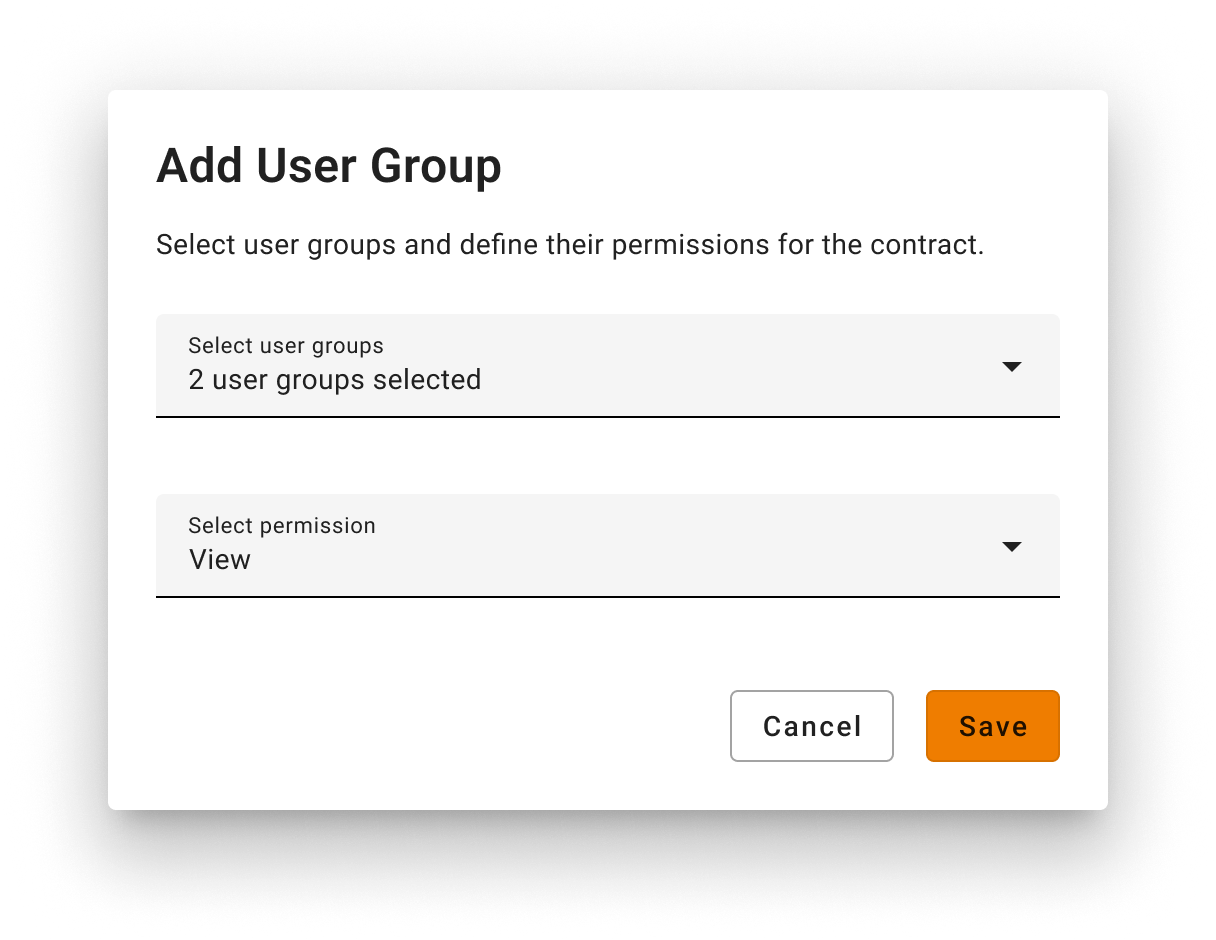
🧩 Note: If a user is assigned both Viewer and Editor roles, the higher level of access (Editor) applies.
🧑💻 Individual Users vs. User Groups
Individual Users
When assigning permissions, the system only displays users with the CLM Business User and CLM Power User rights.
Once granted, these permissions apply regardless of the user’s org unit.
User Groups
When assigning permissions, only groups with CLM-access enabled and belonging to the selected org units appear.
👀 Visibility and Access Rules (“Whitelist Principle”)
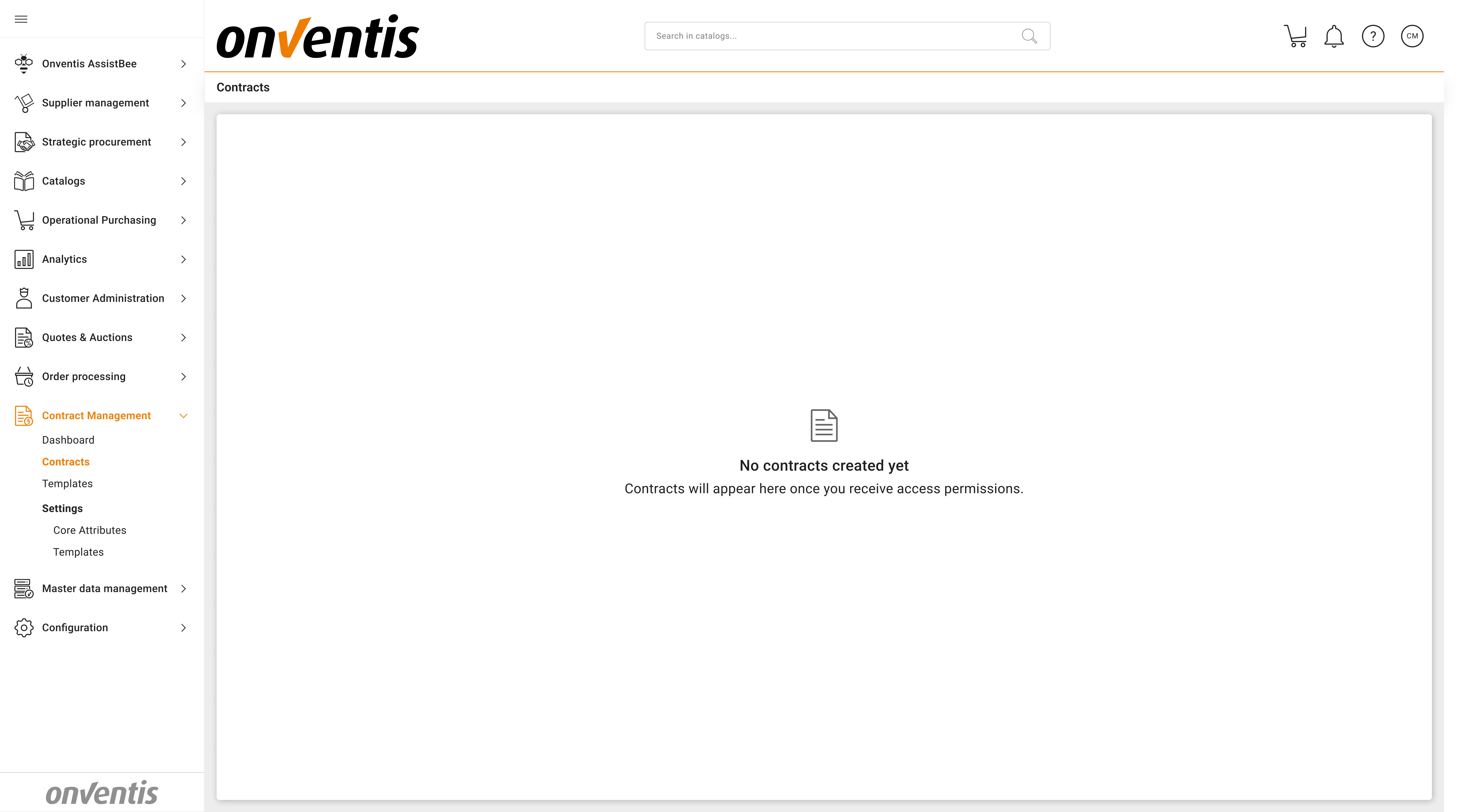
Even if users have CLM Business User license and groups have global CLM-access rights, they will receive access to the global “Contract Management“ module, but they will not automatically see or edit any contracts.
They must be explicitly assigned View/Edit rights for each individual contract.
Without assignment, users will see an empty page with 0 accessible items.
 Inheritance from templates
Any contract created from a template inherits the org units and permissions set at the template level but they can be expanded or adjusted later at the contract level.
🏳️ When Permissions Take Effect
Permissions become active once the contract is moved to the Authoring phase.
While the contract is still in Draft, only the Contract Owner and Administrators have access.
Upon publishing, users and user groups listed in this section will receive email notifications granting them access.
 Limitations
Access control by Contract Type or Document Type.
Best Practices

💡 Tips for Effective Use:
Assign permissions as narrowly as possible to ensure confidentiality.
Use user groups for role-based access and individual users for exceptions.