
New Sourcing Engine - Supplier Side
Access to the Sourcing Event
The way of how you can respond to a Sourcing Event is highly depended on the way the buyer invited you. There are basically three different options.
Regular (You already did business in the past)
When you are invited as a regular supplier, you can follow the link in the invitation email that will guide you to the login screen of the Onventis Supplier Portal.
Otherwise you can visit the URL: supplier.onventis.com and get to the login screen of the Supplier Portal.
If you are already registered in the Supplier Portal you can login with your credentials.
If you are not registered yet, please use the “Join Onventis Supplier Portal” button and follow the registration.
If you need help, you can write an email to “Supplier-Support@Onventis.de”.
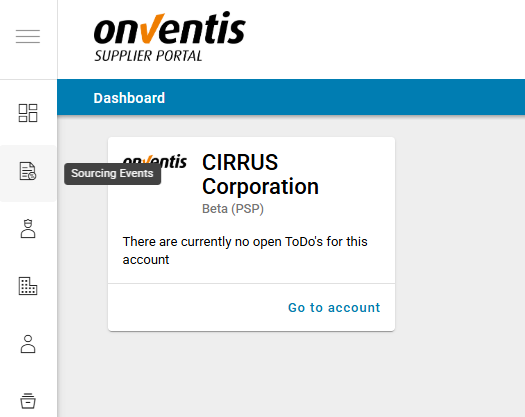
Once you are logged in or registered, you can see a menu entry called “Sourcing Events”.
If you follow that menu entry you are forwarded into the Sourcing Events list.
New supplier (You did not do business in the past)
When you never had a business relationship with the buyer before, you probably receive an invitation that requests you to register and then participate in the Sourcing Event.
To register properly just follow the personalized link in the mail and register in the customers registration form.
If you already are registered in the Supplier Portal you can simplify registration by clicking on “Transfer data” button and enter your supplier Portal credentials.
If you are not registered in the Supplier Portal yet, just follow the registration path.
After your registration in the customers registration form you probably will receive another email that will grant you system access. With this access you will be able to see now the customer tile and the customers Sourcing Events in Supplier Portal (if you have been registered before) or you can now register in the Supplier Portal and see afterwards the customer tile and customers Sourcing Events.
Guest access enabled (You did business before but not via supplier Portal)
When the buyer activated the guest access for you, beside the regular way of participating in a Sourcing Event (see above) there is a separate link within the invitation email.
You can access the Sourcing Event via clicking on the link “Link to Guest Access” without registering in the Supplier Portal first.
In the guest access you can see all data of the Sourcing Event, participate in Q&A and send your response to the buyer. However the access to the Sourcing Event will expire once the Sourcing Event is finished or you submitted your response. If you want to be able to keep track the Sourcing Event afterwards, you need to register in Supplier Portal
Sourcing Events List
The Sourcing Events list shows you the Sourcing Events you are invited to.
Every Sourcing Event is represented by a card:

On that card you can find:
Title
Customers data
Publishing date
Response deadline
Steps that are required for this Sourcing Event
For standard Sourcing Events there are two steps “Participation” and “Response”.
If the customer activated the “Question and Answer Phase”, you will also see “Questions & Answers” step on the card.
You can see the current phase and current status on the card as well.
If there are several rounds or versions of that Sourcing Event, it is visible on that card as well
Sourcing Event Status
The Sourcing Event can have following status:
As soon as you are invited to the Sourcing Event, the Sourcing Event has the status “Participation pending”. As long as the response window is not closed (bidding deadline not met) you can decide if you want to participate in the Sourcing Event or not. If you participate, the “Participation confirmed” state is reached, you can enter your response and questions if Q&A is activated. Also, the Sourcing Events seconds step is activated and state “Response draft” is reached.
If you decide to not participate, Sourcing Event turns “Participation declined” and view only.
During “Response draft” state, if Q&A is not activated, you can also decide to submit your response. If Q&A is activated, you need to wait until the buyer published responses to questions, then submitting the response is enabled. Once your response is submitted, you cannot alter the Sourcing Event anymore and the Sourcing Event state turns to “Response sent”.
If you either do not confirm or reject participation until bidding deadline is met or you did not submit your response on time, the Sourcing Event turns view only and to “Expired” state.
If the buyer cancels the Sourcing Event, the Sourcing Event turns “Cancelled” and view only.
If the buyer creates a new version to the Sourcing Event, the old version of the Sourcing Event turns “Suspended”.
Sourcing Event Details
When you click on the Sourcing Event card you get to the Sourcing Event details. If you use the guest access for Sourcing Events you are directly navigated to Sourcing Event details.
On the top you will find the header section in which you can confirm or decline participation, submit your questions and submit your response:

On the left side you will find the navigation panel, which guides you through the Sourcing Event.
Sourcing Event Information
The first section “Sourcing Event Information” gives you an overview about the customer information, the timeline of the Sourcing Event, the preamble - why this Sourcing Event was published by the customer, and contact persons from the buyer.
Commercial Conditions
Within the step “Commercial Conditions” you will find terms of delivery, terms of payment, currency, contract period and depending on settings the delivery address, date and delivery time. If the buyer filled out data for this information, this data is displayed. If the buyer requested this data from you, you must fill out this information before you can submit your response. Editing buyer´s entered data is not possible. Filling out information is possible as long as you confirmed participation, did not yet submit the response, bidding deadline is not met and Sourcing Event is neither suspended nor cancelled.
Line Items
The line items contain the detailed information of what the buyer is requested from you.
Within the line items you will find title ,type, quantity, price quantity, and probably the description of the line item. On the right side there is an attachment panel in which the buyer might have attached documents to the line items. If the delivery date, the delivery time or the delivery address are not to be found in the commercial conditions, you will find them here.
If the line item is a mandatory line item you must fill out the line item in order to submit your response. If the line item is a optional one you have the possibility to select the “Do not offer” function, if you want to exclude the line item from your offering.
Every price field accepts three decimals. If the buyer requested quantity scales, and you decide to offer that line item, you must enter prices for all those quantity scales.
If the buyer requested a cost breakdown and you want to offer that line item you must fill out the cost breakdown canvas for every quantity scale that the buyer requested.
If the buyer also requested delivery time and or delivery date, this information must also be filled if you want to offer that line item.
Filling out information is possible as long as you confirmed participation, did not yet submit the response, bidding deadline is not met and Sourcing Event is neither suspended nor cancelled.
The format how input fields are to be filled is determined by your culture setting that you can maintain in your supplier Portal profile.
In the line item list you can export all line items to an excel file and you can download all attachments the buyer added in an zip file.
Currently we do not support the import of prices via an upload.
Document Requests
The buyer might have a need for a document, this could be an ISO certificate or something product specific. Every document the buyer wants to receive from you is listed as a certain document request. A document request can be optional or mandatory again. If it is mandatory you must attach a document in order to submit your response to the buyer.
Within the document request you could find a description what the buyer wants and optionally if the buyer added some attachments, also those. To fill out a document request, you can use the clamp on the right side to open the attachment panel and add your attachments there. An attachment must not exceed the file size of 100MB and must be one of the following file types:
.pdf
.docx
.doc
.csv
.xlsx
.xls
.ppt
.pptx
.zip
.png
.jpeg (.jpg)
.dwg
X80
DA80
X81
DA81
D81
X83
DA83
D83
X84
DA84
D84
If you uploaded an attachment, the document request changes its state from “Pending” to “Completed”
Filling out information is possible as long as you confirmed participation, did not yet submit the response, bidding deadline is not met and Sourcing Event is neither suspended nor cancelled.
Questionnaire
In menu entry “Questionnaire” you will find questions that are asked by the buyer.
Some questions might be mandatory, if so, they must be filled otherwise you cannot submit your bid. Some questions might be in dependency to certain answers. Therefore if certain questions appear or disappear, this is intended system behaviour.
If some questions are prefilled with certain responses, you answered an identical question in the past from the same supplier with that exact answer.
Even if all questions are optional you need to save the questionnaire once in order to make the questionnaire valid.
In order to answer a questionnaire your user needs to be admin of the supplier Portal account.
Filling out information is possible as long as you confirmed participation, did not yet submit the response, bidding deadline is not met and Sourcing Event is neither suspended nor cancelled.
Additional information
The menu entry “Additional information” appears once you confirmed participation. Within that text field you can provide additional information for the buyer.
In the attachment panel on the right side you can also upload additional documents that can support the buyers sourcing decision, e.g. an PDF offer or additional certificates.
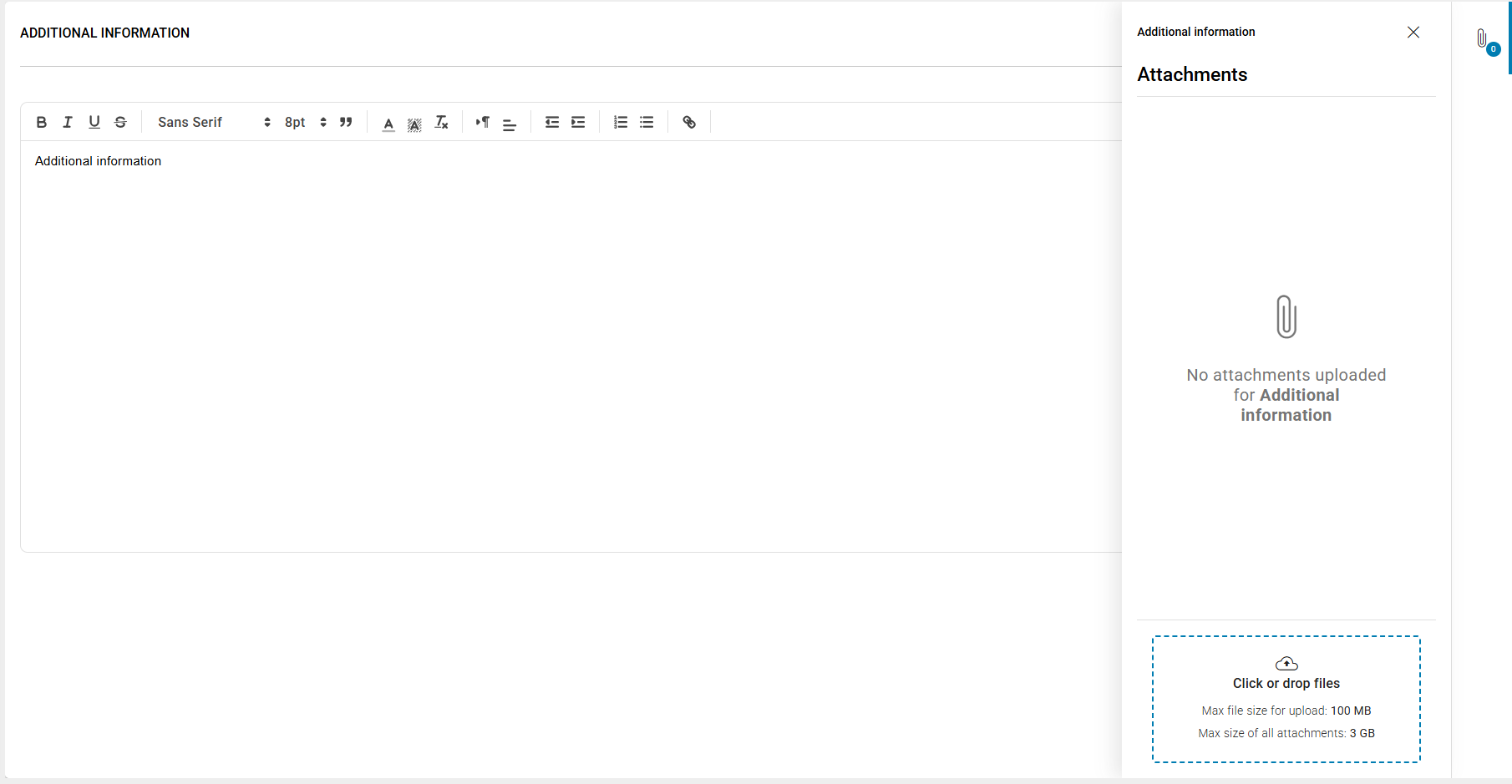
An attachment must not exceed the file size of 100MB and must be one of the following file types:
.pdf
.docx
.doc
.csv
.xlsx
.xls
.ppt
.pptx
.zip
.png
.jpeg (.jpg)
.dwg
X80
DA80
X81
DA81
D81
X83
DA83
D83
X84
DA84
D84
Submitting your response
To submit your response you must have:
Entered prices for all mandatory line items
Make a decision if you want to bid on optional line items
Upload a document for all mandatory document requests
Save the questionnaire
Additionally:
Response status must be “Draft”
Sourcing Event must not be “Cancelled”
Sourcing Event must not be “Suspended”
Sourcing Event must not be “Expired”
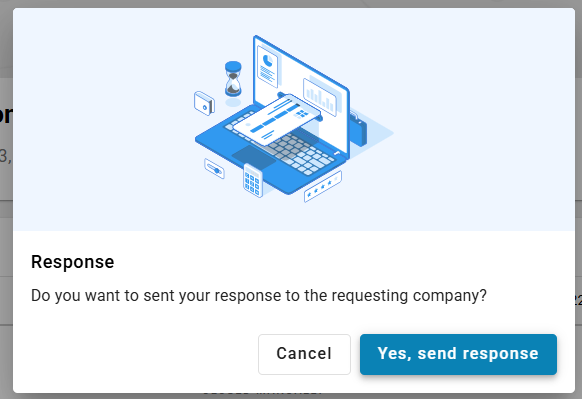
To submit your response you must click on the “Send Response” button on the top right corner in Sourcing Event details and confirm in modal window

Q&A Phase
Sometimes your customer enabled the question and answer (Q&A) phase.
Entering your question
If that is the case, on the Sourcing Event card you will find a third section “Question & Answers”.
In you confirmed participation in Sourcing Event you will find a new menu entry “My questions” and a new icon in the header section:
If you click on the icon, a modal window will open:
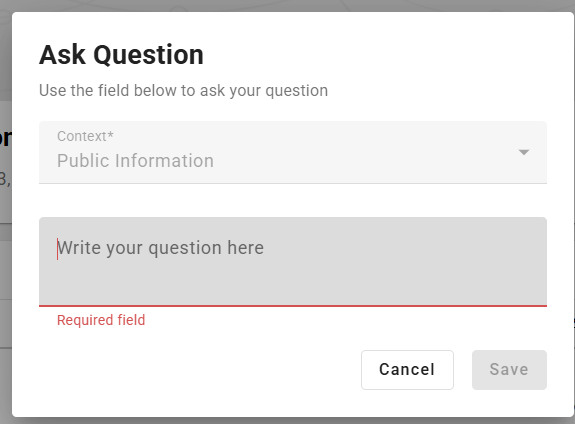
In which you can fill in your question and save your question. If you use the button, the context the question is asked for is already prefilled. This information helps the buyer to correctly connect the question to the sourcing context.
All questions that you create that way will also appear in the “My questions” list
You can also create questions in the “My questions” list. To do so, you can click on the “Add new question” button. In this case you need to select the context the question and then can enter the question in the text field.
Questions can also be edited or deleted as long as:
You did not submit your questions
Question deadline is not met
Sourcing Event is not cancelled
Sourcing Event is not suspended

Submitting your questions
To submit your questions you need to click the “Submit” button on the top right corner and confirm your decision. Attention: You can only submit your questions once. After submitting the questions you can still work on the creation of the bid but sending the bid is blocked until the buyer published the answers to your questions.

Answers to the questions are visible as soon as the buyer published them in the “My questions” list
Public Q&A does not exist yet in the application.
RFP Process
If the buyer created an RFP - Request for Proposal - Sourcing Event, after you confirmed participation, there is a new menu entry “Supplier line items”. As long as:
You did not submit your response
Response deadline is not met
Sourcing Event is not cancelled
Sourcing Event is not suspended
You can create line items on your own. To do so, you can click on the button “Add line item” or you can use the second option “Add as service” if you want to add a service item. If service is available depends on buyer´s configuration.
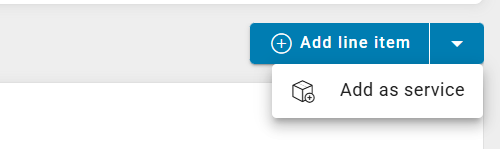
When you create a line item you must enter:
Title
Price quantity (default 1)
Base quantity
Price Amount
Unit of measurement
You can also decide if you want to add up to ten quantity scales.
You can also fill out following fields optionally:
Item number
Manufacturer item number
Manufacturer name
EAN/GTIN
Line item description
Depending on buyer´s configuration there can also be following options / fields:
Delivery schedule (if you use this, the use of quantity scales is not allowed. Per delivery increment you need to fill out quantity and date. The total quantity is calculated and for that you can enter the price)
Delivery date
Delivery time
Line Items that are saved appear in the line item list:

Line Items can be edited, copied and deleted as long as the line items are editable.
You can also export your line items to and Excel file.
Import of your created line items is not supported.
Awarding results
When an awarding is completed, you may be informed about the result.
What you can see
After the awarding decision is completed, you may:
See whether you won or did not win
See which line items and quantities were awarded to you
Where to find results
Awarding results may be available directly in the Sourcing Event
An Awarding summary may be provided after the buyer finishes the decision
If you are not selected
You may be informed if you did not receive an award