
How to upload Documents and Versions

This article explains how users can upload documents and new versions of existing documents to a contract, and how document versioning is managed in the CLM system.
🗺️ Overview
Documents attached to a contract represent its legal and supporting content. The CLM system uses versioning to ensure that changes to documents are tracked over time, providing transparency, traceability, and control.
Users can upload:
A new document to a contract, or
A new version of an existing document
Each option serves a different business purpose and should be used accordingly.
🧑🦱 Who Can Use This
Document upload is available to users with appropriate create and edit permissions, such as:
CLM Power User
Editors
Users with view-only access cannot upload documents or versions.
📑 Uploading a New Document
Users can upload any required contract-related files, such as draft agreements, appendices, or price sheets.
Only one file can be uploaded at a time.
Each uploaded file passes an antivirus (AV) check.
During file upload, users can manually indicate whether a document is:
Signed (Yes/No) –
If marked as Signed, the document’s metadata is locked for editing (except for new file versions) and should not be sent for signature.
If not signed, the document remains fully editable and can be sent for signature.
A contract can be moved to the Active phase only if at least 1 document is marked as signed, ensuring that the final, approved version of the agreement is formally executed.
For External Use (Yes/No) –
If marked as No, the document is intended for internal use only and should not be sent for external negotiation or signature.
If marked as Yes, the document is eligible for external negotiations, signature and can be shared externally.
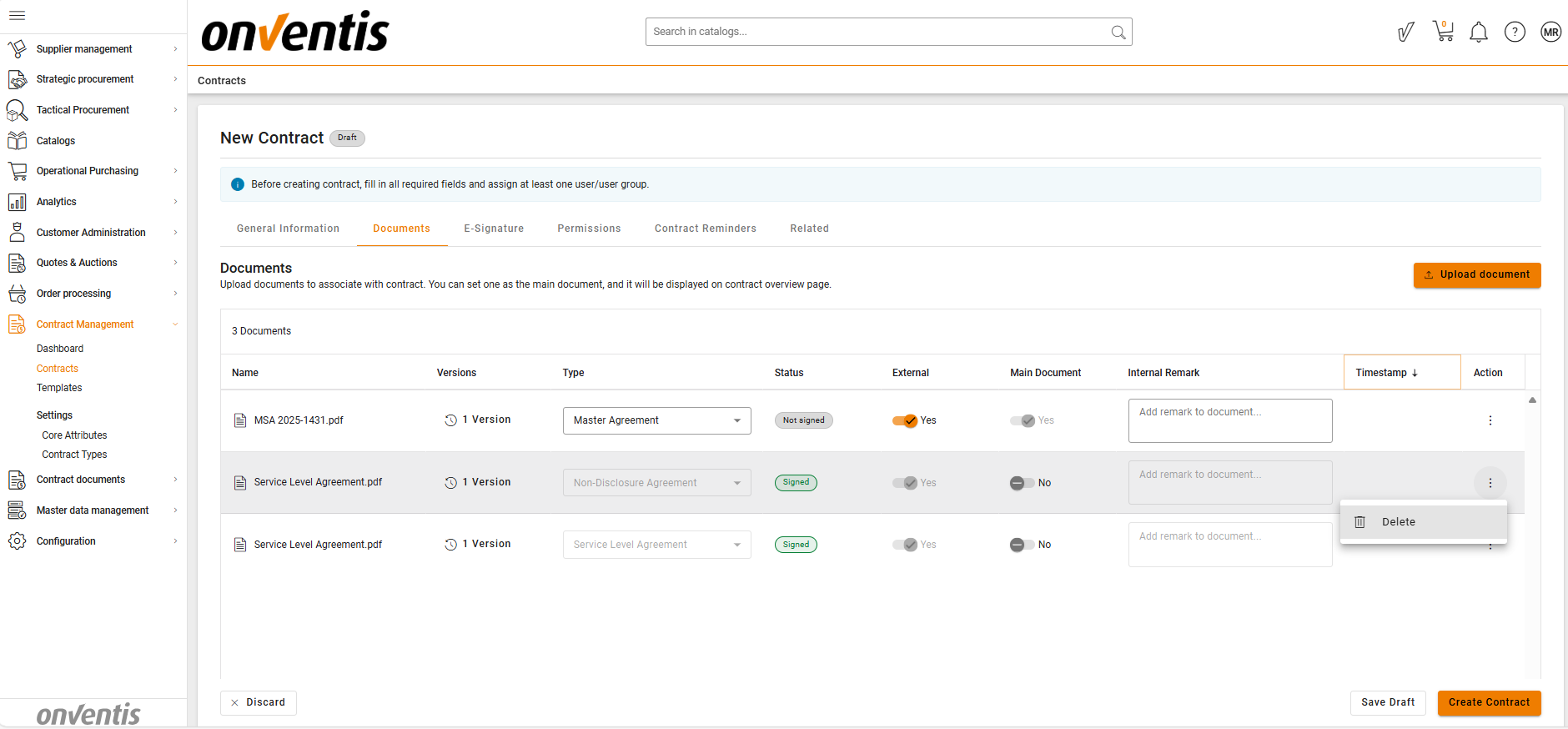
Set as Main Document –
Only one document can be set as the Main file within a contract.
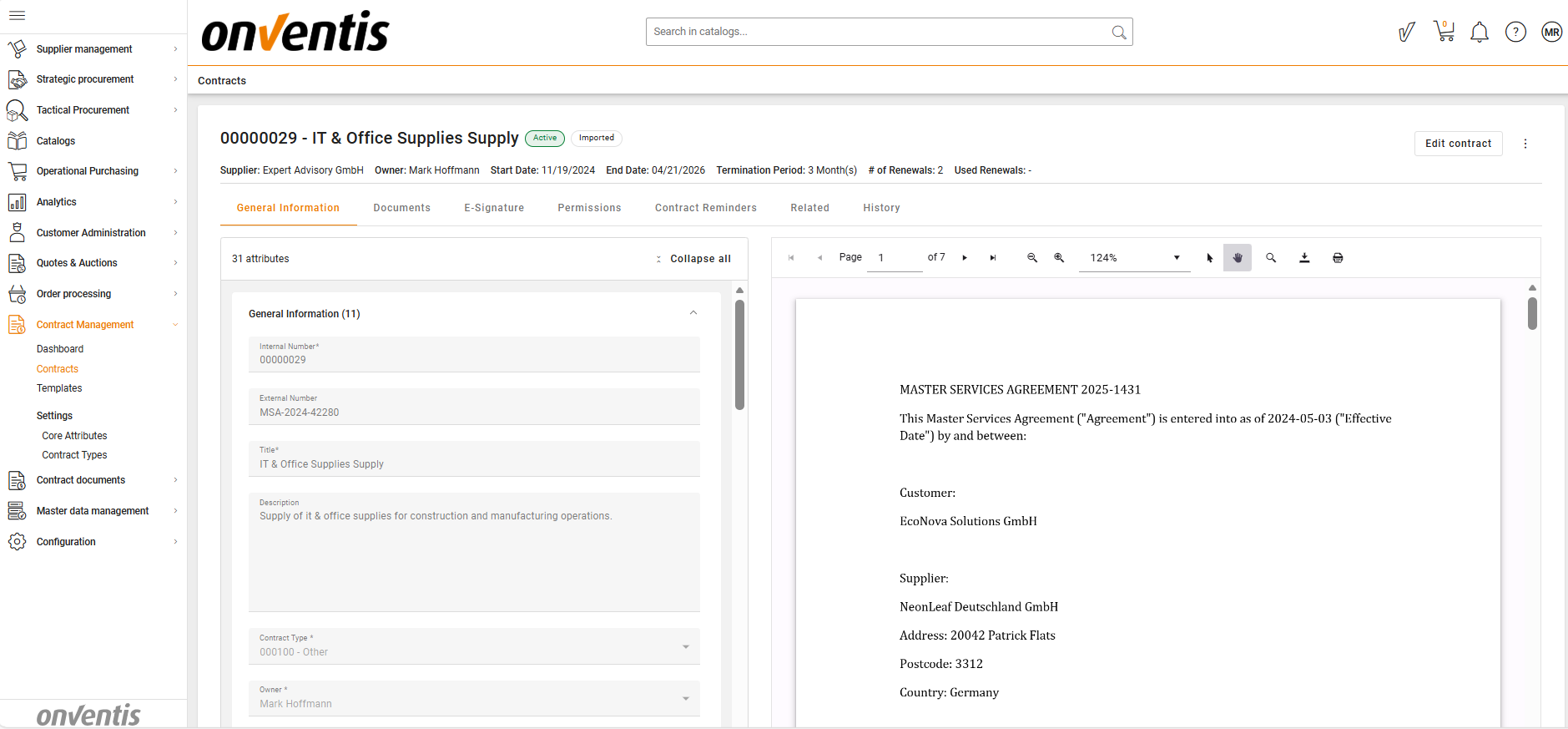
The Main document will be displayed on the Contract Overview page in the previewer for quick reference.
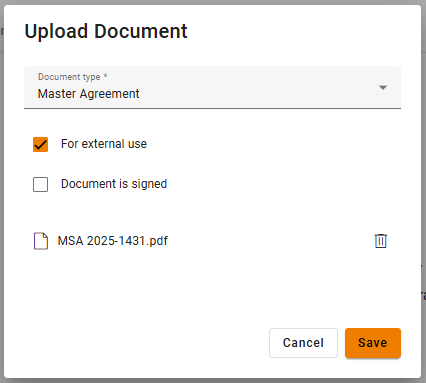
Once uploaded:
The document appears in the contract’s Documents section
The initial upload is stored as Version 1
📑 Uploading a New Document Version
Uploading a new version updates an existing document while preserving its history.
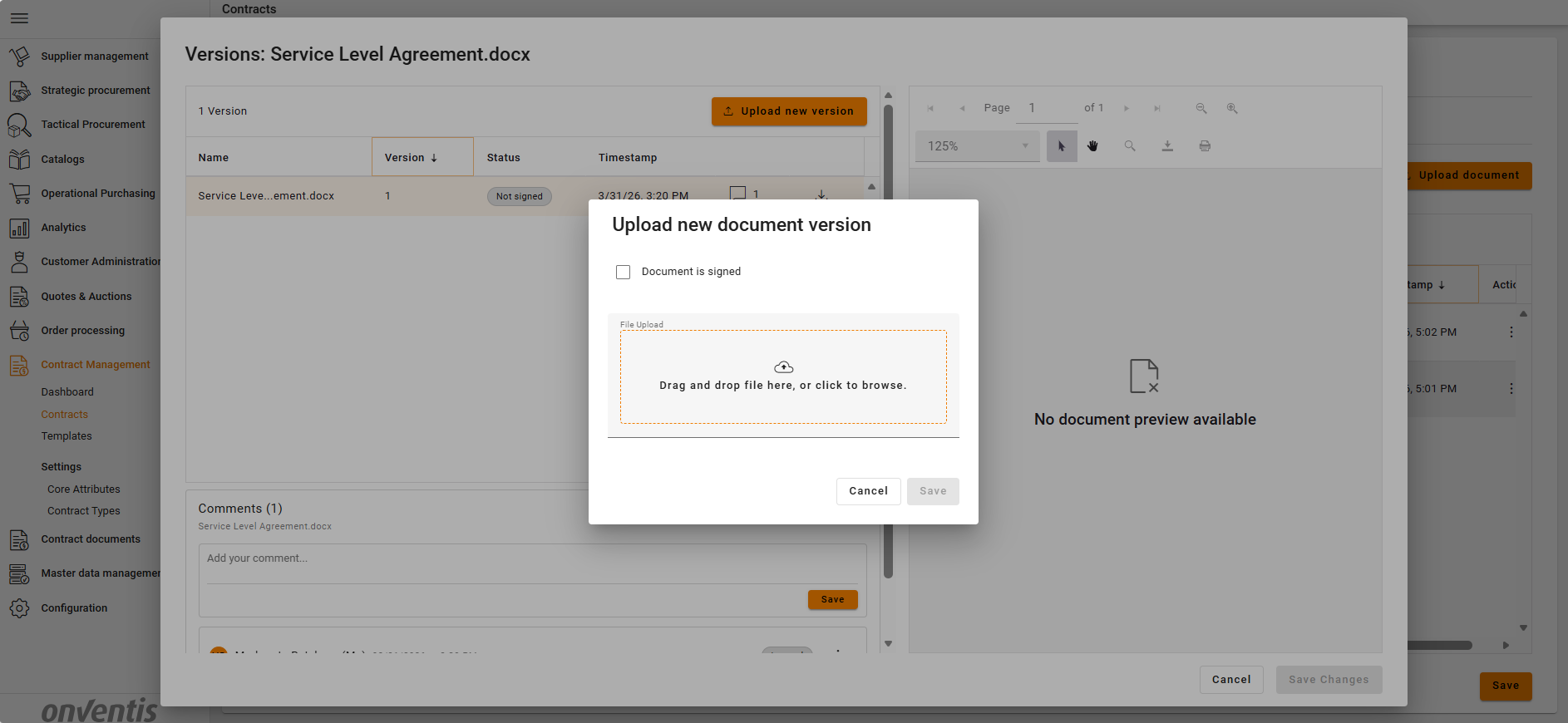
Use this option when:
Replacing or revising the content of an existing document
Uploading an updated draft or signed version
When a new version is uploaded:
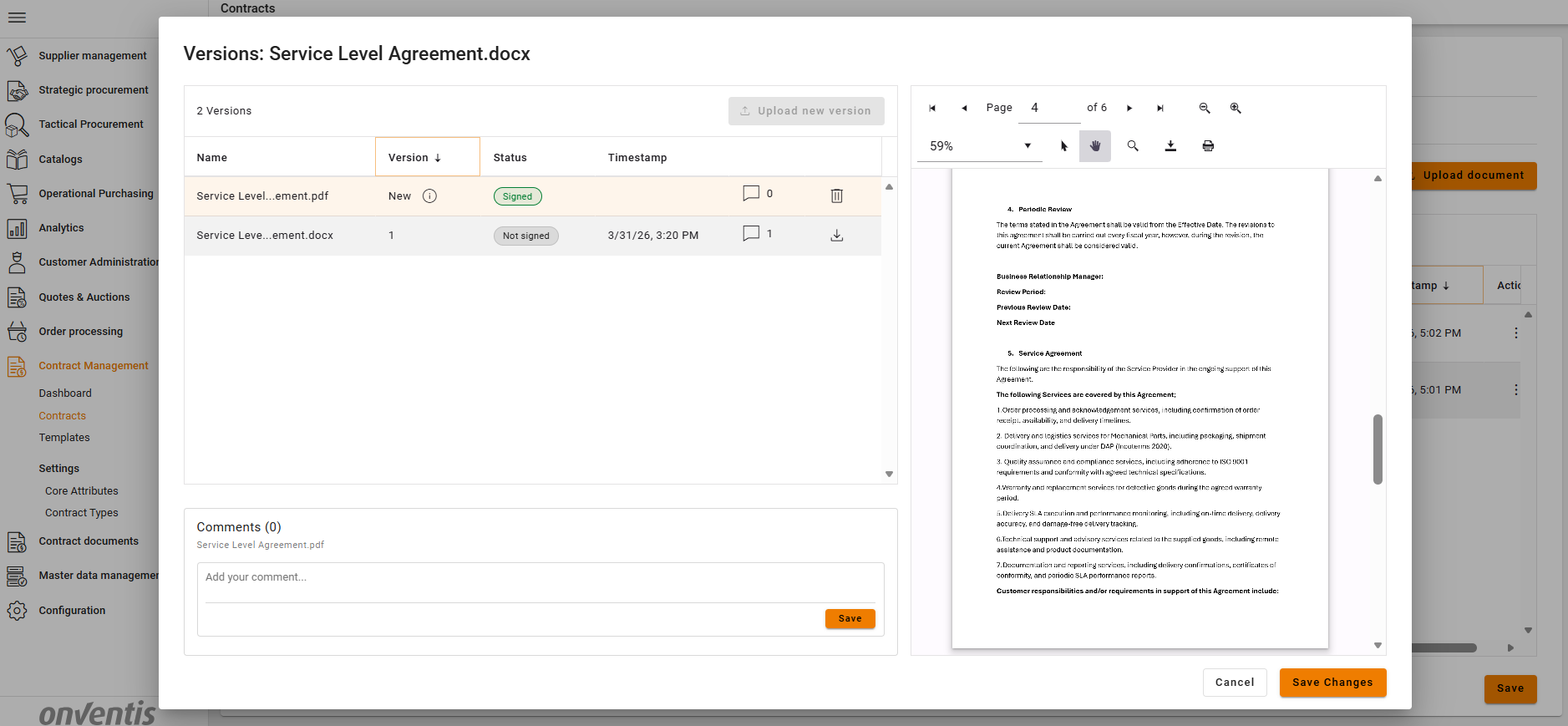
A new version number is created
Previous versions remain available for reference
Version history clearly shows changes over time
Version Control and Traceability
Only one version of a document is considered current at any time and is displayed on the main Contract Overview page
Earlier versions remain read-only and cannot be overwritten or deleted
Versioning ensures auditability and prevents accidental data loss
Best Practices

💡 Tips for Effective Use:
Upload a new document only when the content is distinct and should be tracked separately.
Upload a new version when updating or correcting an existing document.
Verify you are uploading to the correct document to maintain a clean version history.
Use clear file naming to make document versions easier to identify.