
How to transition a Contract to Active

Activation means a contract becomes legally effective.
🗺️ Overview
CLM Power Users can manually activate a contract once it is fully signed and ready for execution.
Activation represents the transition from a signed or finalized draft to an Active contract, enabling all operational and reporting capabilities available in the active phase.
🧑🦱 Who Can Use This
Only users with the following roles can activate contracts:
CLM Power User
✅ When a Contract Can Be Activated
A contract can be manually activated in the following cases:
1. Contract Status = Signed
2. Contract Status = Draft with at least one Signed Document when a contract is bulk-imported.
⚙️ How to Activate a Contract
Open the contract you want to activate and review its key details.
Initiate the activation from the contract workflow.
The system validates the contract dates to ensure the contract can become effective.
If the contractual Start Date is later than the activation date, activation is blocked and a warning is displayed.
If all validations are met, the contract status changes to Active.
For contracts activated from Draft, access permissions defined for the contract are automatically shared with users and user groups from the Permissions tab.
The contractual Start Date remains unchanged.
An email notification is sent to the CLM Power User and Viewers/Editors to inform them that the contract has been activated.
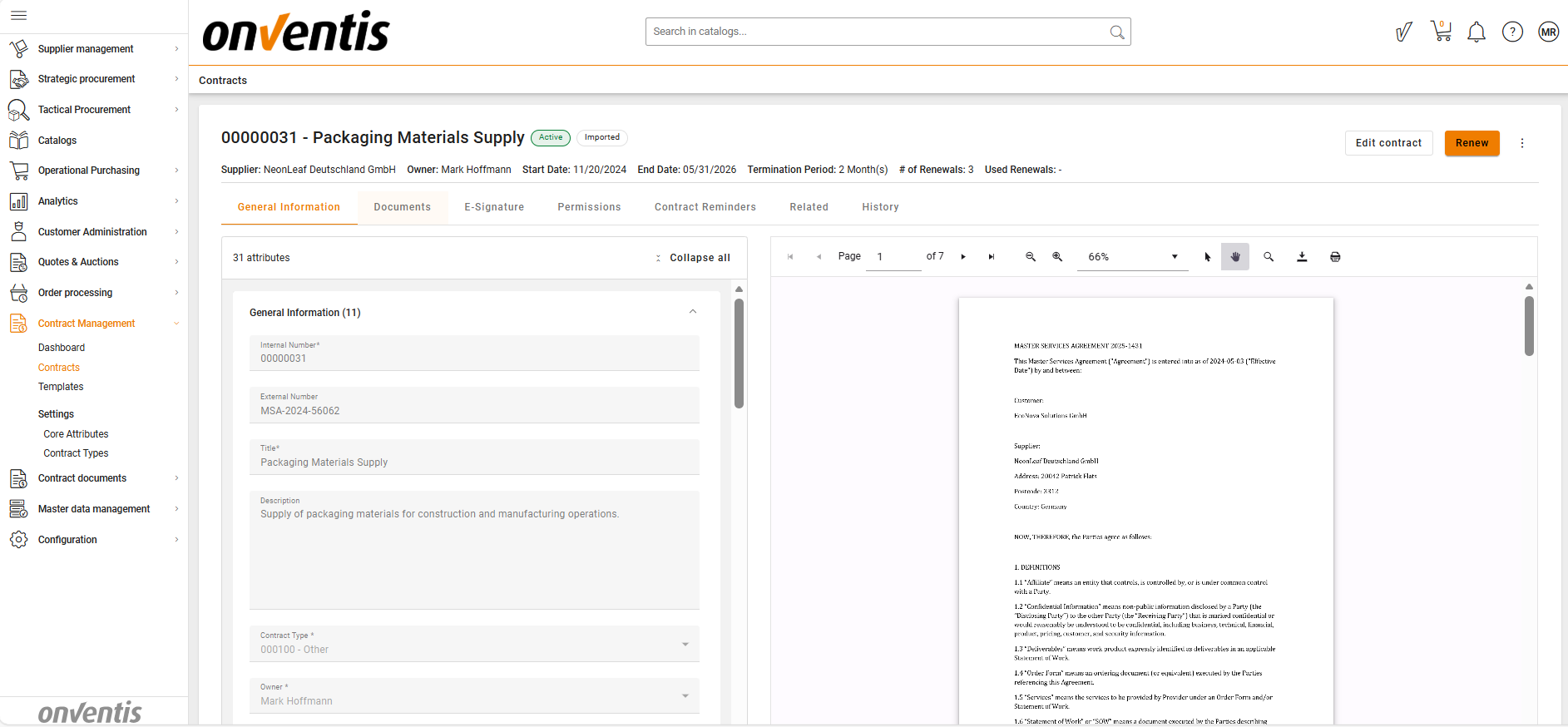
 What Happens After Activation
Once a contract is activated, it moves into the Active phase, enabling all operational and monitoring features within CLM.
Dashboards and Reporting:
The contract becomes part of all relevant analytics, contributing to performance tracking.Renewal and Expiration Tracking:
The system begins tracking the contract’s lifecycle milestones, including upcoming renewals, and expirations.Permissions and Access:
Users and user groups granted permissions during the setup phase retain or gain access according to their assigned rights.
↔️ Allowed Transitions from/to Active
Transition | Description |
|---|---|
Signed → Active |
|
Draft → Active |
|
Active → Inactive |
|
Active → Terminated |
|
Inactive → Active |
|
Active -> (Renewed) → Active |
|
 Limitations
The system does not auto-activate contracts based on Start Date or any other parameter.
Activation must always be performed manually by the CLM Power User.
Best Practices

💡 Tips for Effective Use:
Ensure the Start Date reflects the intended effective date; contracts cannot be activated before their contractual Start Date.
Activate contracts only when they are fully finalized, as Active contracts immediately appear in dashboards, reports, and lifecycle tracking.
For bulk‑imported contracts, use activation to quickly bring legacy agreements into operational visibility without re‑authoring them.