
How to transition a Contract from Active to Inactive

This article explains when and how a contract moves from Active to Inactive, what this status means for the business, and what actions remain available after inactivation.
🗺️ Overview
A contract becomes Inactive when it is no longer in effect but still needs to be retained for reference, compliance, or future actions. This can happen either manually, when a responsible user decides the contract should no longer be active, or automatically, when the contract reaches the end of its lifecycle based on dates and renewal rules.
Moving a contract to Inactive helps organizations clearly distinguish between contracts that are currently enforceable and those that have ended, without losing important contractual information.
🧑🦱 Who Can Use This
Only the following roles can transition a contract from Active to Inactive:
CLM Power User
Other users will not see the Deactivate option at all.
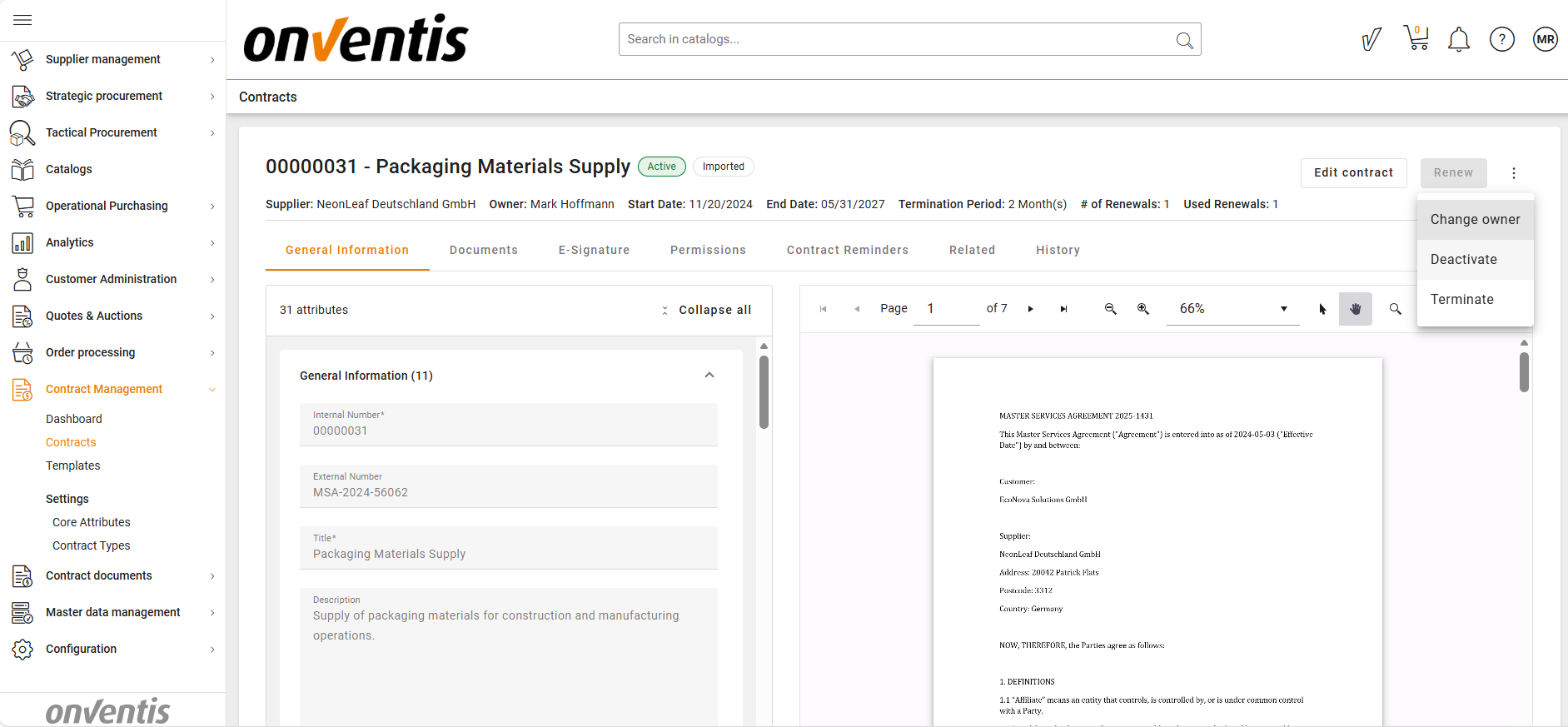
✍️ Manual Deactivation
A CLM Power User can manually deactivate an Active contract.
Once confirmed, the contract status changes to Inactive immediately.
The Start Date and End Date remain unchanged to preserve the contract’s legal history.
An email notification is sent to inform CLM Power User and Editors/Viewers that the contract has been inactivated.
🧑💻 Automatic Deactivation
A contract is automatically set to Inactive by the system when all of the following conditions are met:
The contract reaches End Date + 1 day, and
One of the following applies:
The contract does not have a renewal clause, or
The contract has a renewal clause, but all allowed renewals have already been used.
The contract has a manual renewal clause, but renewal was not triggered manually.
After automatic deactivation occurs:
The status changes to Inactive without user action.
The System is recorded as the actor of the change.
Contract dates remain preserved.
An email notification is sent to inform CLM Power User and Editors/Viewers that the contract has been inactivated.
✅ What Happens After Deactivation
Once a contract is Inactive:
Renewal is no longer available.
The contract remains visible in View mode, with limited actions based on user role.
Available actions:
Edit – available to CLM Power Users, and Editors
Archive – available to CLM Power Users
Reactivate – available to CLM Power Users
Change Owner – available to CLM Power Users

💡 Note: Inactive contracts are fully editable as Active contracts.
Best Practices

💡 Tips for Effective Use:
Avoid deactivating a contract while someone is actively editing it to prevent lost updates or confusion.
Use manual deactivation when business decisions change before the contract naturally ends.
Rely on automatic deactivation to consistently manage contracts that reach their natural expiration.
Review inactive contracts regularly to decide whether they should be reactivated, archived, or kept for reference.