
How to set up Custom Views in the Contract Repository

Custom Views allow you to quickly access the contract lists that matter most to you.
They help you work efficiently by saving your preferred filters, sorting, column selections, and grouping — so you can return to them with a single click.
Custom Views streamline navigation and eliminate repetitive setup in the Contract Repository.
🗺️ Overview
Custom Views make it easy to adjust the Contracts Grid to your needs:
Apply filters, sorting, grouping, and column configurations
Save these settings as a personal view
Switch instantly between different views you’ve created
Define a default view that loads automatically when opening the Contract Repository
Custom Views help you stay organized and efficient, especially when working with large contract portfolios.
🧑🦱 Who Can Use This
All users with access to the Contract Management module and visibility to the Contract Repository can create, save, and use Custom Views.

💡 Note: Users will only see contracts permitted by their access rights.
💼 Where Custom Views Can Be Set Up
Custom Views are configured directly in the Contract Repository.
You can customize:
Columns — show/hide or reorder attributes
Filters — narrow results by supplier, contract type, status, dates, and more
Sorting — sort by any available field
Grouping — group contracts by supplier, contract type, material group, etc.
Once configured, you can save your layout as a personal Custom View for quick reuse.
💡 How Custom Views Work
Custom Views capture your entire grid setup, including:
Columns
Filters
Sort order
Grouping
Layout preferences
Personal Views Only
All Custom Views are personal.
They are visible only to the user who created them.
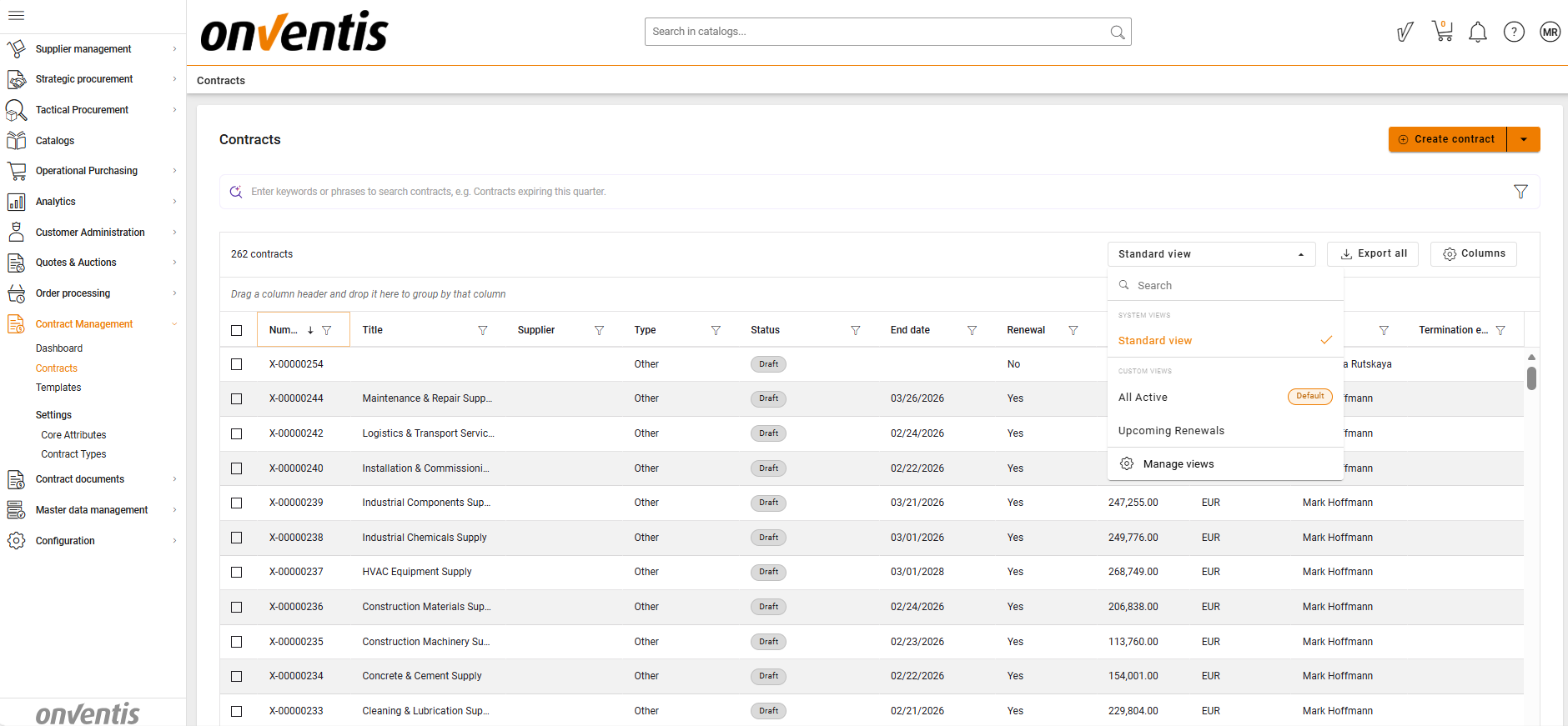
Standard (System) View
The system‑provided Standard View appears in the view list together with your Custom Views.
Saving from the Standard View always creates a new Custom View.
Updating and Saving Views
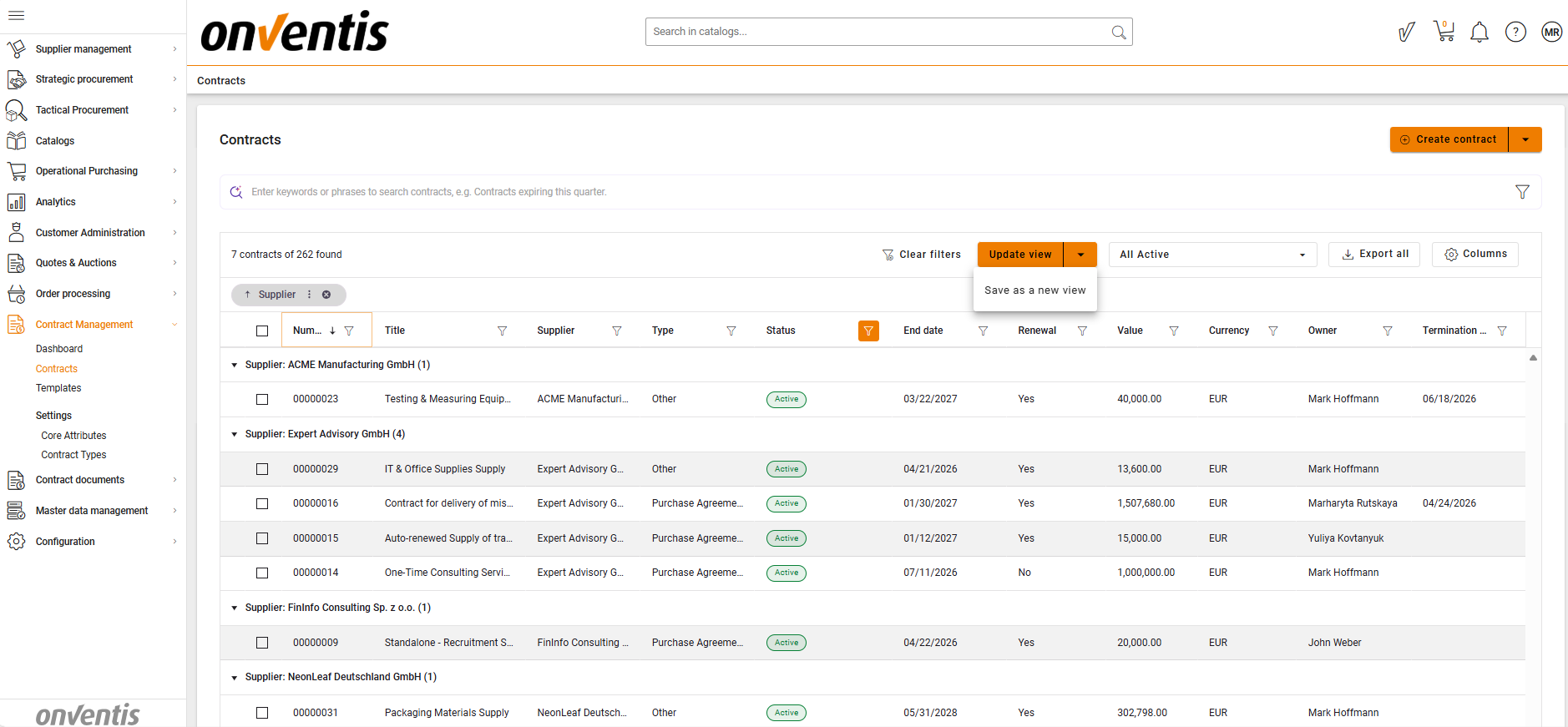
If you open one of your own Custom Views and modify it:
You may update the existing view
Or choose Save as new to create another version
Setting a Default View
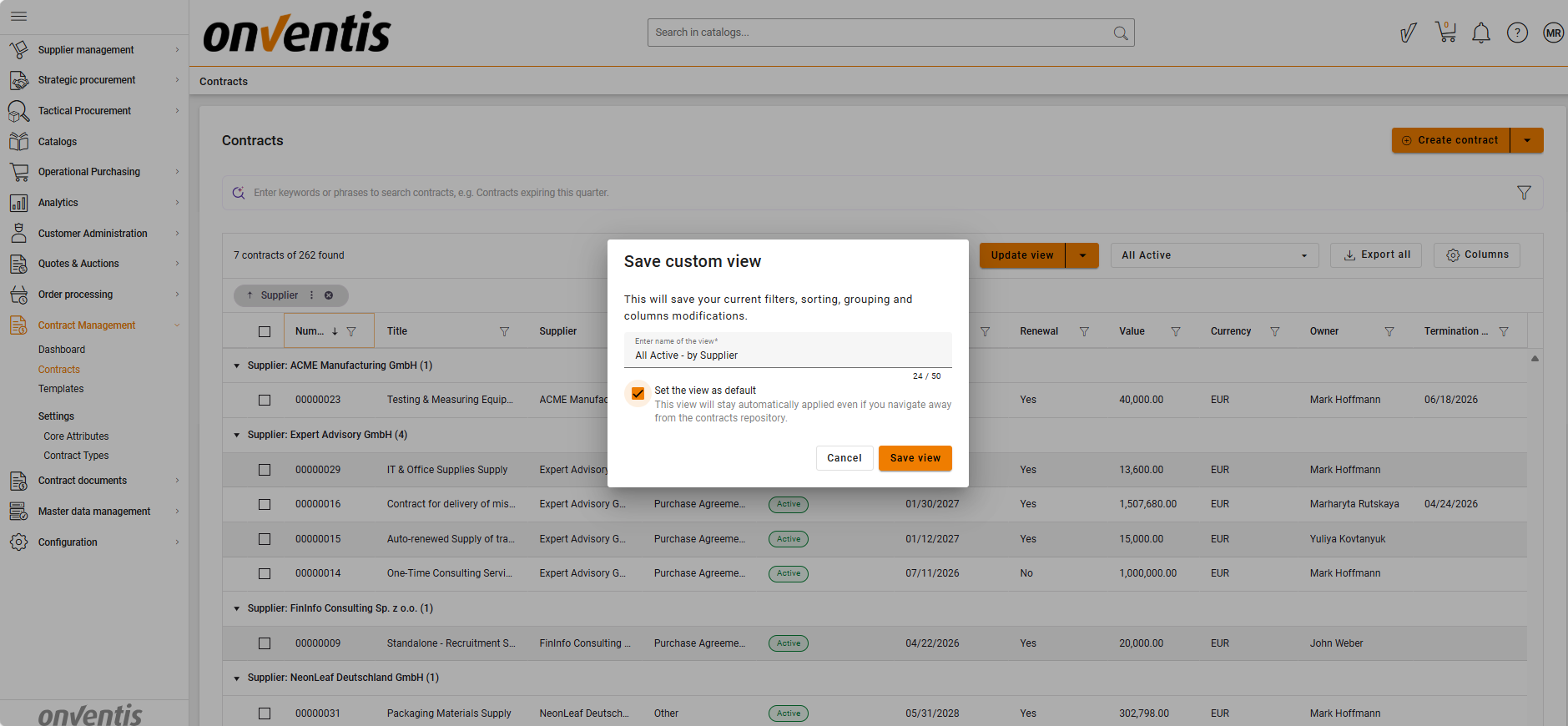
You can mark any personal Custom View as your default
Your default view loads automatically every time you open the Contract Repository
All users start with the Standard View as their default
If the default view is deleted, the system automatically falls back to Standard View
Temporary View
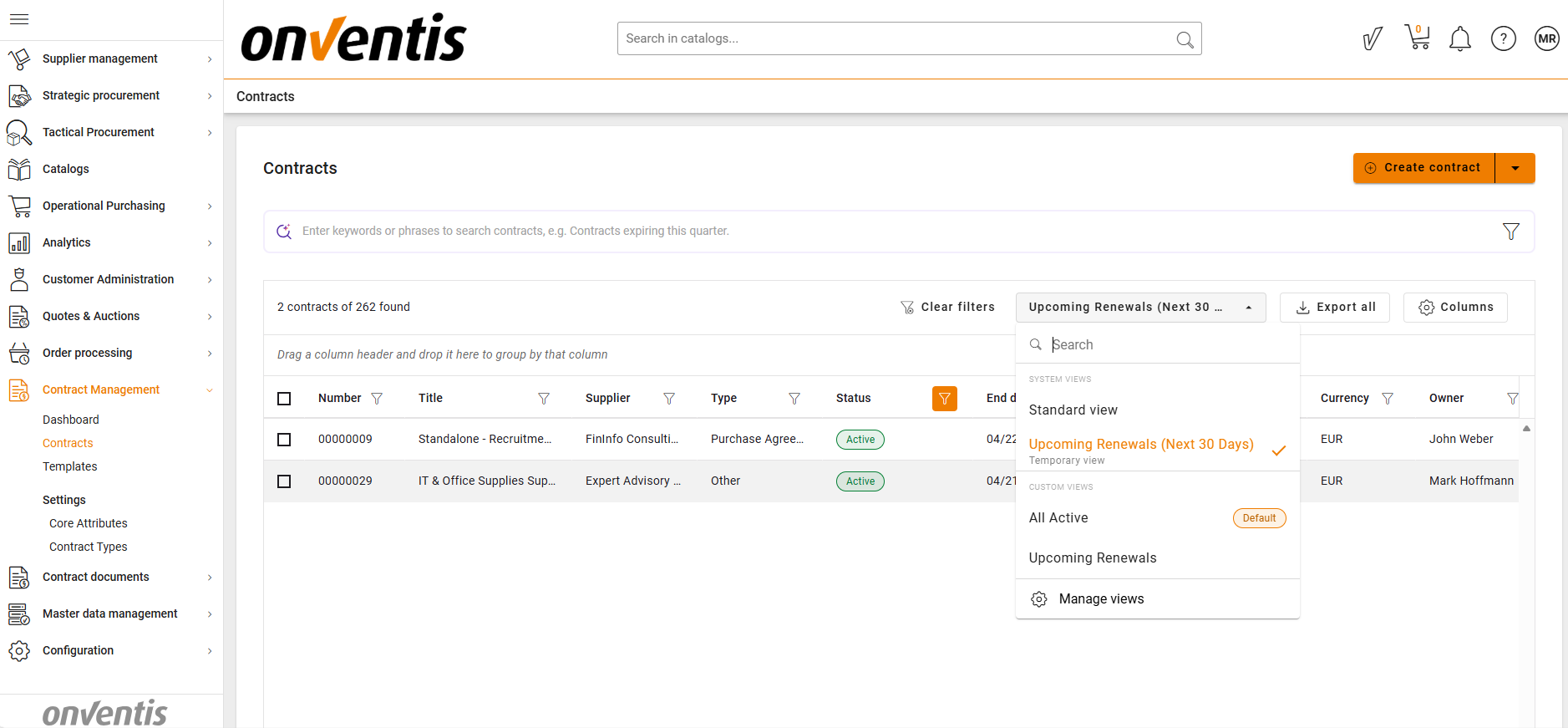
A temporary view is created automatically when you navigate from a dashboard widget to the Contract Repository.
It reflects dashboard‑applied filters (visible and hidden)
It does not overwrite any saved Custom View
It cannot be saved — even if modified
Once you leave the page, the temporary view disappears
📌 Typical Use Cases
Renewal Management View
Create a view filtered by end dates and statuses to monitor upcoming renewals.
Supplier‑Focused View
Group contracts by Supplier to analyze distribution and value.
Category‑specific view
Filter by Material Group and save a view for category reviews.
⚠️ Limitations
All Custom Views are personal — no shared or public views are supported yet.
Modifying grid settings under a temporary view cannot be saved.
Custom Views do not include non‑system fields because custom attributes are not displayed in the grid.
Best Practices

💡 Tips for Effective Use:
Create dedicated views for recurring tasks (renewals, supplier analysis, contract types).
Keep view names clear and descriptive for easy navigation.
Use your default view to load your most relevant working layout instantly.