
How to register Metadata for a Contract

This article explains how to register and manage attributes for a contract in CLM.
🗺️ Overview
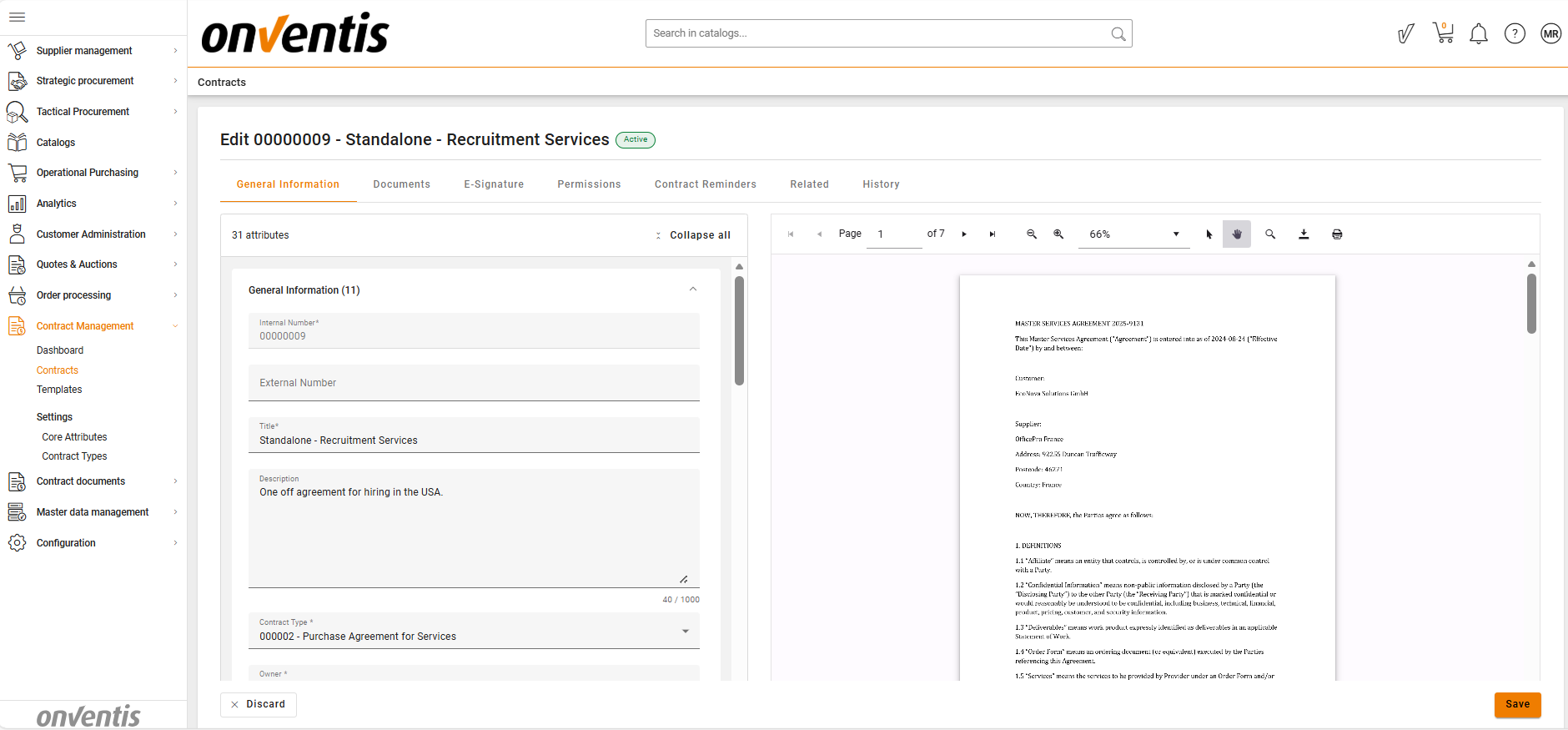
Register and manage metadata for a contract in CLM, including which fields are filled automatically, inherited from templates, or need to be completed manually.
🧑🦱 Who Can Use This
Depending on access rights or permissions:
CLM Power User can register metadata during contract creation and view and edit metadata during contract editing (starting from Draft).
Contract Editors can view and edit metadata during contract editing (starting from Authoring).

💡 Note: Contract Editors can modify limited attributes; CLM Power Users can edit all.
✅ Automatically Filled Fields
Some fields are automatically populated by the system or based on the contract creation method:
Internal number – automatically generated after saving a draft (read-only, hidden before saving).
Contract owner – the user creating the contract is automatically set as the owner.
Template, Contract type – copied automatically if the contract is created from a Template.
Supplier details (address, email, post code, etc.) – if a supplier is searched by name and selected.
Default values (where applicable): Unit for initial duration, Has renewal clause, Unit for renewal duration, Unit for termination period, Has no end date.
⚠️ If a contract is created from scratch (without a Template):
Template field is empty and read-only.
Contract type defaults to “Other” but can be changed before saving.
✍️ Manually Filled Fields
No fields are automatically filled from documents.
If any details in documents change (e.g., supplier, value, start/end date), users must update them manually in the metadata fields.
Some fields are required depending on the Contract status (e.g., Active).
Supplier Details
To link supplier information:
Start typing the supplier name in the Supplier field (search begins after 1 character).
Select a supplier from the results.
All supplier-related fields (VAT, Address, Country, Contact, Phone, Email) will be auto-populated and stay read-only.
Value and Currency
Currently, no automatic currency conversion is applied. All values are stored in the currency selected by the user.
⚠️ Only contracts with values in EUR are included in dashboards.
Owner Field
The Contract Owner field is not editable during contract creation, and editable by the CLM Power User during editing.
Setting a user as a Contract Owner does not automatically grant them owner access rights.
⚠️ Make sure that the assigned Contract Owner has the correct rights.
🔀 Metadata Dependencies
Some metadata fields in a contract are interdependent. The system automatically enables, disables, or requires certain fields based on user input to ensure logical data consistency.
Contract Value and Currency
If Contract Value is entered, Currency becomes required, and vice versa.
Has Renewal Clause
If Has Renewal Clause - yes, both Renewal Duration and Number of Renewals become required fields.
If Has Renewal Clause - no, Auto-Renewal, Renewal Duration and Number of Renewals become disabled and cannot be filled in.
Has No End Date
If Has No End Date - yes, the End Date field becomes empty and disabled, Has Renewal Clause becomes no, and Lock-in period becomes enabled.
If Has No End Date - no, End Date becomes a required field.
Start date / End date
If Start date and End date both entered - End date should be more than Start date.
Best Practices

💡 Tips for Effective Use:
Since the system doesn’t auto-update fields based on document changes, manually update key attributes (e.g., Value, Supplier, Effective Dates) when new versions of documents are uploaded or signed.
Save your changes regularly to avoid losing data during long editing sessions.