
How to create a Template

Templates serve as blueprints for future contracts. They define the default content that will be reused whenever new contracts are created.
🗺️ Overview
Each template includes predefined attributes, documents, and user permissions, allowing users to quickly generate contracts.
🧑🦱 Who Can Use This
Only users with the CLM Power User license can create, edit, or manage templates.

💡 Note: Users who create or edit contracts can use active templates to generate new contracts but cannot modify the templates themselves.
 General Info Section
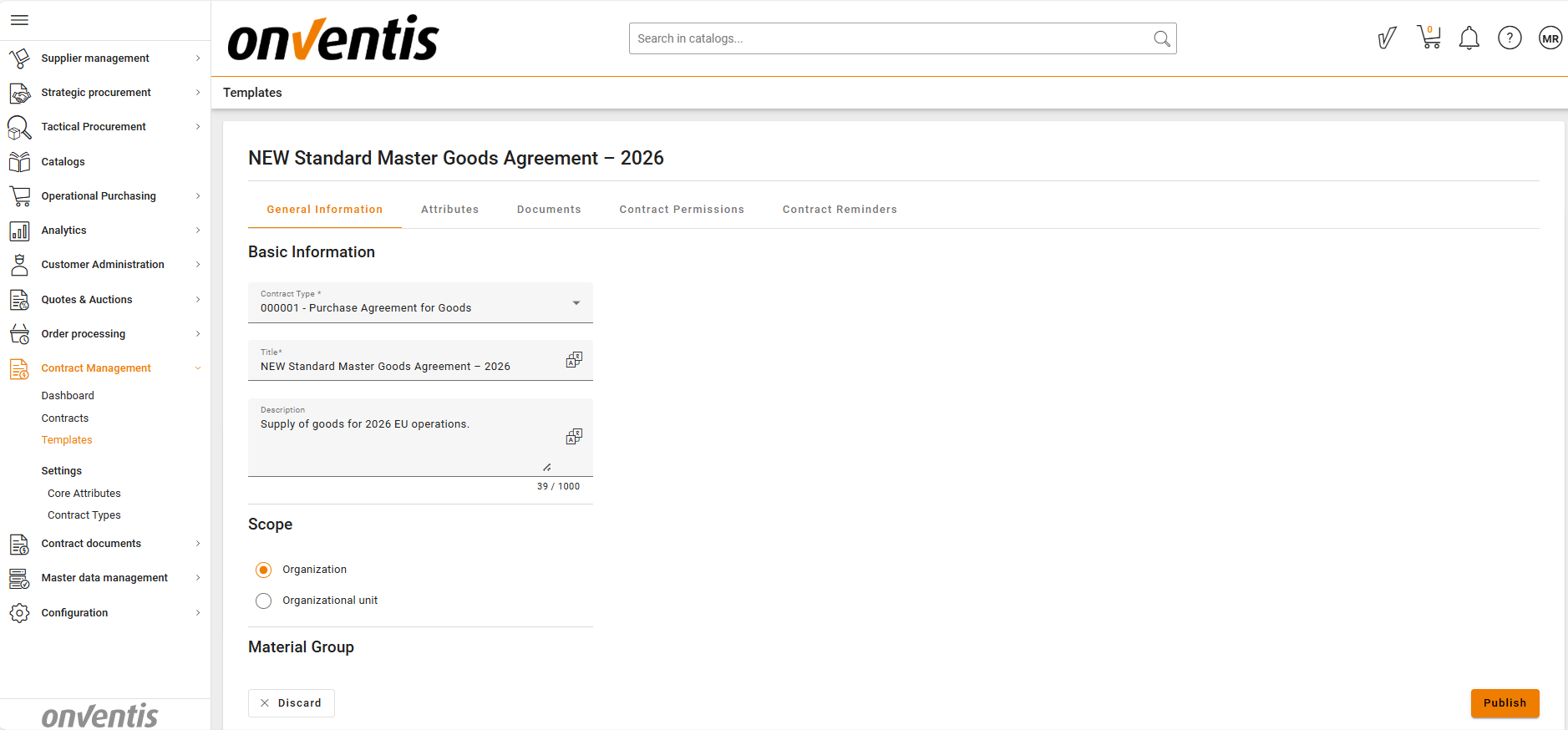
In this section, you define the essential details of the template:
Title and Description – Provide a clear and recognizable name and summary for the template.
Contract Type – Select one system-defined or custom contract type (e.g., Purchase Agreement for Goods, etc.).
Organizational Units – Choose whether the template applies to specific business units or the entire organization.
⚙️ Attribute Section
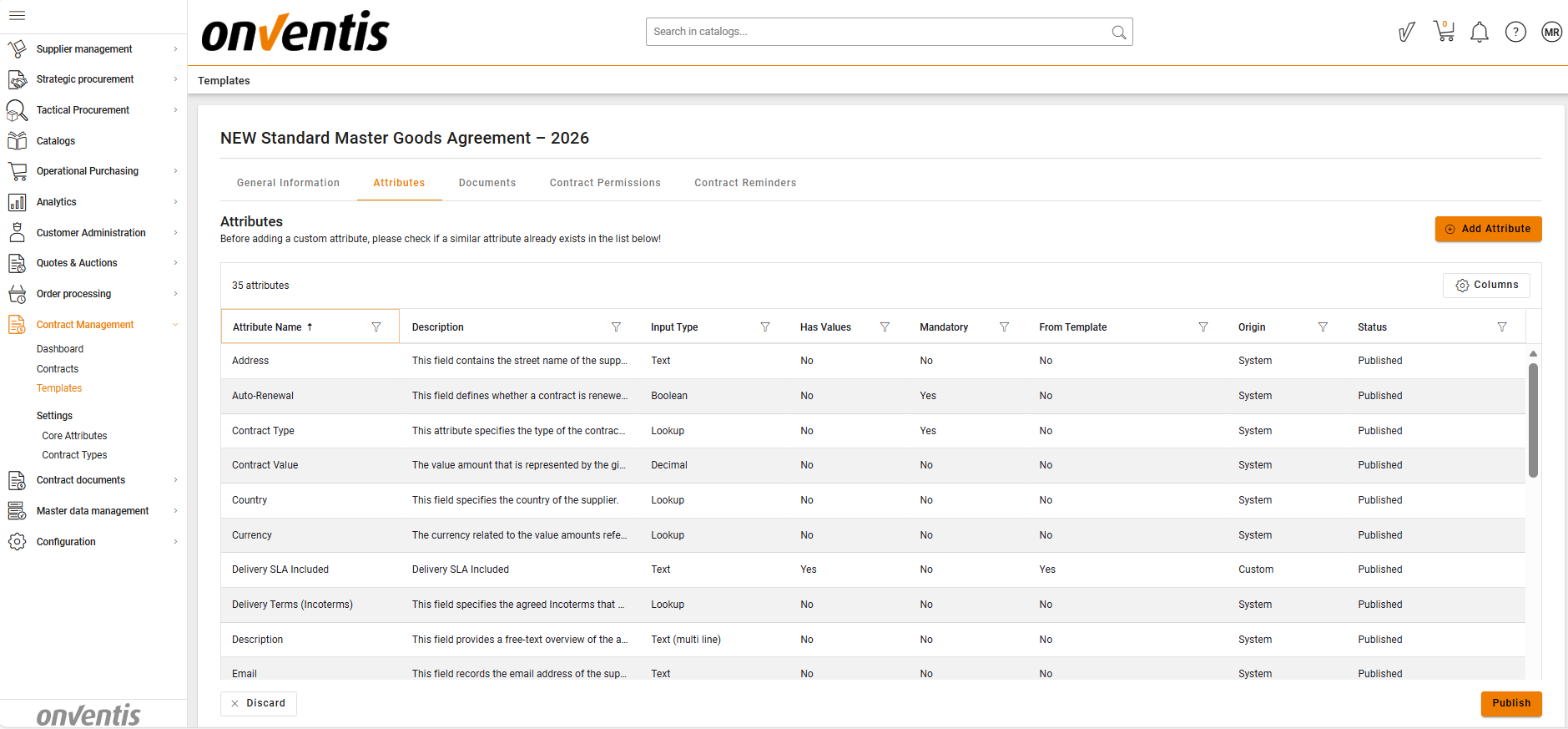
Attributes represent the data fields that will appear in contracts created from this template.
Templates automatically inherit all core-level attributes and their layout (groups and order).
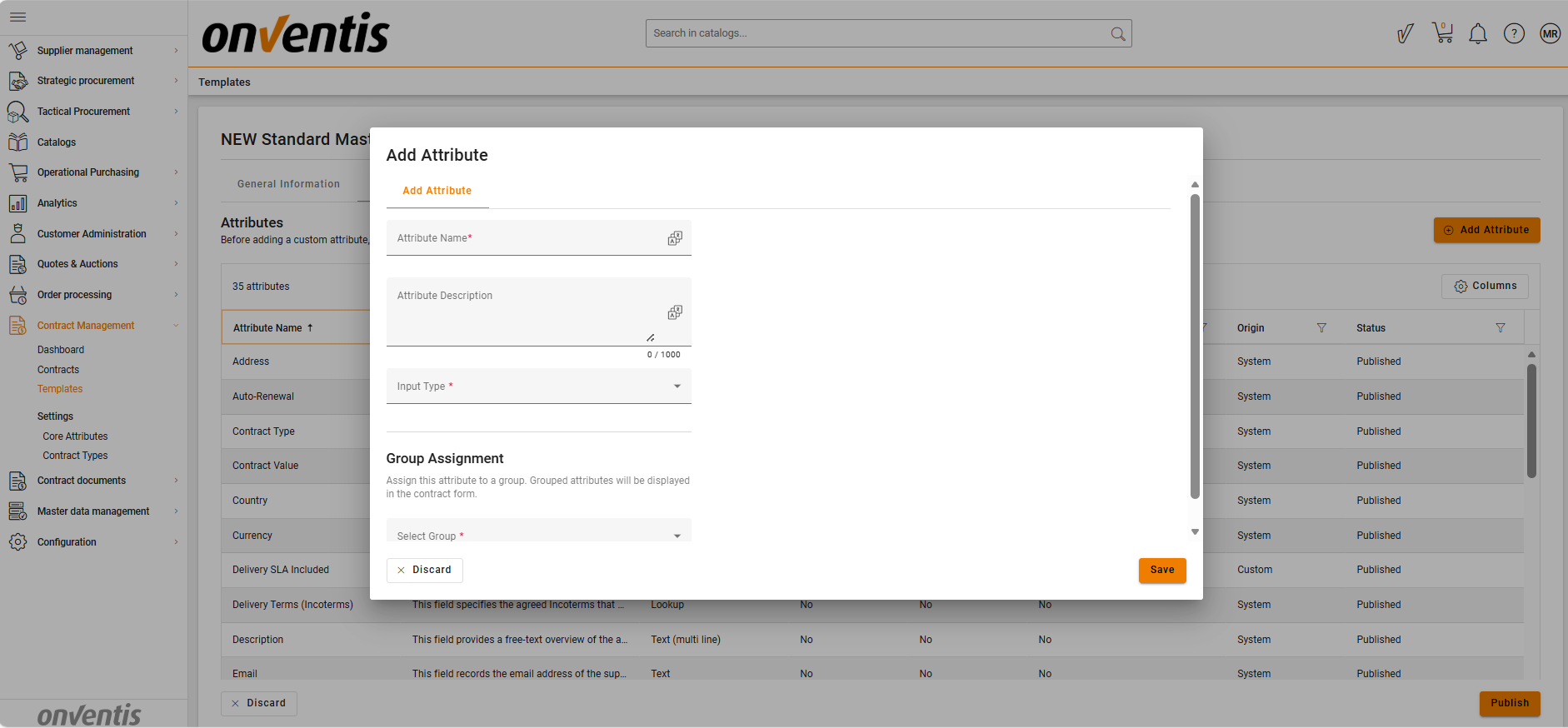
Template Managers can add custom attributes specific to the contract type, such as “Service Level” or “Renewal Terms.”
Attributes should be organized into core-level groups to improve clarity and usability for end users.
These configurations define how data is displayed and captured in future contracts.
📑 Document Section
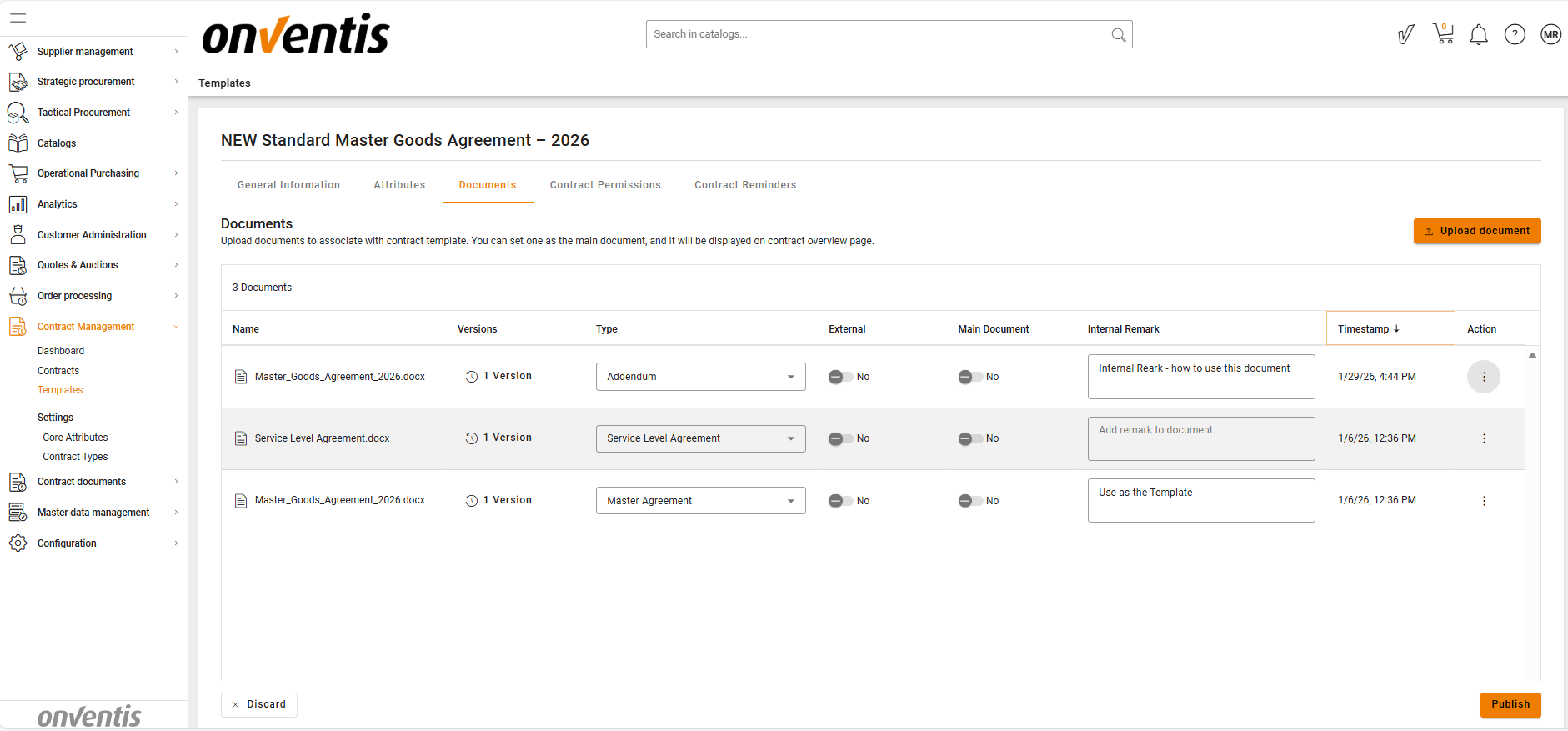
The Documents tab contains the list of files (e.g., contract drafts, annexes, schedules) that will be included in contracts created from this template.
When a new contract is created, it will copy these documents.
Contract creators can later adjust or extend these documents in the individual contract if needed.
This ensures that standard legal or business document versions are always used as the starting point.
Template Managers can also preview the uploaded PDF documents.
🧩 Note: Files in the template are uploaded as attachments and cannot be composed or edited directly within the system.
Version upload is not available in Templates.
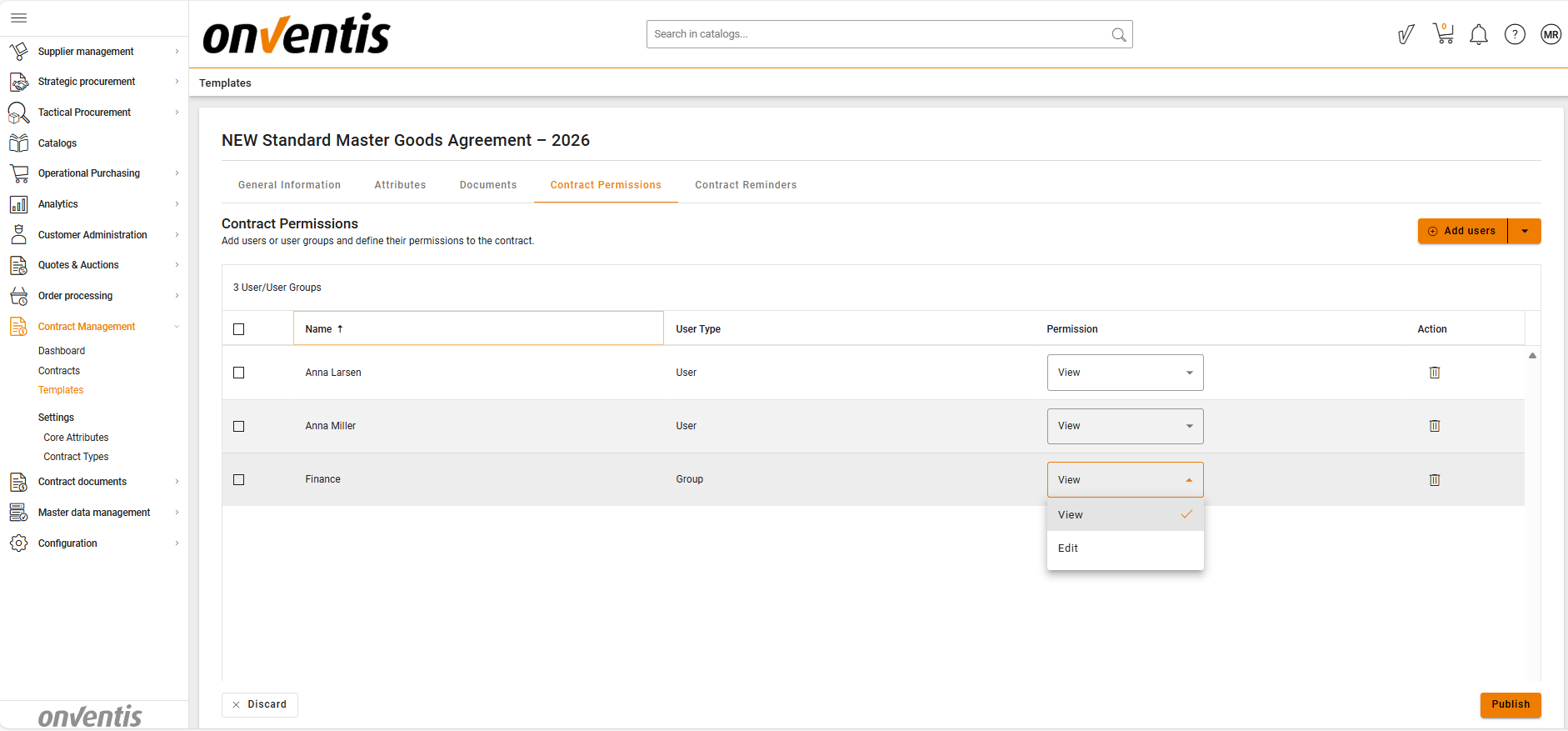
🧑💻 User Permission Section
In this section, you define which users or user groups will have access to contracts created from this template.
These permissions apply to future contracts, not the template itself.
Contract creators can later adjust or extend these permissions in the individual contract if needed.
This setup ensures proper visibility and control from the start of the contract lifecycle.
Depending on their permissions, users may have the following access levels:
Viewer – Read-only access.
Editor – Can modify contract details, add related contracts, and upload files.
🧩 Note: If a user is assigned both Viewer and Editor roles, the higher level of access (Editor) applies.
⏰Reminders Section
In this section, you define default contract reminders that will be applied to all contracts created from this template.
Reminders configured at template level serve as predefined rules for monitoring important contract dates and help ensure consistent reminder setup across future contracts.
These reminders apply to future contracts only, not to the template itself.
Contract creators can later adjust, add, or deactivate reminders on the individual contract if needed.
Each reminder is linked to one contract key date, such as Start Date, End Date, Termination Date, Termination notice deadline, or a custom date attribute defined in the template. Multiple reminders can be created for the same date if required.
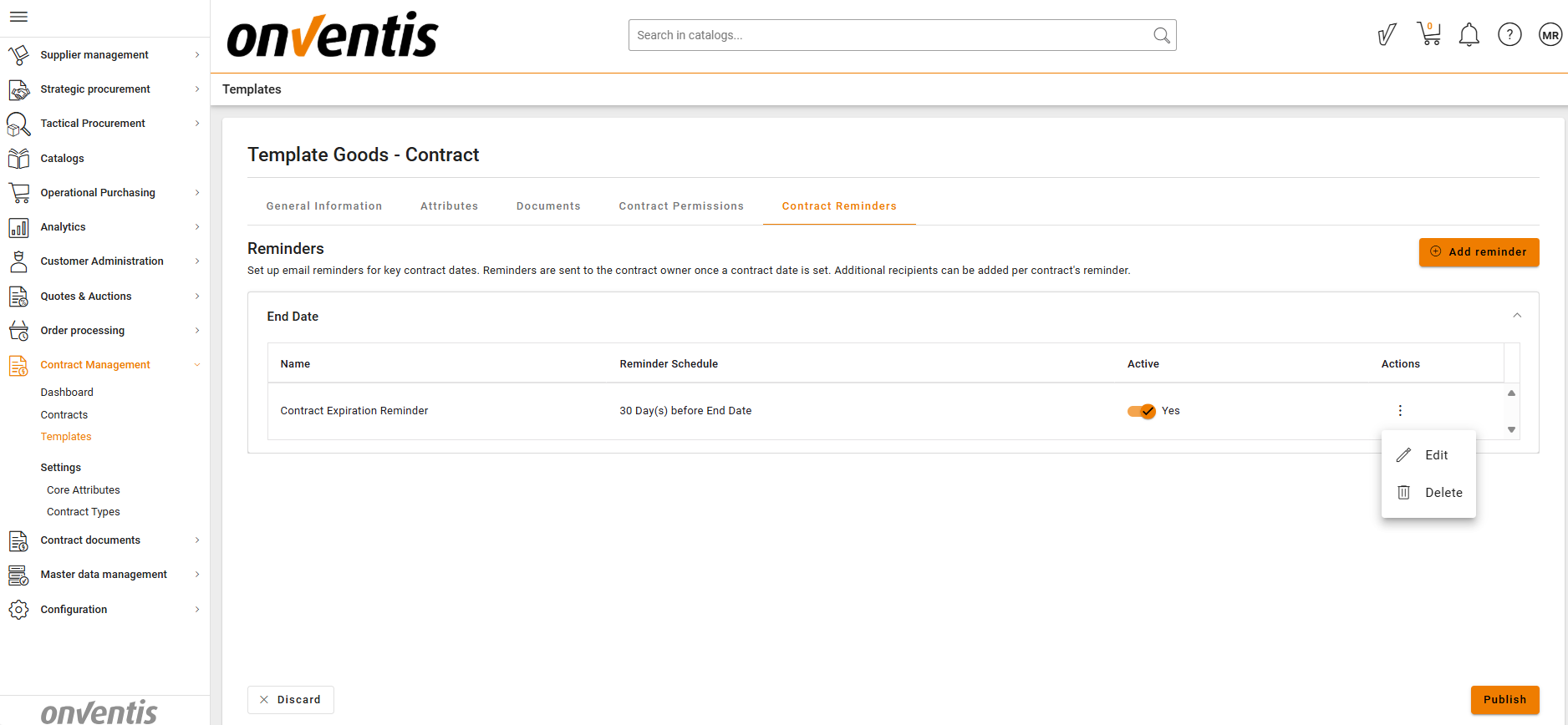
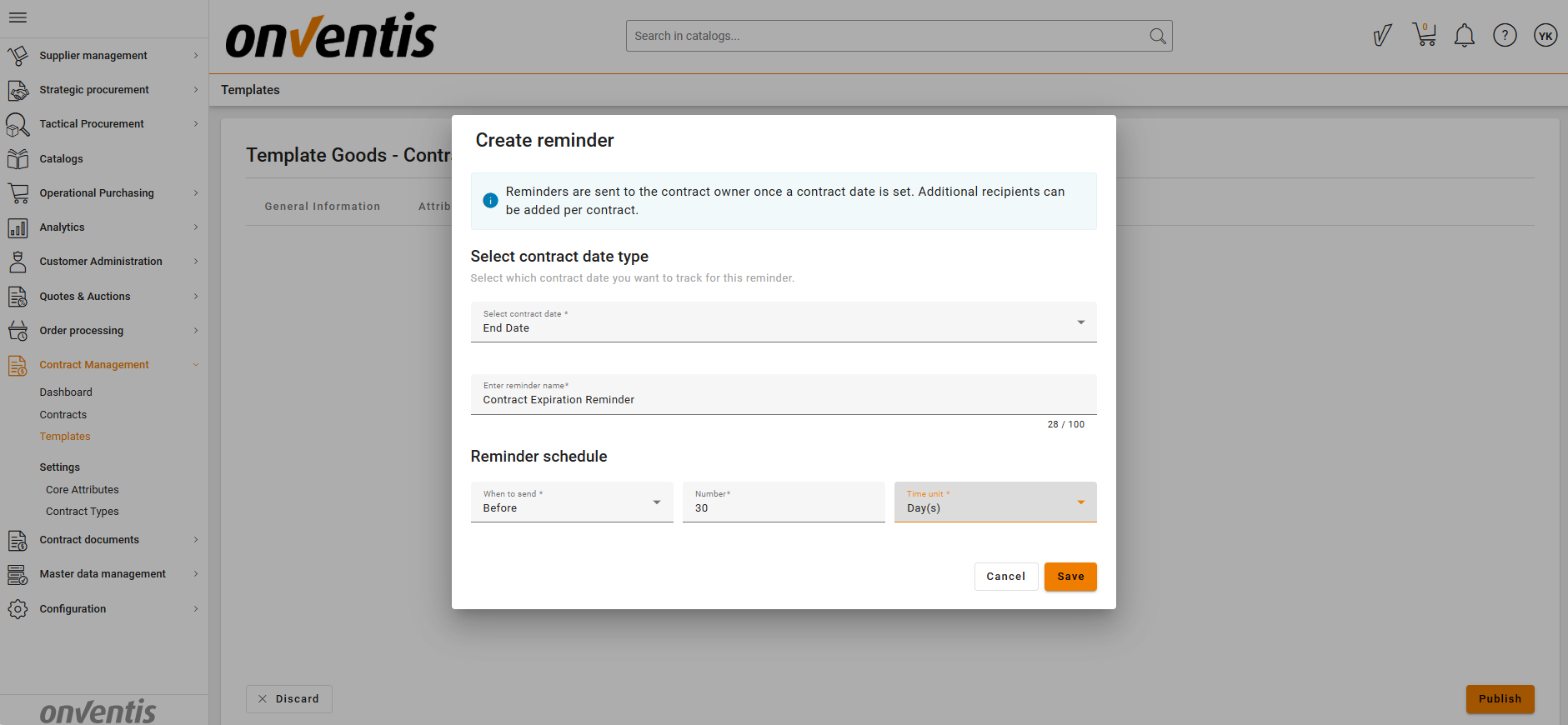
🧩 Note: Template‑level reminders are saved only when the template is saved or published. When a contract is created from the template, all reminders are automatically inherited, with the Contract Owner set as the default recipient.
✅ Activation
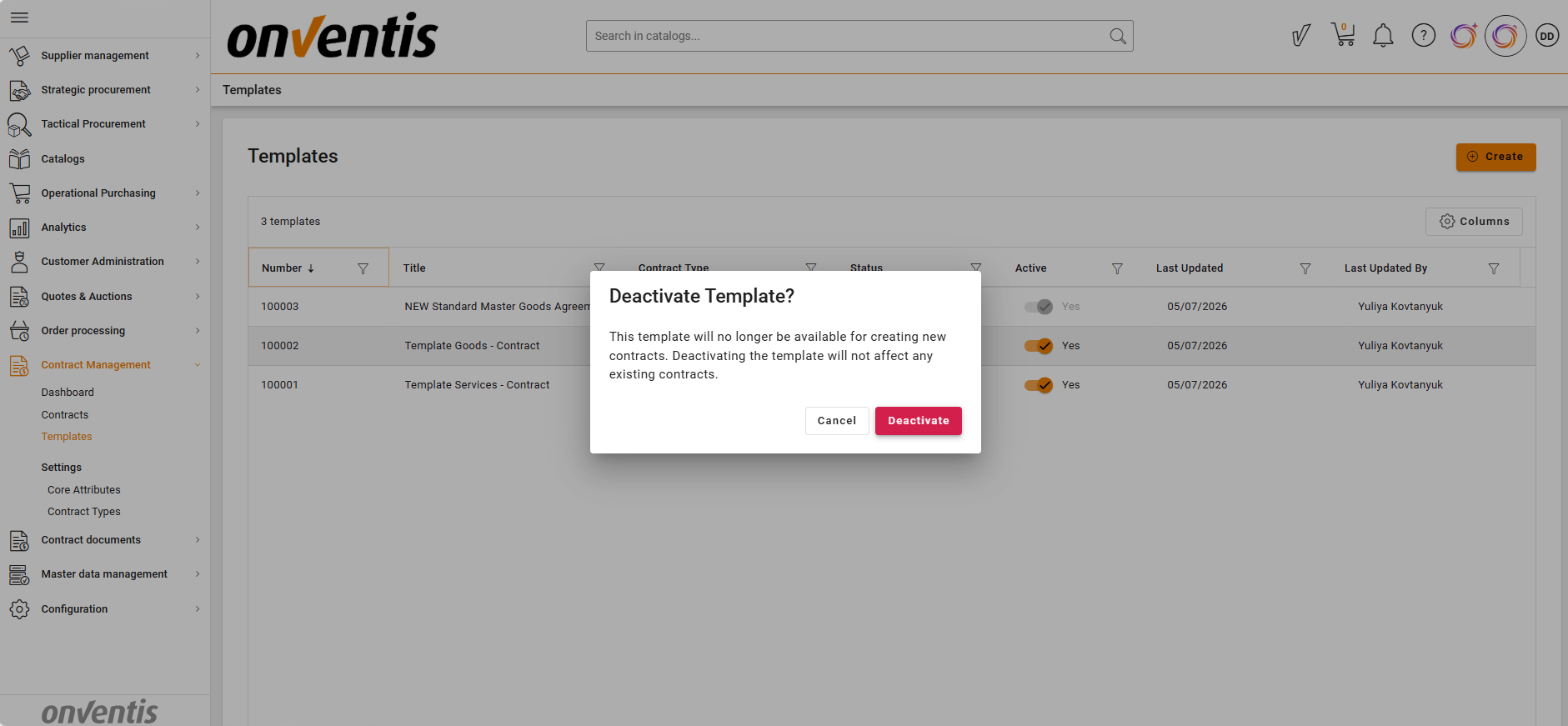
Templates can be activated or deactivated by CLM Power Users.
Active templates can be selected when creating new contracts.
Inactive templates remain stored in the system but are not available for use until reactivated.
Note: If the contract type assigned to a template is deactivated, the template is automatically deactivated as well.
Best Practices

💡 Tips for Effective Use:
Use clear and descriptive names for templates so end users can easily find the right one.
Group related attributes logically (e.g., financial terms, parties, dates) to make templates easy to navigate.
Deactivate outdated templates instead of deleting them to preserve version history and audit traceability.