
How to Bulk Export files from a Contract

The Bulk File Export feature allows you to download multiple contract documents at once as a single ZIP file.
It helps Contract Owners and stakeholders quickly collect and share all relevant files from a contract without manually downloading each document one by one.
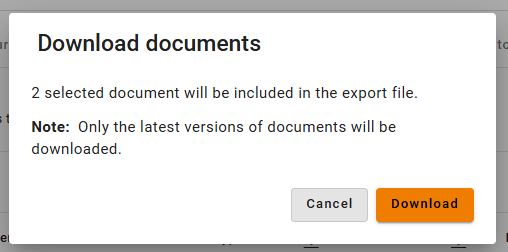
Only the latest versions of the selected documents are included in the export.
🌍 Overview
Bulk File Export supports efficient retrieval of contract documents directly from the Documents tab of a Contract.
Key capabilities include:
Multi‑selecting documents
Exporting all selected files into one ZIP archive
Automatically applying suffixes (e.g., file (2).pdf) if duplicate names occur
Exporting only the latest document versions
This ensures a fast, convenient, and consistent way to collect contract documentation for internal review, audits, or sharing.
👤 Who Can Use This
All users who have access to the Contract can perform bulk export.
💡 Note: Both multi‑selection and exporting are available in View mode only.
💼 Where Bulk Export Files Can Be Performed
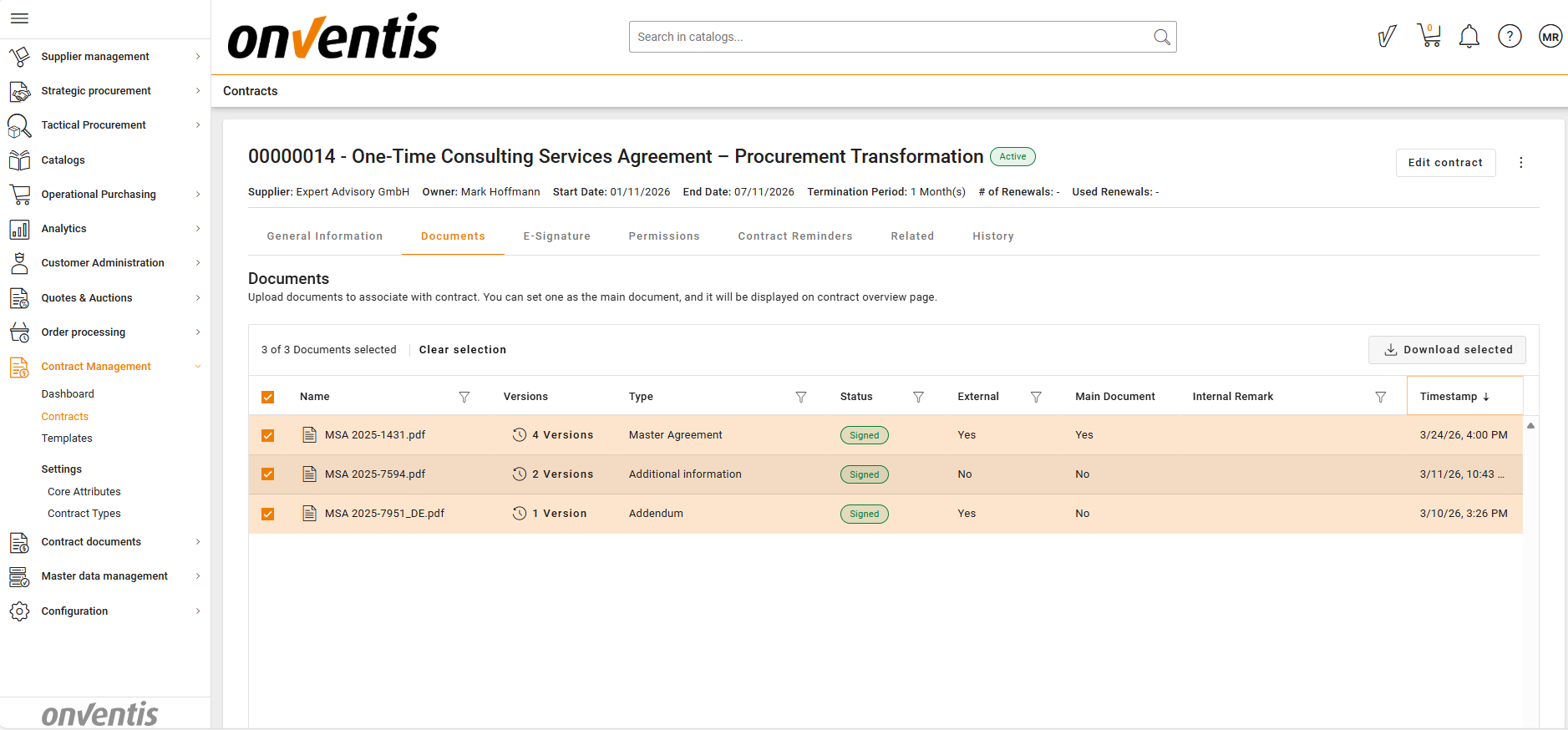
Bulk File Export is available on the Documents tab of an individual contract.
You can:
Select multiple documents using the checkboxes
Click Download
Confirm the number of selected documents in the dialog
Download the ZIP file generated for the selected files
All selected files appear in one ZIP folder.
💡 How Bulk File Export Works
Bulk File Export behaves as follows:
Only the latest version of each selected document is exported
If a name conflict occurs inside the ZIP, the system appends suffixes:
Example:
Framework agreement.pdf,Framework agreement (2).pdf
The browser downloads the ZIP automatically once ready
📌 Typical Use Cases
Share documents with internal stakeholders
Export multiple relevant files in one ZIP when preparing reviews, audits, or handovers.
Prepare document packages for discussions
Collect needed documents before supplier meetings or internal decision-making sessions.
Archive contract deliverables
Store a complete set of final documents for internal compliance or project closure.
⚠️ Limitations
No metadata is included — only file contents are exported
No password protection or ZIP encryption
Single-document download remains unchanged and available separately
No limit on number of selected documents
No maximum ZIP size limit
⭐ Best Practices
💡 Tips for Effective Use
Use multi-selection to gather documents quickly for internal sharing
Apply filters or sorting in the Documents tab before selecting files
Use Bulk Export when preparing contract closing packages or compliance reports
Verify file types and versions before exporting to avoid duplicates
Keep the Contract Overview page open until the ZIP is ready