
How to Approve a Contract

Contract approval ensures that contracts move through the lifecycle in a controlled and governed way before entering negotiation or signing.
CLM supports two approval points, depending on where the contract is in the lifecycle.
🗺️ Overview
Contract approvals are used to formally confirm that a contract is ready to proceed to the next stage.
Depending on the workflow, approval is required:
When sending a contract from Authoring to Negotiation
When sending a contract from Authoring or Negotiation to Signing
The approver must explicitly Approve or Reject the contract before it can proceed.
🧑🦱 Who Can Use This
A contract approver must meet all of the following conditions:
Be an internal user
Have at least a CLM Business User license
Be granted View or Edit access to the contract via the Permissions tab

💡 Note: Only one approver can be assigned per approval step.
Approval Types
CLM supports the following approval scenarios:
1. Negotiation Approval
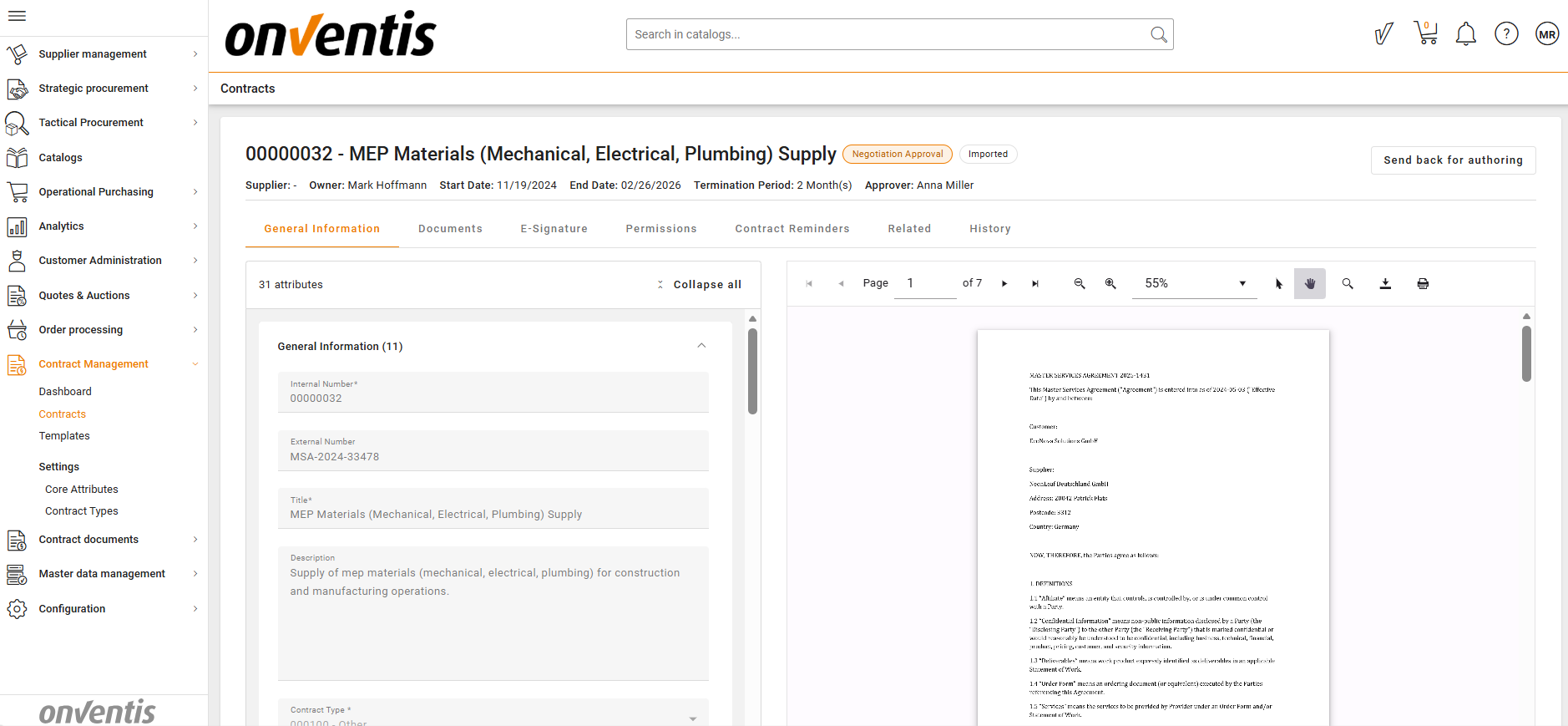
This approval is required when a contract is sent from Authoring to Negotiation.
Contract status changes to Negotiation Approval
The approver reviews the contract before it is shared for negotiation
Approval confirms that the contract is ready for external review
2. Signing Approval
This approval is required when a contract is sent from Authoring or Negotiation to Signing.
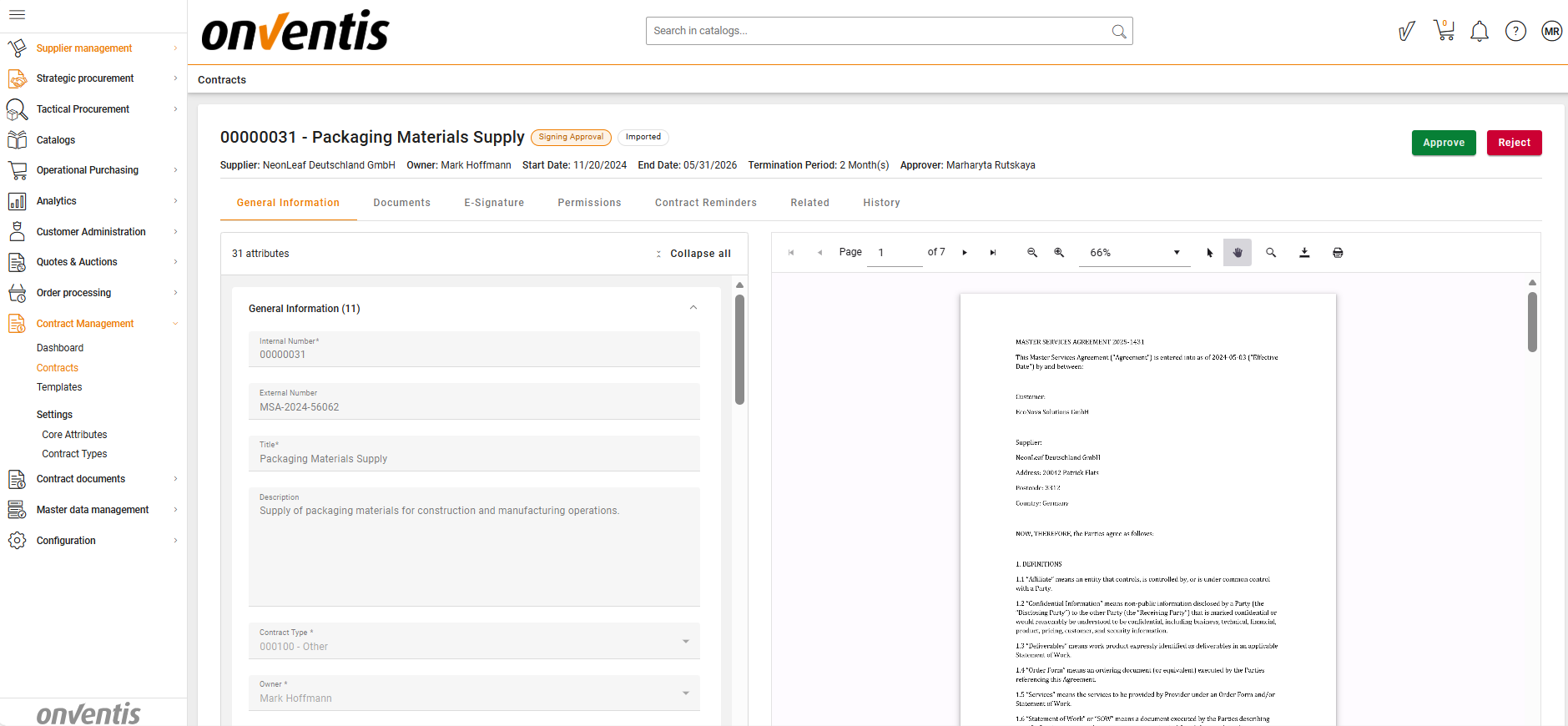
Contract status changes to Signing Approval
The approver confirms that the contract is final and ready to be signed
Approval allows the contract to proceed to Manual Signing or E‑Signing
Approving or Rejecting a Contract
When a contract enters an approval status, the assigned approver can take one of the following actions:
Approve – Confirms readiness to proceed to the next lifecycle stage
Reject – Sends the contract back for further changes
In case of rejection, the approver must provide a reason for their decision.
What Happens After Approval
If the contract is Approved, it automatically moves to the next lifecycle status:
Authoring → Negotiation
Authoring / Negotiation → Ready for Signing
If the contract is Rejected, it is returned to the previous status:
Negotiation Approval → Authoring
Signing Approval → Authoring or Negotiation
The approval decision and reason are recorded in the Contract History.
🔁 Cancelling an Approval
An approval request can be cancelled, e.g. if:
The wrong approver was assigned, or
The assigned approver is not available to review the contract.
When an approval is cancelled:
The contract is returned to the previous status
A new approver can be assigned
No approval decision is recorded
The cancellation action is saved in the Contract History for auditability
🧩 Note:
Cancelling an approval does not approve or reject the contract and does not allow the contract to move forward in the lifecycle.
My Upcoming Approvals
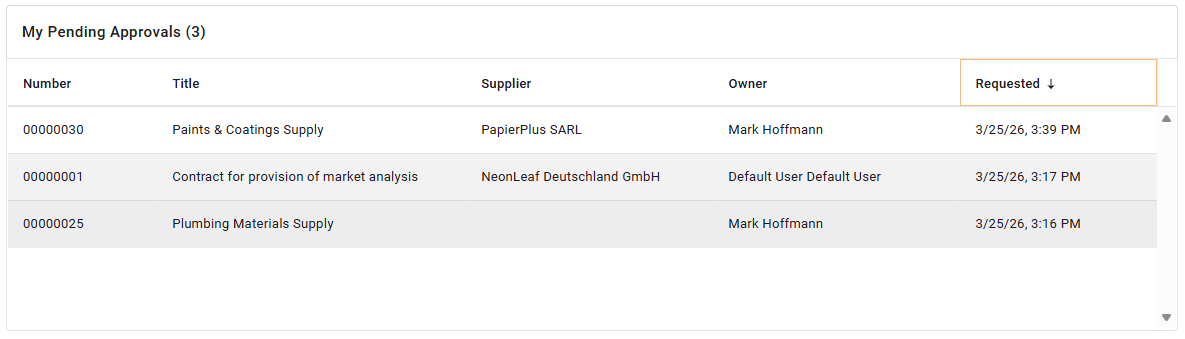
Users assigned as approvers can track their pending approvals using the My Upcoming Approvals widget on the Dashboard.
This widget displays all contracts currently waiting for the user’s decision in:
Negotiation Approval status
Signing Approval status
Clicking any contract in the list opens the Contract Overview directly, where the approver can review the contract and submit an Approve or Reject decision.
🧩 Note:
Only contracts where the logged‑in user is assigned as the approver are shown.
Key Rules and Limitations
Only one approver is allowed per approval step
Approval is always explicit and manual
Approval cannot be skipped or automated
The contract cannot move forward until the approver submits a decision
⭐Best Practices

💡 Tips for Effective Use:
Ensure the contract content and key metadata are finalized before requesting approval to avoid unnecessary rejections.
Assign the approver early and explicitly, so approval does not become a bottleneck in the workflow.
Cancel approvals early to prevent workflow delays and keep contracts moving through the lifecycle efficiently.
Treat rejection reasons as actionable feedback and address them before resubmitting the contract for approval.