
E-Signing of Contracts

The E-Signing service is fully embedded within the Onventis CLM platform, allowing users to initiate, track, and complete electronic signatures without ever leaving CLM. There is no need to log into any external platform—every step of the signing process is managed seamlessly and securely inside the contract lifecycle.
This integrated approach ensures that all signatures are eIDAS-compliant, providing legal validity and substantial identity verification (eIDV) for business-critical documents. Users benefit from advanced electronic signature (AES) set by default
🗺️ Overview
The Key capabilities of the CLM Integrated E-Signing solution are:
Flexible Signing Parties: Select Buyer and Supplier, or only Buyer/Supplier, as signing parties.
Internal & External Signatories: Add signers from within or outside the organisation.
Custom Signing Order: Set a specific signing sequence or allow parallel signing.
Signing Expiration Deadlines: Define deadlines for signature completion.
Multi-Document Envelopes: Send up to 15 PDF documents in a single signing envelope/contract.
Progress Tracking: Monitor signing status in real time.
Document Access: View and download signed documents directly from CLM.
Signatory Name Similarity Score: Assess identity match for added security.
Rejection Handling: Re-send contracts for signing if rejected, and view rejection reasons.
Automated Reminders: Receive notifications if a signatory is inactive for more than 2 days.
Comprehensive Audit Trail: All signing actions are logged in the Contract History Log.
Advanced Electronic Signature (AES) with substantial eIDV as default.
Seamless CLM workflow integration for end-to-end contract management.
Automated document verification and audit trails for compliance.
eIDAS standards compliance for legal validity across the EU/EEA.
Secure encryption and fraud prevention for all signed documents.
Fast verification: SLA for identity verification is up to 3 minutes.
🧑🦱 Who Can Use This
Only users with the CLM Premium Power User role can initiate E‑Signing.
Users with CLM Premium Power User role or CLM Premium Business User role can perform as Buyer signatories.
Manual signing remains available as an alternative workflow.
💼 Step-by-Step Manual: Onventis CLM E‑Signing
You can initiate E‑Signing when the contract reaches Ready for Signing.
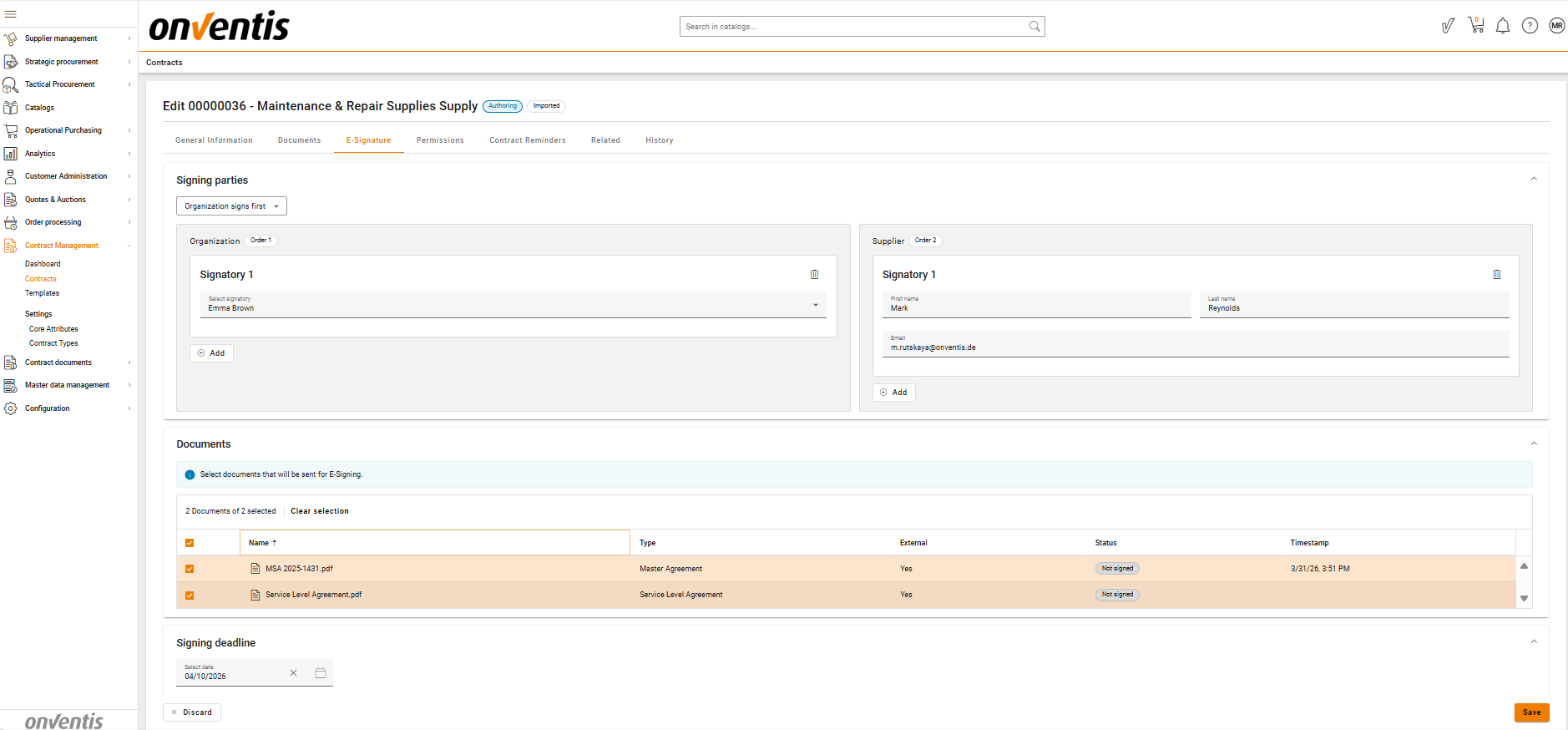
Ensure that the E‑Signature tab includes all mandatory information: signatories and documents.
Select Signing Parties & Signatories
Choose the Signing Parties:
Buyer
Supplier
or one of them only
Define the signing order between parties (parallel or sequential).
Add signatories for each party:
Internal signatories for Buyer
External signatories for Supplier
If needed, define the signing order between individual signatories.
2. Add Documents to the Signing Package
Select the PDF documents to be signed (max 15 documents, 50 MB each).
Only unsigned PDFs can be added.
Multiple files can be combined into one signing package.
Set Signing Deadline
Define a final completion date.
If the deadline passes before all signatures are completed:
The process ends automatically as unsuccessful.
The contract returns to Authoring, allowing updates and resubmission.
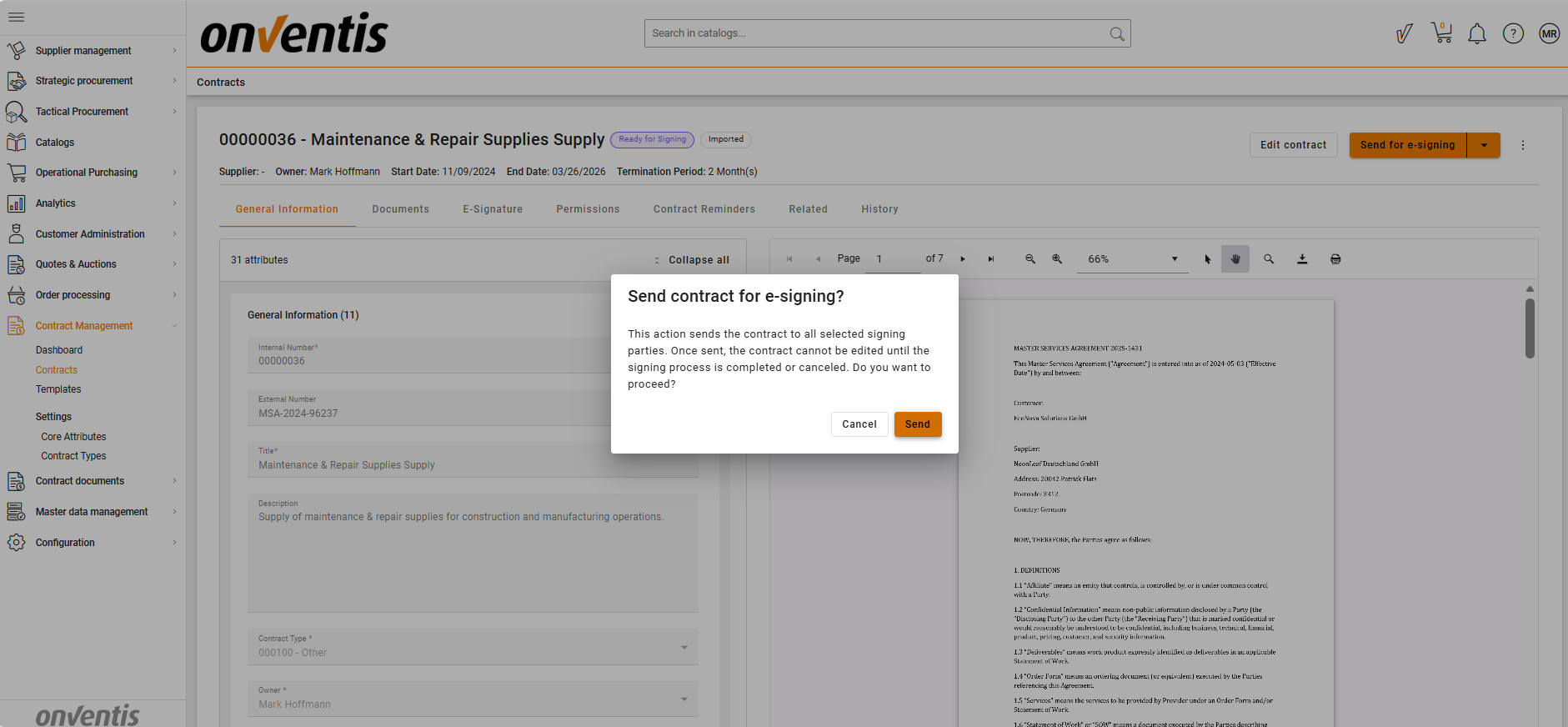
Send for E‑Signing
Click Send to E‑Signing.
Review and confirm the selected signatories, documents, and deadline.
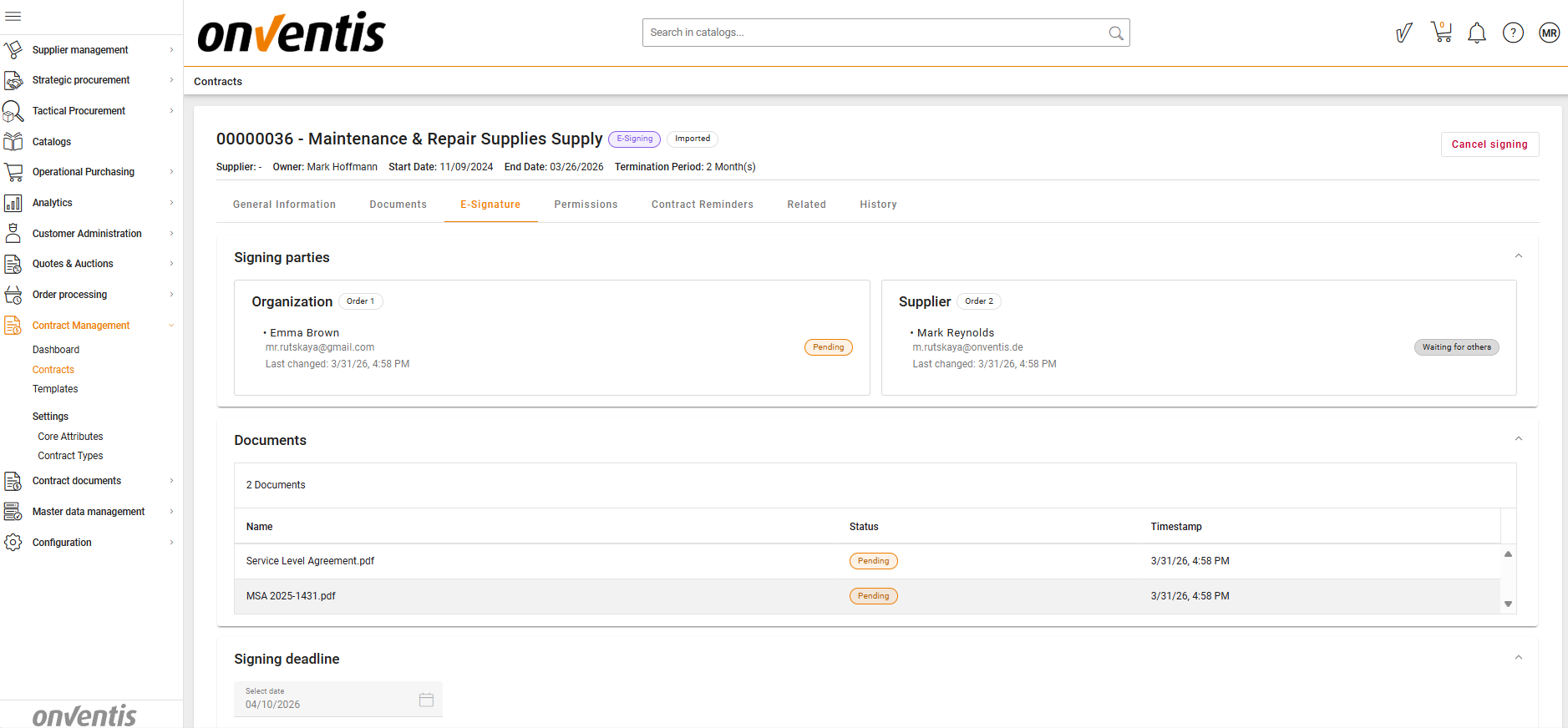
Track Signing Progress
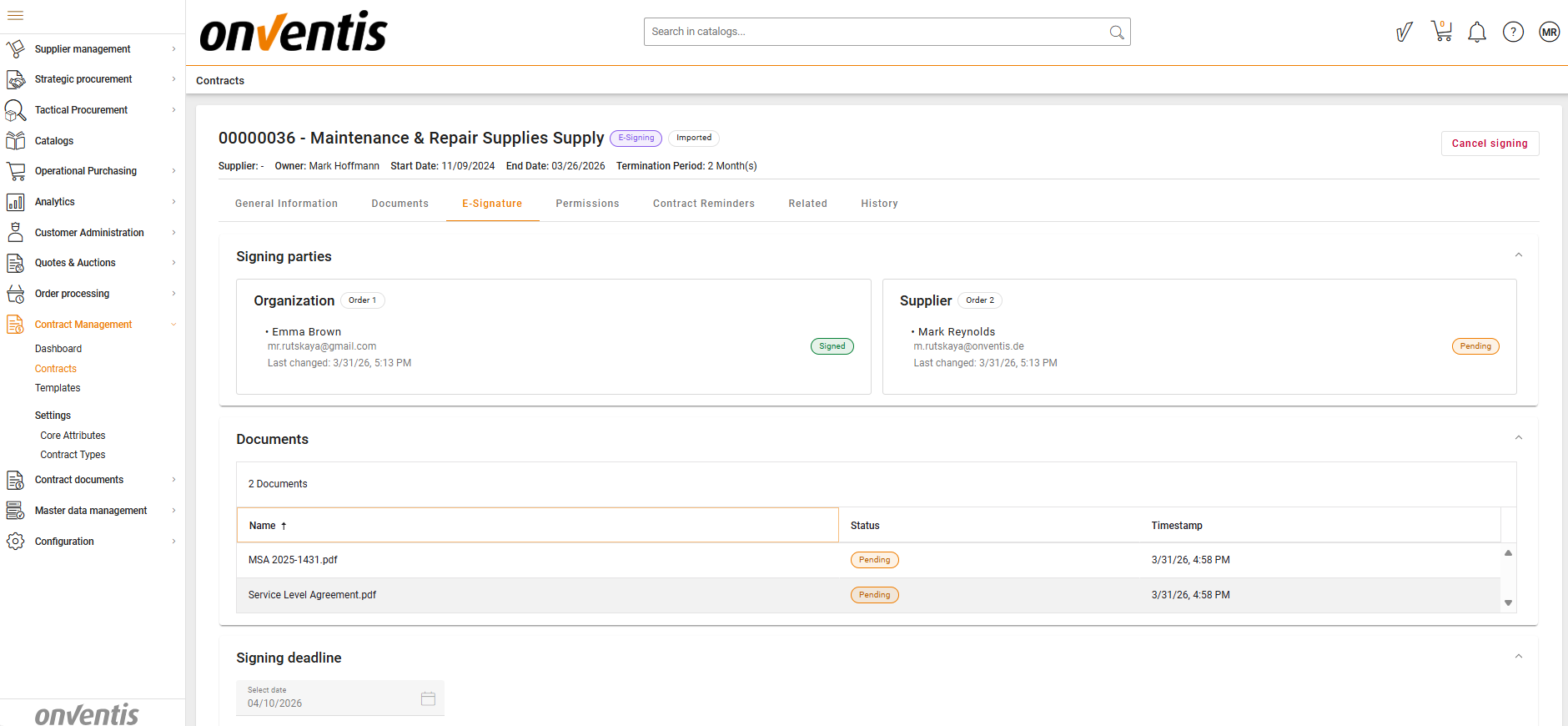
After sending, the progress view shows:
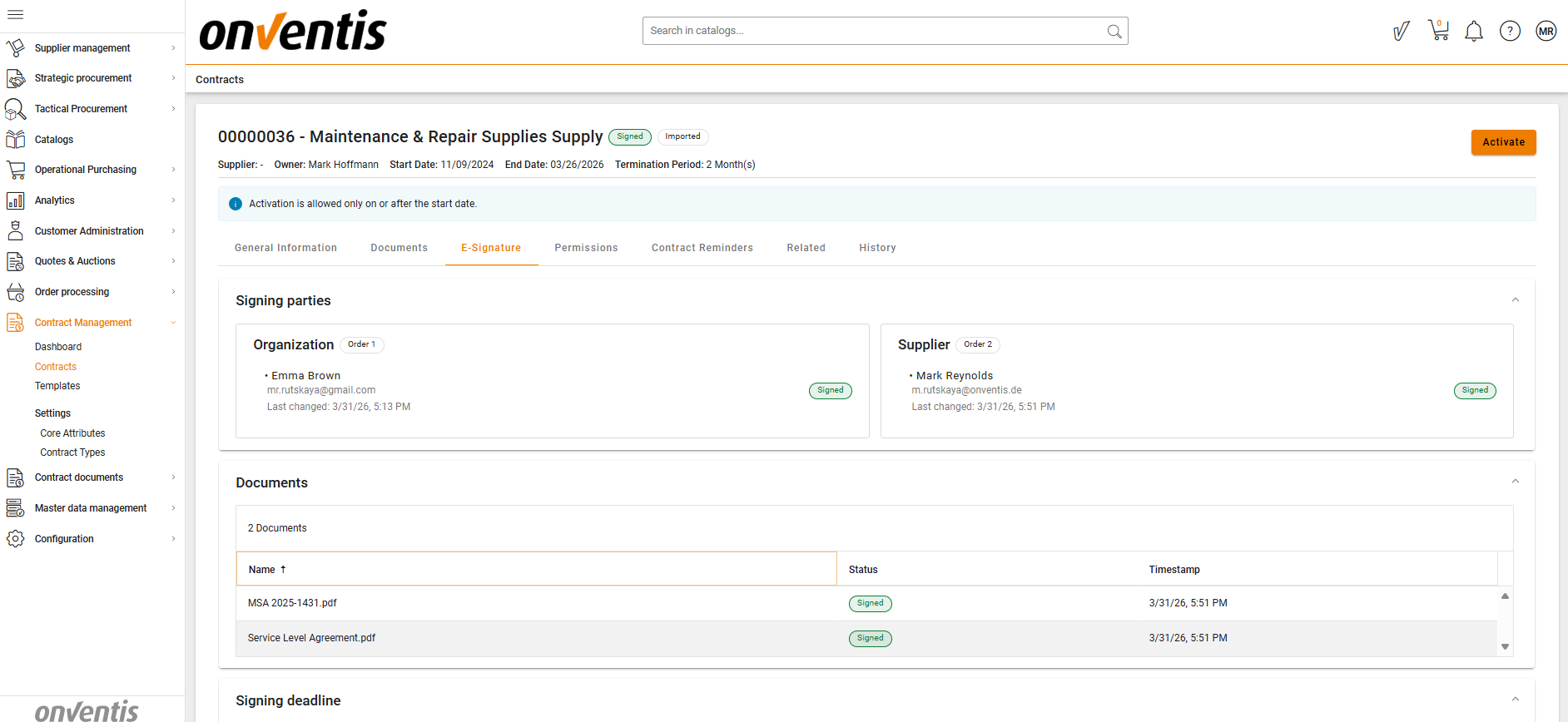
Who has signed
Who is pending
Signing order status
Any blocked steps (e.g., waiting for another signatory)
You may cancel the signing at any time.
Automated reminders are sent to inactive signatories after 2 days.
Signatory Verification Process
Each signatory receives an email with a secure signing link. They should:
Prepare a valid identity document.
Ensure proper conditions: good lighting, stable internet, functioning camera.
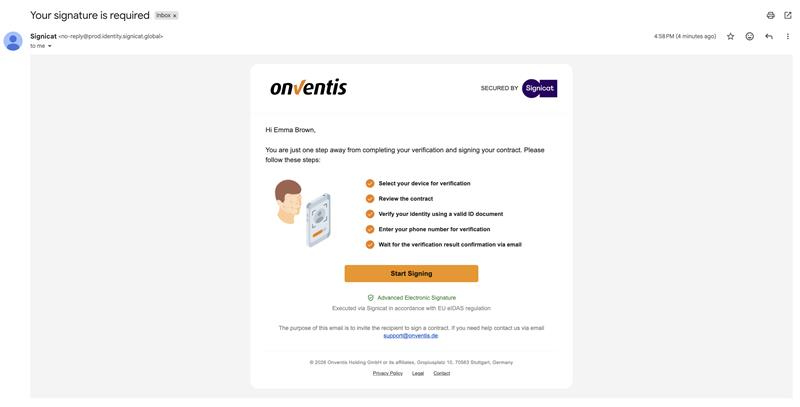
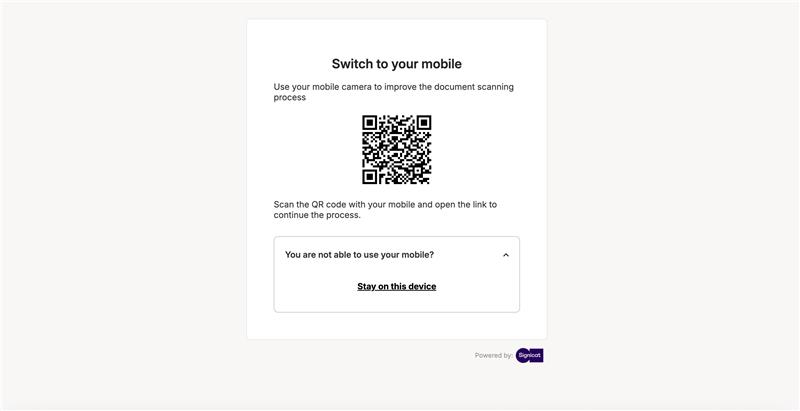
Start the process from any device:
Mobile (via QR code)
Laptop/PC
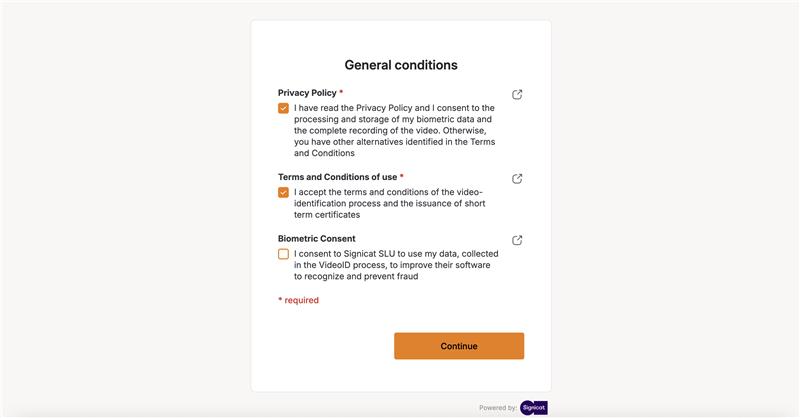
Accept General conditions.
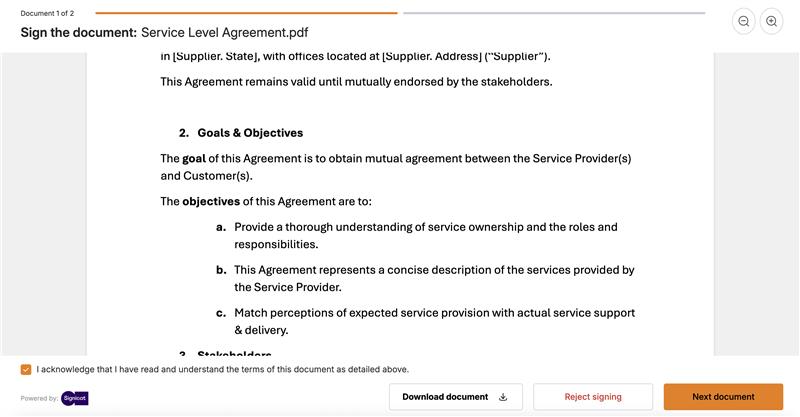
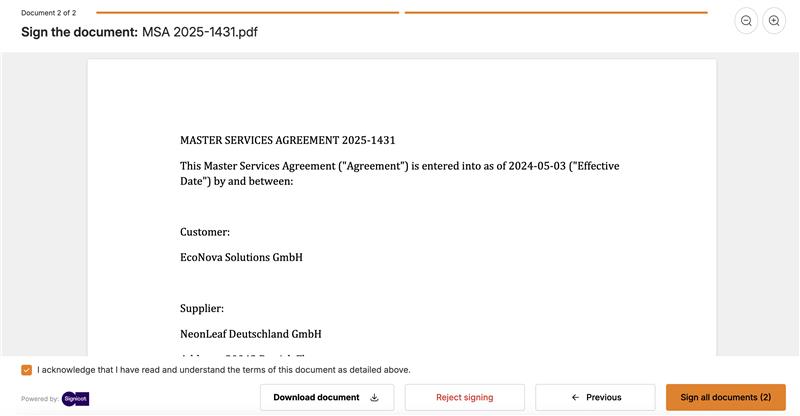
Review the contract package and either Sign or Reject.
After the Signing is triggered
Choose the identity document type (country-specific).
Verification still passes even if the legal name differs from the CLM‑stored name.
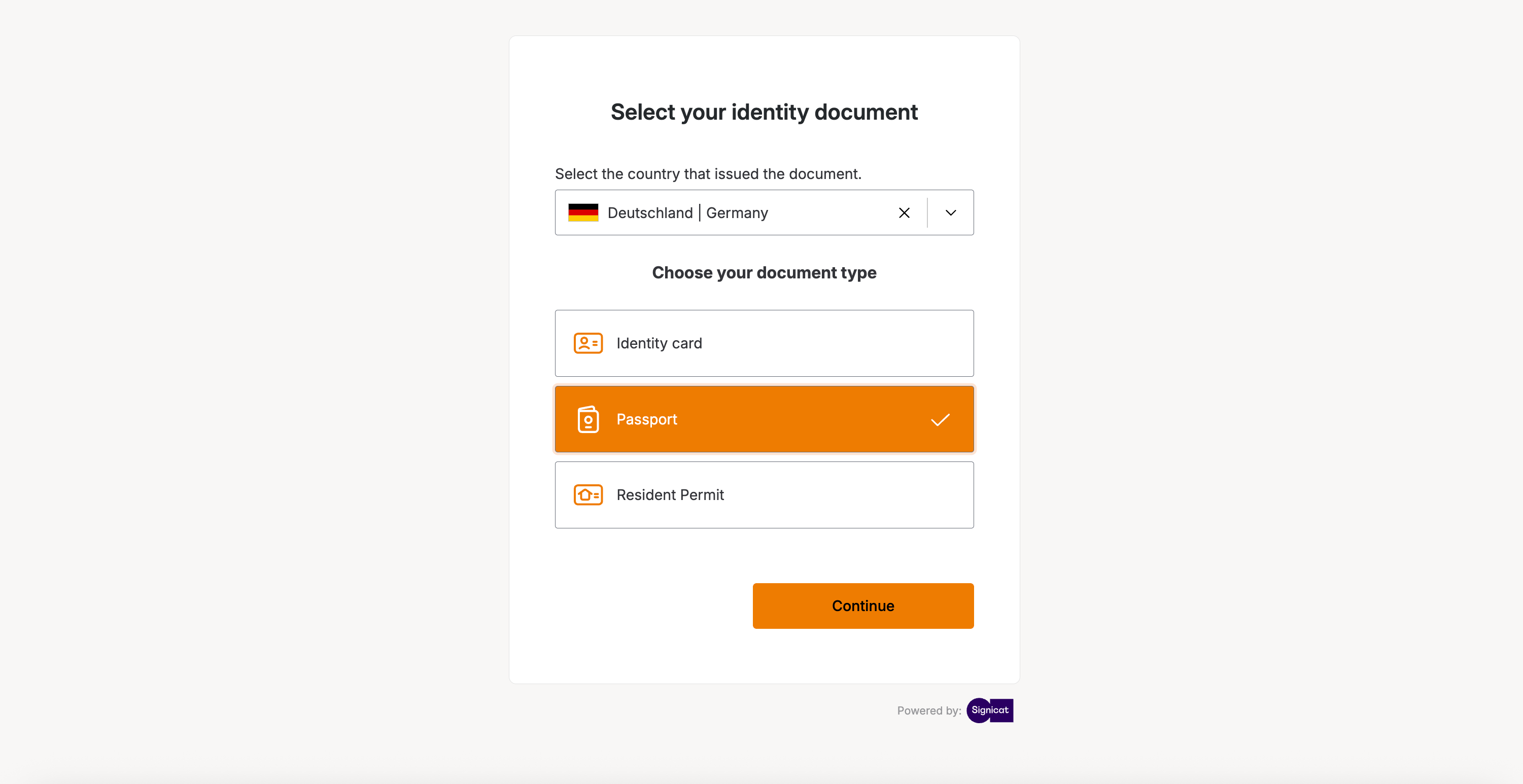
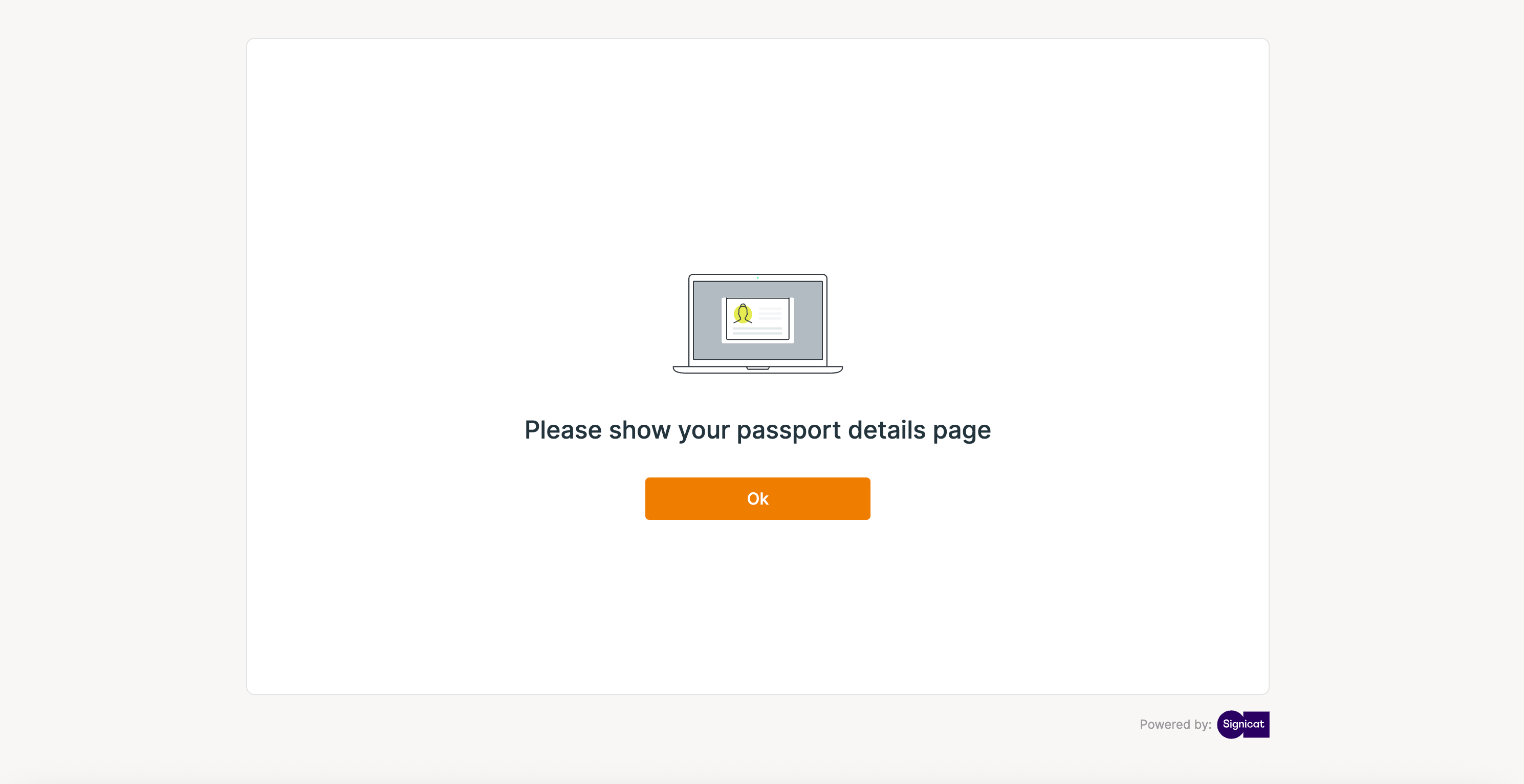
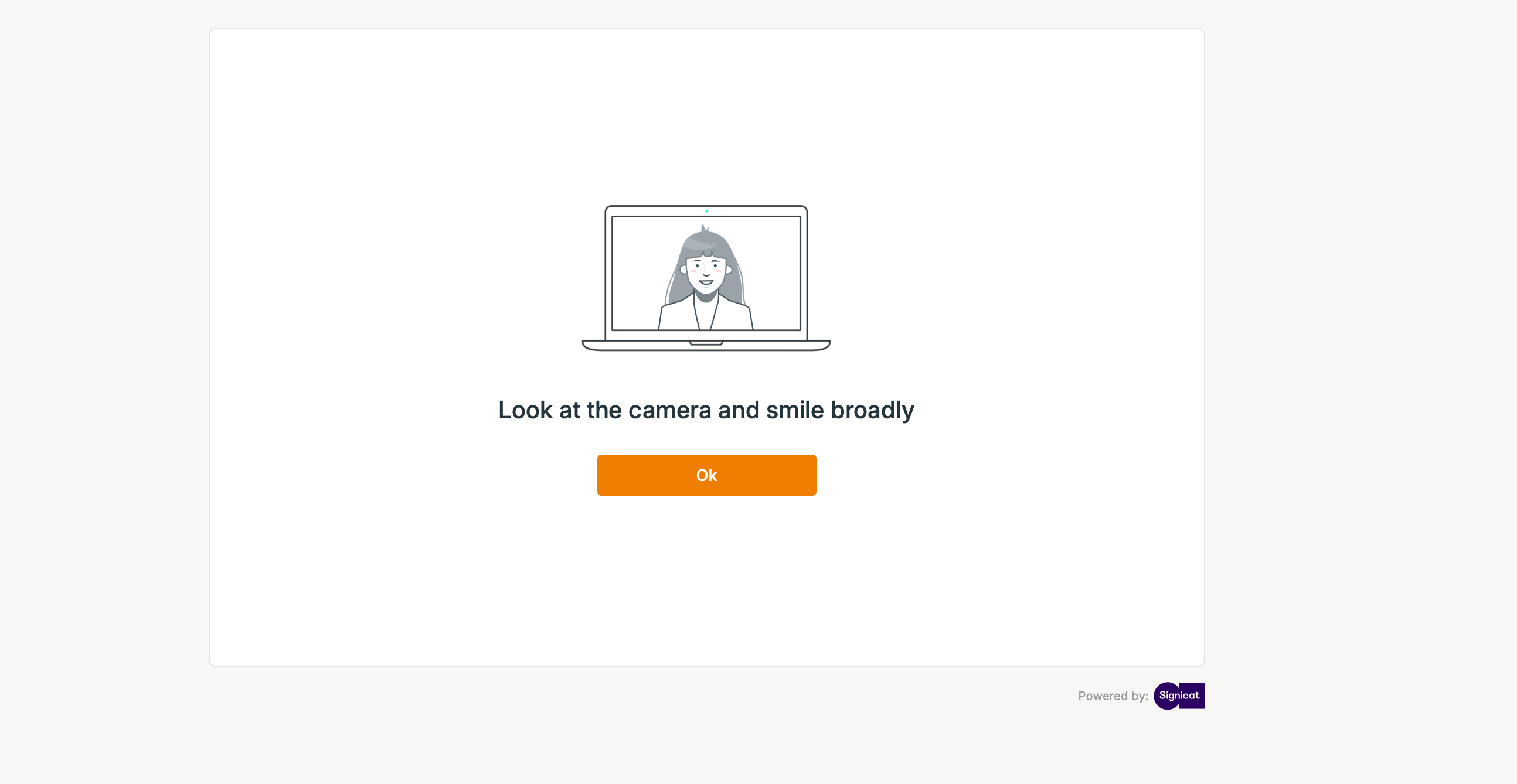
Complete document scan and video face verification.
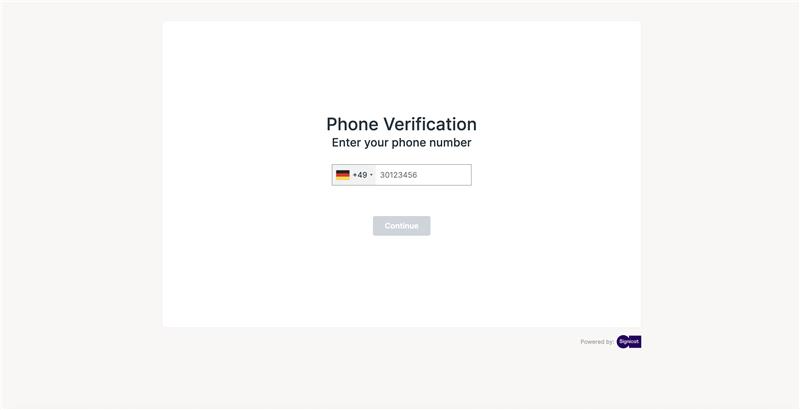
Enter a code sent to mobile phone
The browser tab can be safely closed while verification completes.
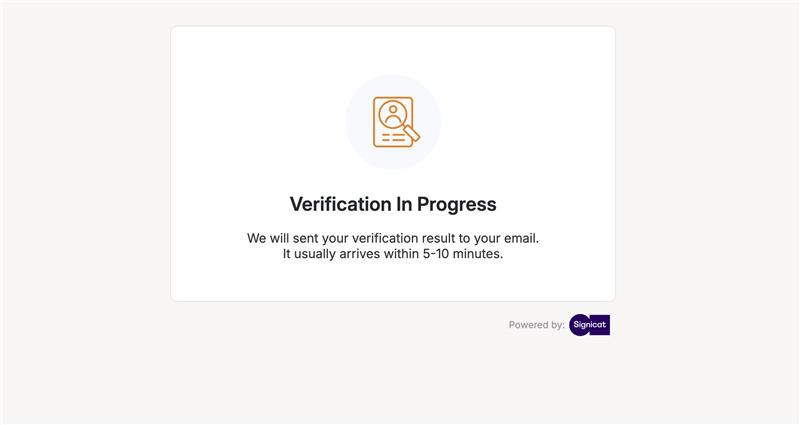
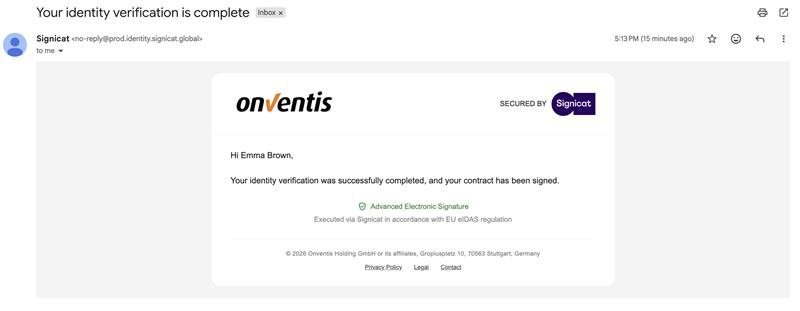
An email confirms successful verification.
Signing status updates immediately after each signatory completes their steps.
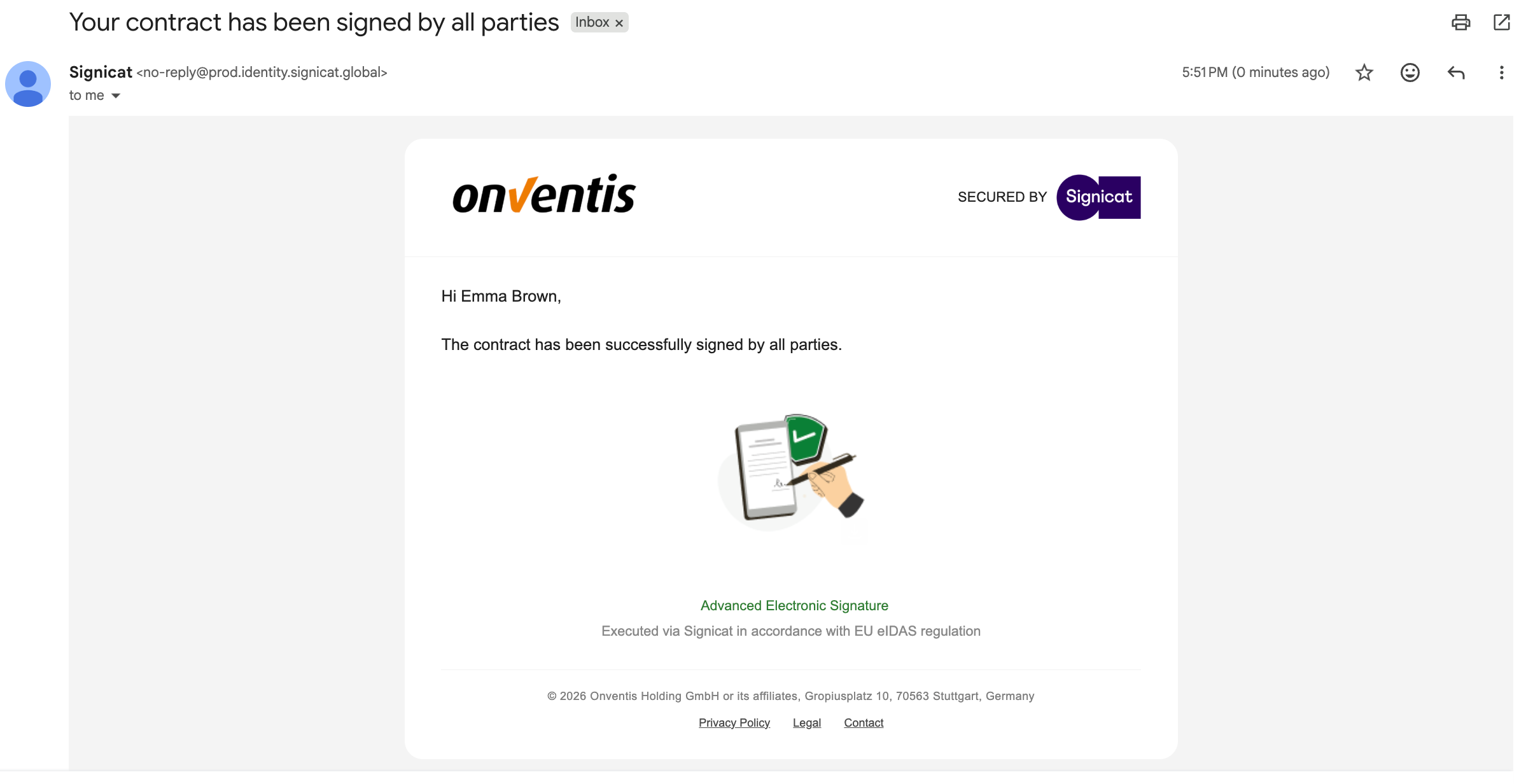
Once all signatories finish, an automated email notifies them that the contract is fully signed.
Complete Signing
Once all signatories have signed, the contract status updates to Signed.
Signed documents are automatically attached to the contract record.
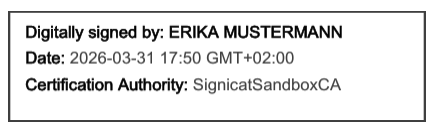
Each signed PDF includes a visible signature stamp.
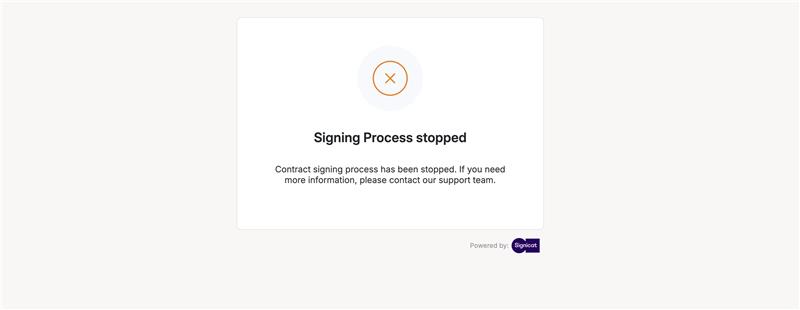
The Signature Link is no longer valid.
Handling Rejections or Issues
If a signatory rejects:
A rejection reason is mandatory.
The entire package is rejected.
Documents cannot be reused; new versions must be uploaded.
Non‑completed signatories will no longer receive requests.
If identity verification fails:
The signatory receives a retry link.
If signing expires or is cancelled:
The contract returns to Authoring.
Audit & History
The Contract History Log records:
Who signed
Who rejected
Who completed verification
Time and date of each action
This ensures a complete audit trail for compliance and internal reviews.
Signing Outcomes
✅ Successful Signing
New document versions are uploaded automatically.
Signed documents include visible signature stamps.
The contract moves to Signed
❌ Rejection
A signatory may sign or reject.
Rejection stops the entire package.
All documents receive Rejected status.
New versions must be created before resending.
⚠️ Unsuccessful Completion
Occurs if:
The process is cancelled
The deadline expires
A rejection occurs
➡ The contract returns to Authoring.
➡️ The contract automatically returns to the Authoring phase.
Reminders & Retry Handling
Reminder emails are sent to inactive signatories.
If identity verification fails, the signatory receives a second verification link without disrupting the full process.
📌 Typical Use Cases
Standard Contract Signing
Digitally sign contracts with internal and external parties in a compliant way.
Multi‑Signatory Agreements
Handle complex signing scenarios with parallel and sequential signing rules.
Audit & Compliance
Maintain a complete, verifiable record of who signed, rejected, or verified — and when.
Contract Amendments
Send updated contract versions for re‑signing after changes or rejections.
⚠️ Limitations
Max 15 documents per signing package
Max 50 MB per document
Rejected documents cannot be reused
Signing requires all signatories to complete
Internal signatories supported in EN/DE; external signatories in EN
No document editing during the signing phase
Best Practices

💡 Tips for Effective Use:
Ensure documents are final and approved before them for e‑signature.
Define signing order carefully for multi‑party agreements.
Use the signing progress view to follow up with signatories when needed.
Review signed versions immediately after completion to confirm accuracy.
Rely on the Contract History Log during audits or internal reviews to demonstrate signing authenticity.
Clearly communicate signing expectations with stakeholders before sending the signature request.