
Create Contract from Template

Creating a contract from a template allows users to quickly generate new contracts based on predefined standards and structures.
🗺️ Overview
When creating a contract, users select a template that best matches their contract type. The system automatically copies predefined data from the template while allowing flexibility to adjust specific details such as documents, user permissions, and organizational information.
🧑🦱 Who Can Use This
CLM Power Users can use active templates to generate new contracts.

💡 Note: Only users with the CLM Power User license have access to created Draft contracts. Once the contract is published to the Authoring phase, the users and user groups defined in User Permissions will receive access and email notifications.
✅ Selecting a Template
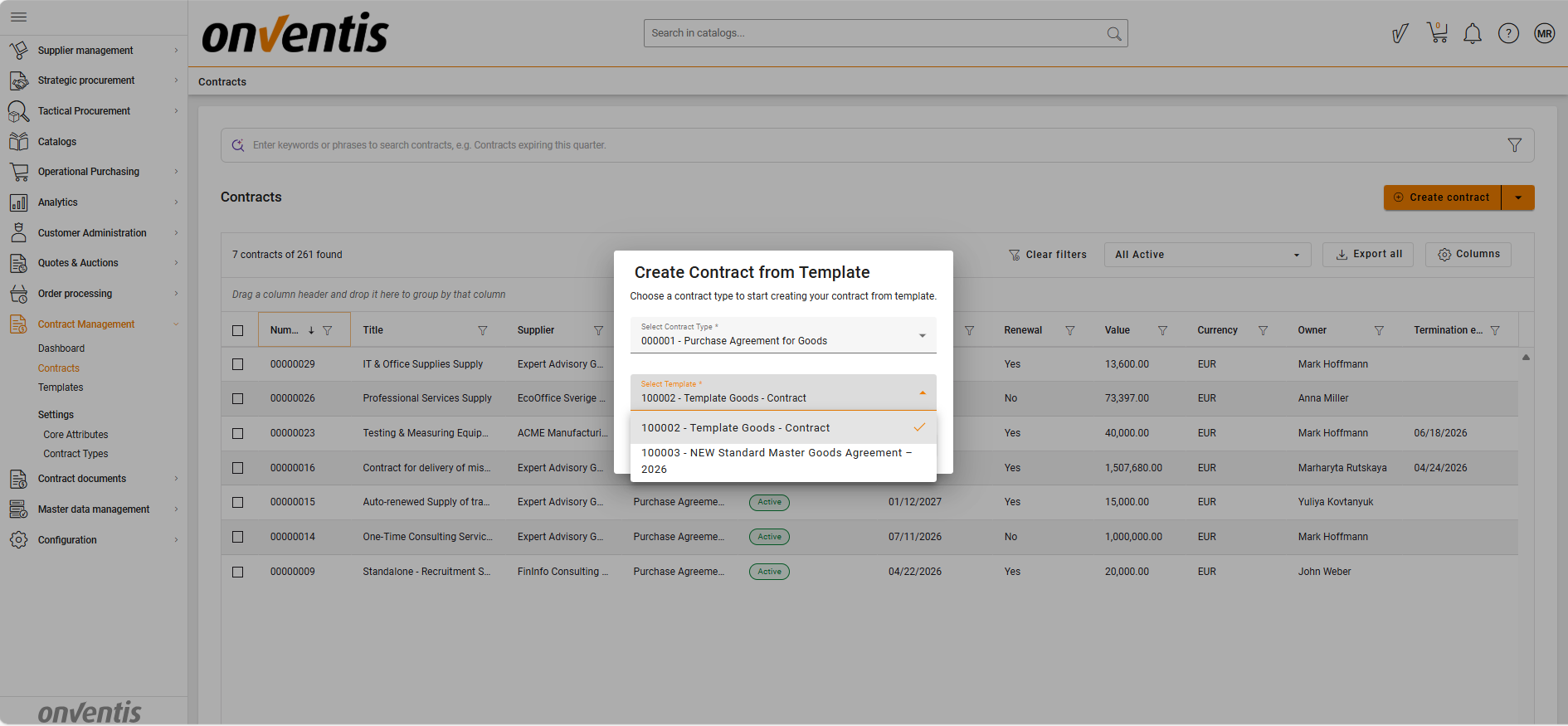
Use the available filter to narrow down templates by active Contract Type.
Select one active template to create a new contract.
The selected template determines the contract’s initial configuration, including its attributes, layout, and permissions.
📄 Inherited and Copied Data
When a contract is created from a template:
Inherited: The contract automatically inherits all attributes along with their predefined layout.
Copied (with flexibility): The following items are copied from the selected template but can be modified, extended, or removed as needed:
Documents, including the 'Main document' flag
Contract type
Organizational Units
Material Groups
User Permissions
Reminders
⚠️ Important: User groups assigned in User Permissions must correspond to the organizational units defined for the contract.
This ensures that visibility and access align with organizational boundaries and responsibilities.
🔗 Related Contracts
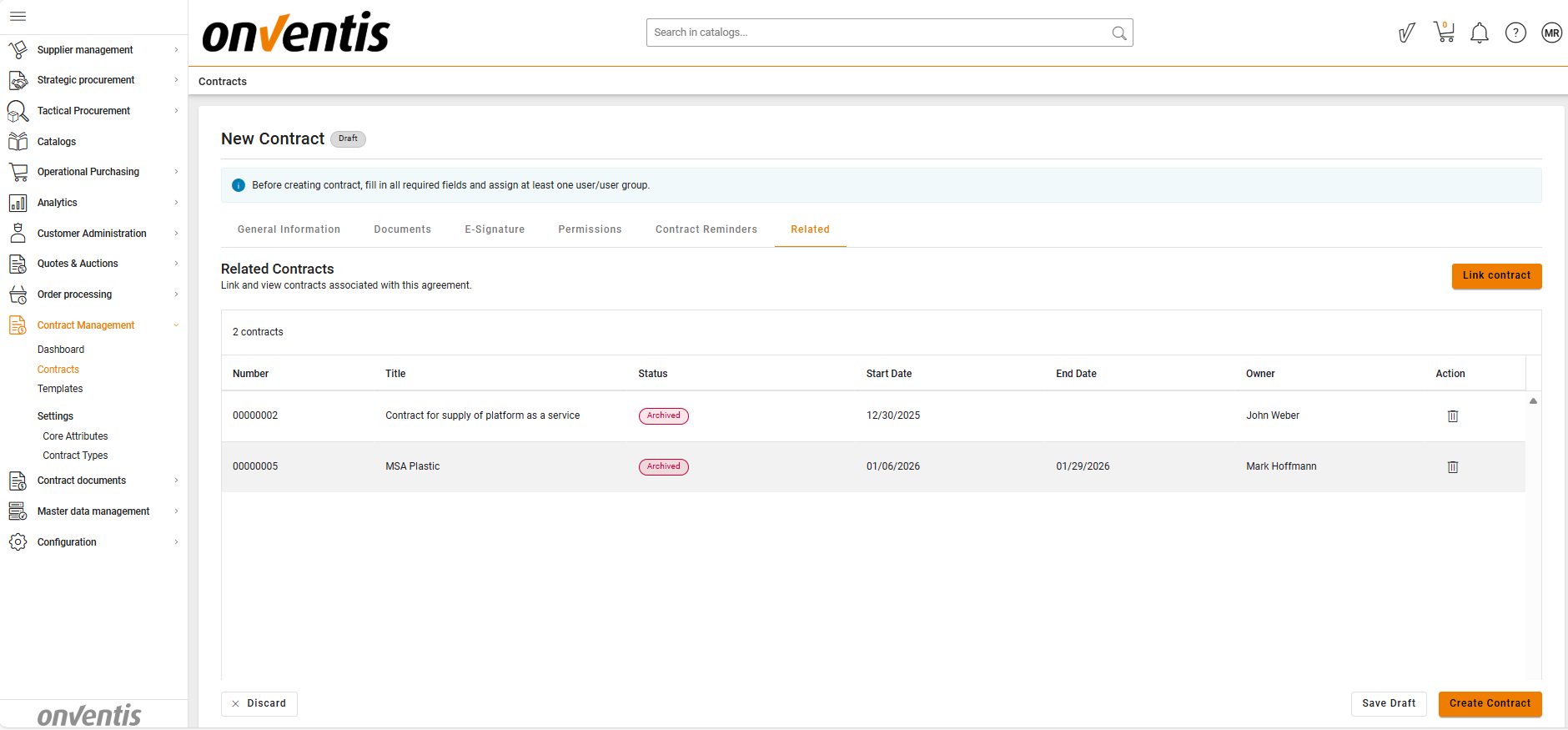
The Related Contracts tab appears first during contract creation.
Here, users can link the new contract to existing ones (e.g., framework agreements, addendums, or sub-contracts) to maintain visibility into the contract hierarchy and relationships.
🧩 Note: Users can link the new contract to existing ones within the CLM system only, but not to records from other parts of the platform (e.g., framework agreements).
📑 Document Section
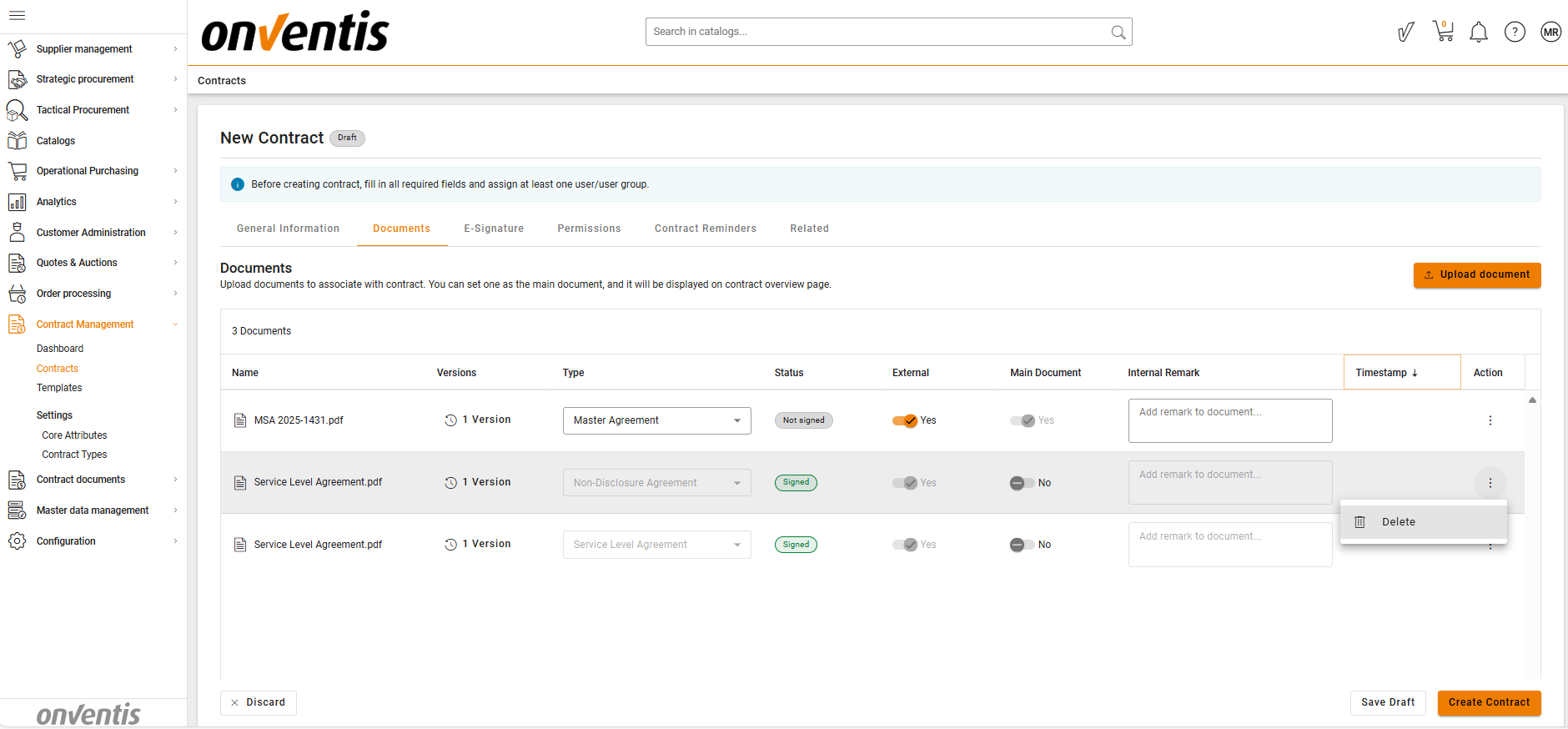
In addition to documents copied from the template, users can upload other required contract-related files, such as draft agreements, appendices, or price sheets.
Only one file can be uploaded at a time.
Each uploaded file passes an antivirus (AV) check.
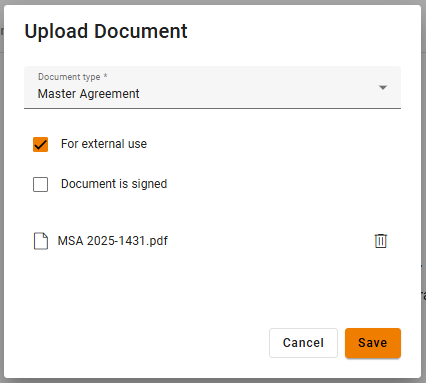
During file upload, users can manually indicate whether a document is:
Signed (Yes/No) –
If marked as Signed, the document’s metadata is locked for editing (except for new file versions) and should not be sent for signature.
If not signed, the document remains fully editable and can be sent for signature.
A contract can be moved to the Active phase only if at least 1 document is marked as signed, ensuring that the final, approved version of the agreement is formally executed.
For External Use (Yes/No) –
If marked as No, the document is intended for internal use only and should not be sent for external negotiation or signature.
If marked as Yes, the document is eligible for external negotiations, signature and can be shared externally.
Set as Main Document –
Only one document can be set as the Main file within a contract.
The Main document will be displayed on the Contract Overview page in the previewer for quick reference.
Uploaded documents can be extended or deleted as needed during the contract preparation process.
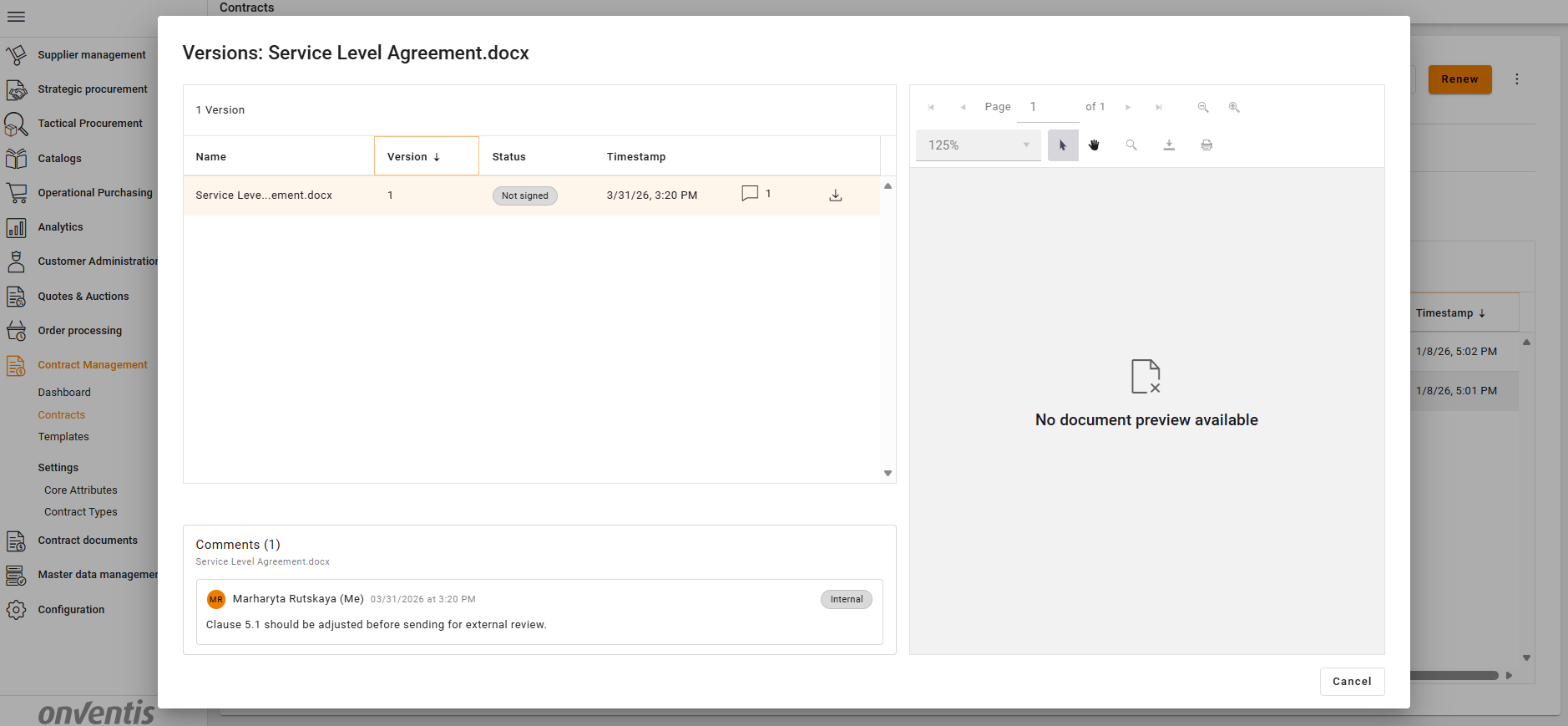
New document versions can be uploaded to existing documents:
🧑💻 User permissions
Based on the permissions copied from the template, users adjusts which individuals or user groups will have access to the contract after publication.
These permissions apply once the contract is published to the Authoring phase.
Only the Contract Owner and Admins can access the contract while it remains in Draft.
User groups selected must correspond to the organizational units chosen for the contract.
Upon publishing, users and user groups listed in this section will receive email notifications granting them access.
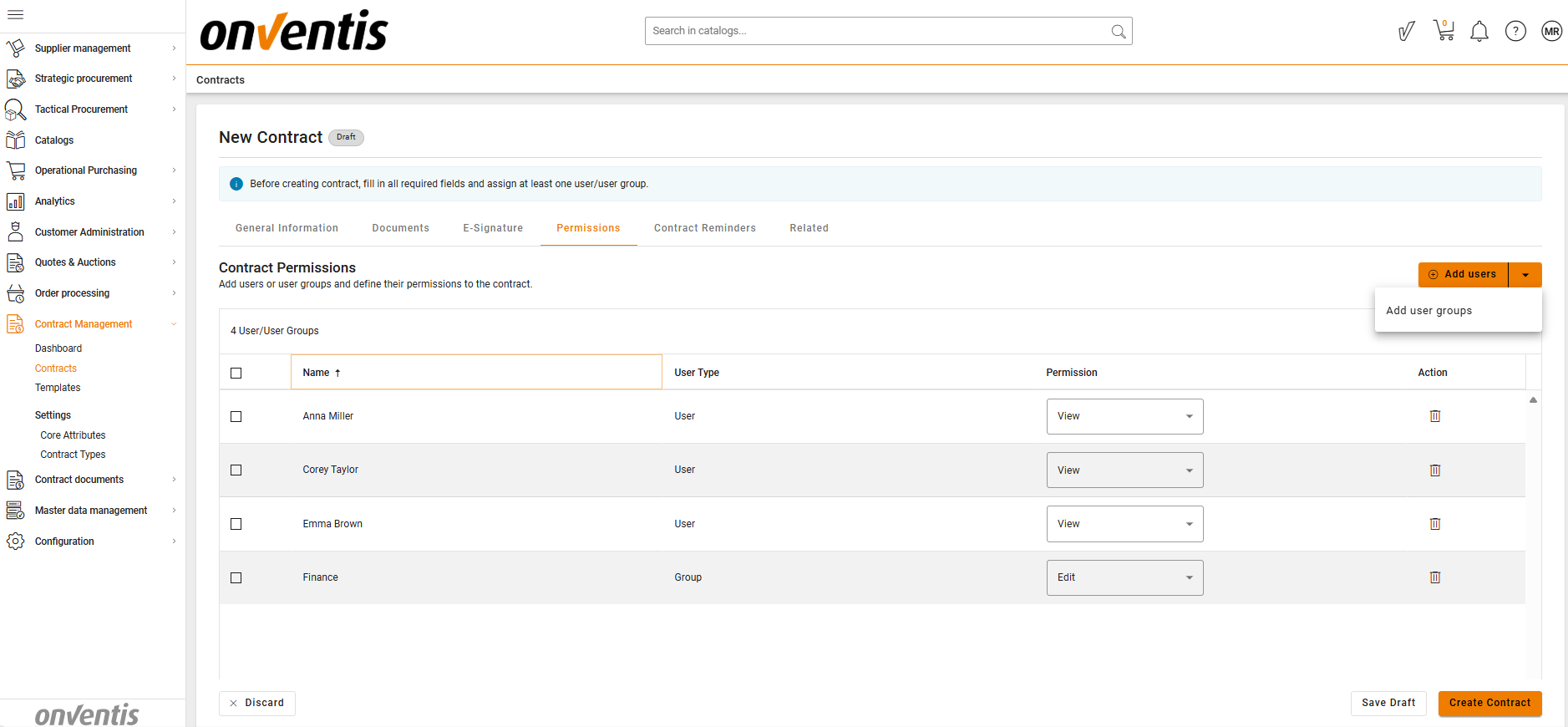
Depending on their permissions, users may have the following access levels:
Viewer – Read-only access.
Editor – Can modify contract details and upload files.
🧩 Note: If a user is assigned both Viewer and Editor roles, the higher level of access (Editor) applies.
💾 Saving and Publishing
Users can either Save as Draft or Create Contract:
Draft – Used for initial preparation; only the CLM Power Users have access.
Create Contract – Publishes the contract into the Authoring phase, granting access to users and user groups defined in the User Permissions tab.
When a contract is published to Authoring, email notifications are automatically sent to all users and groups listed in User Permissions.
Best Practices

💡 Tips for Effective Use:
Use drafts to prepare contracts internally before sharing them with other participants.
Review and adjust copied data such as documents, org units, and permissions before publishing.