
Create Contract from scratch

Creating a contract from scratch allows users to start a new agreement without using a predefined template.
🗺️ Overview
This approach provides flexibility for unique or one-time contracts that do not fit into standard templates but still ensures consistency by inheriting the system’s core structure and attributes.
When a contract is created from scratch, it automatically includes core-level attributes, grouped and organized according to the system’s predefined layout. Users can then fill in the required details, upload documents, and configure permissions as needed before publishing the contract.
🧑🦱 Who Can Use This
CLM Power Users can create a contract from scratch.

💡 Note: Only users with the CLM Power User license have access to created Draft contracts. Once the contract is published to the Authoring phase, the users and user groups defined in User Permissions will receive access and email notifications.
 General Info Section
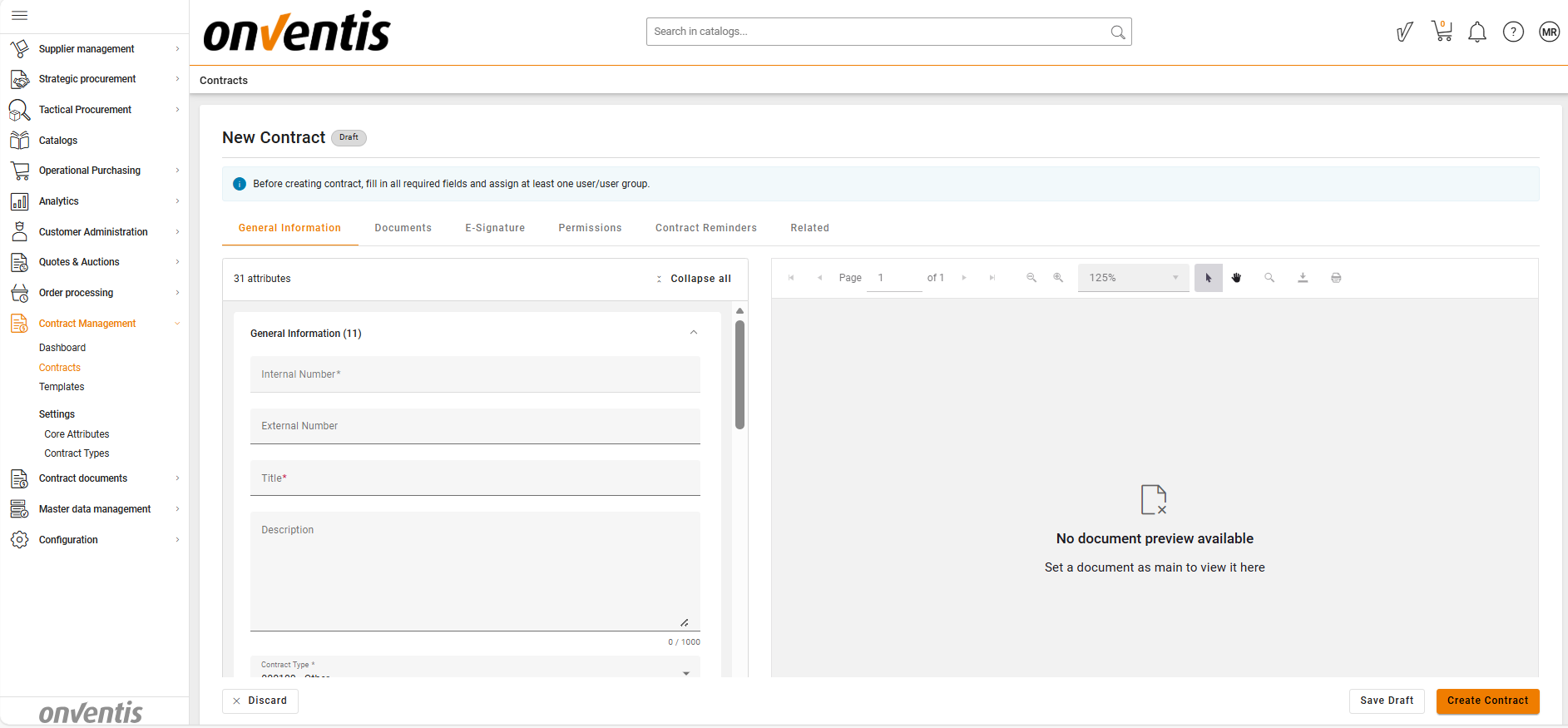
Contracts created from scratch automatically include all core-level attributes and their predefined structure:
System Attributes – Standard fields required for all contracts (e.g., Contract Name, Value, Start Date, End Date).
Groups and Layout – Attributes are organized into predefined groups to ensure clarity and alignment with the organization’s contract standards.
Users fill in the inherited core attributes manually.
⚠️ Important: Unlike template-based contracts, no additional template-specific attributes are included.
🔗 Related Contracts
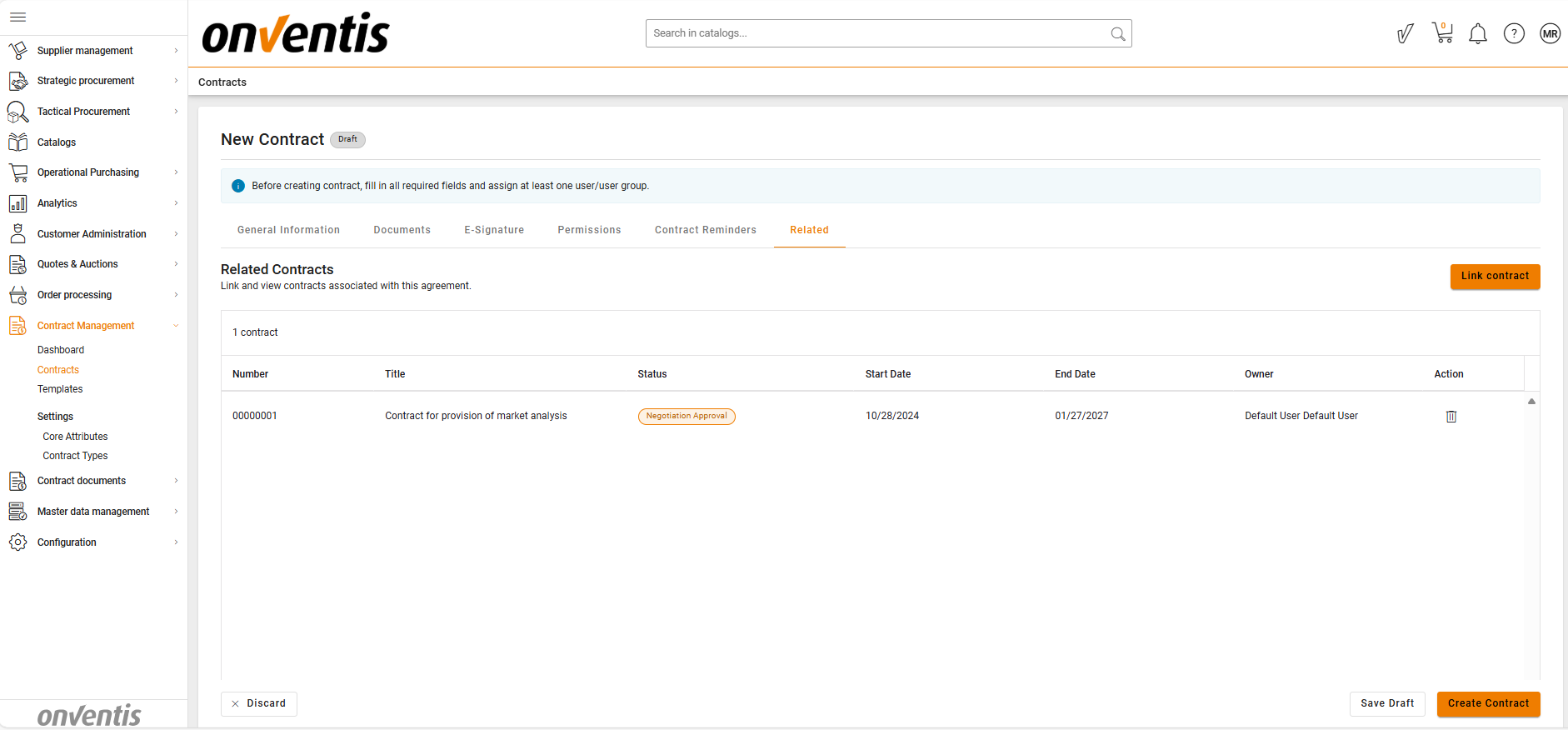
The Related Contracts tab appears first during contract creation, allowing users to link the new contract to existing ones within the CLM system.
⚠️ Important: Contracts cannot be linked to records outside of the CLM.
📑 Document Section
Users can upload any required contract-related files, such as draft agreements, appendices, or price sheets.
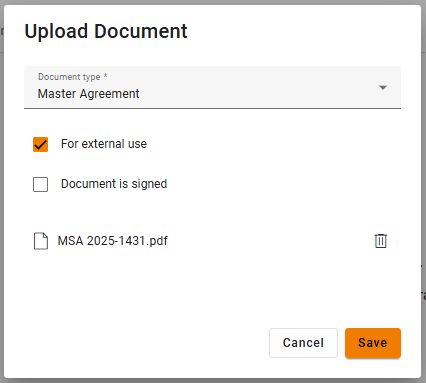
Only one file can be uploaded at a time.
Each uploaded file passes an antivirus (AV) check.
During file upload, users can manually indicate whether a document is:
Signed (Yes/No) –
If marked as Signed, the document’s metadata is locked for editing (except for new file versions) and should not be sent for signature.
If not signed, the document remains fully editable and can be sent for signature.
A contract can be moved to the Active phase only if at least 1 document is marked as signed, ensuring that the final, approved version of the agreement is formally executed.
For External Use (Yes/No) –
If marked as No, the document is intended for internal use only and should not be sent for external negotiation or signature.
If marked as Yes, the document is eligible for external negotiations, signature and can be shared externally.
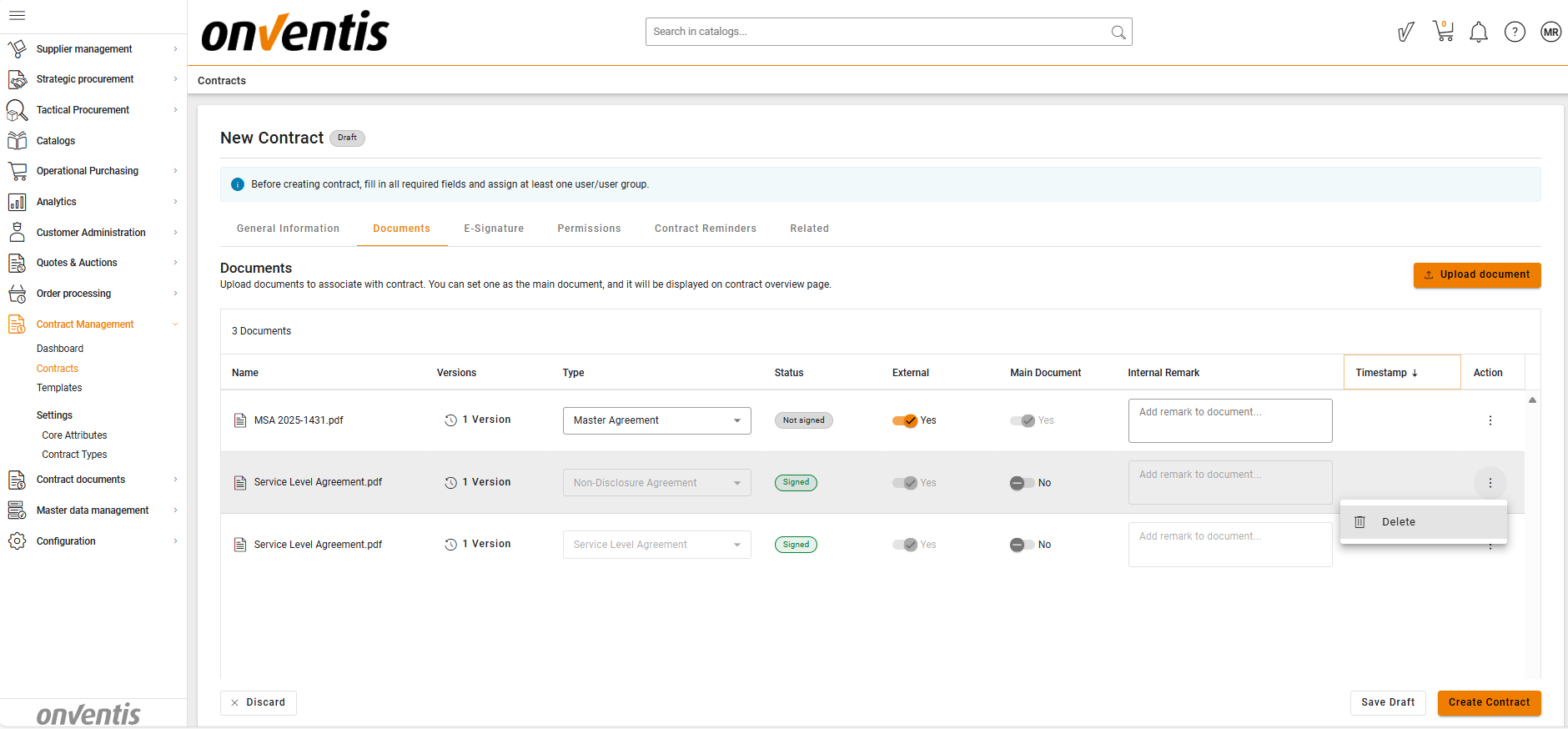
Set as Main Document –
Only one document can be set as the Main file within a contract.
The Main document will be displayed on the Contract Overview page in the previewer for quick reference.
Uploaded documents can be extended or deleted as needed during the contract preparation process.
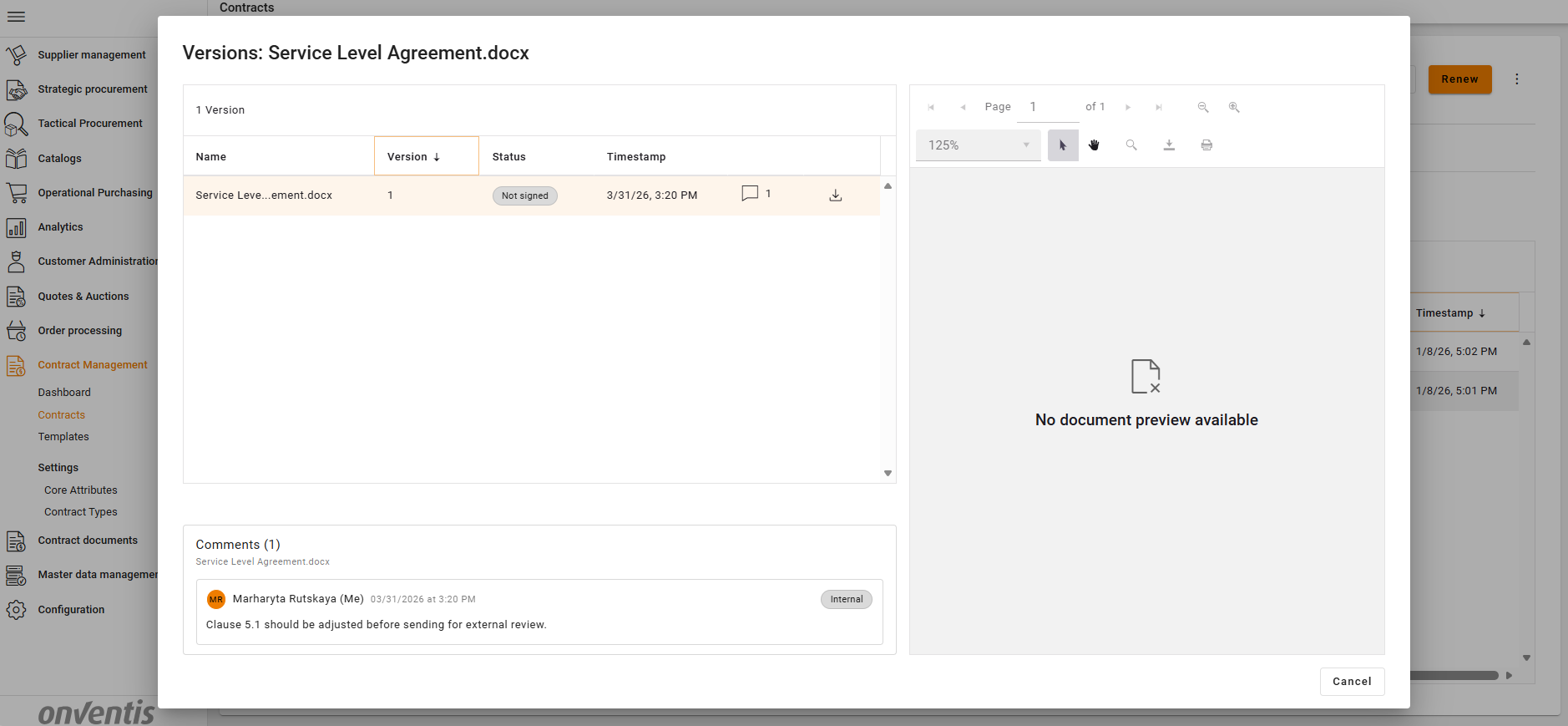
New document versions can be uploaded to existing documents:
🧑💻 User permissions
In this section, users define which individuals or user groups will have access to the contract after publication.
These permissions apply once the contract is published to the Authoring phase.
Only the CLM Power Users can access the contract while it remains in Draft.
User groups selected must correspond to the organizational units chosen for the contract.
Upon publishing, users and user groups listed in this section will receive email notifications granting them access.
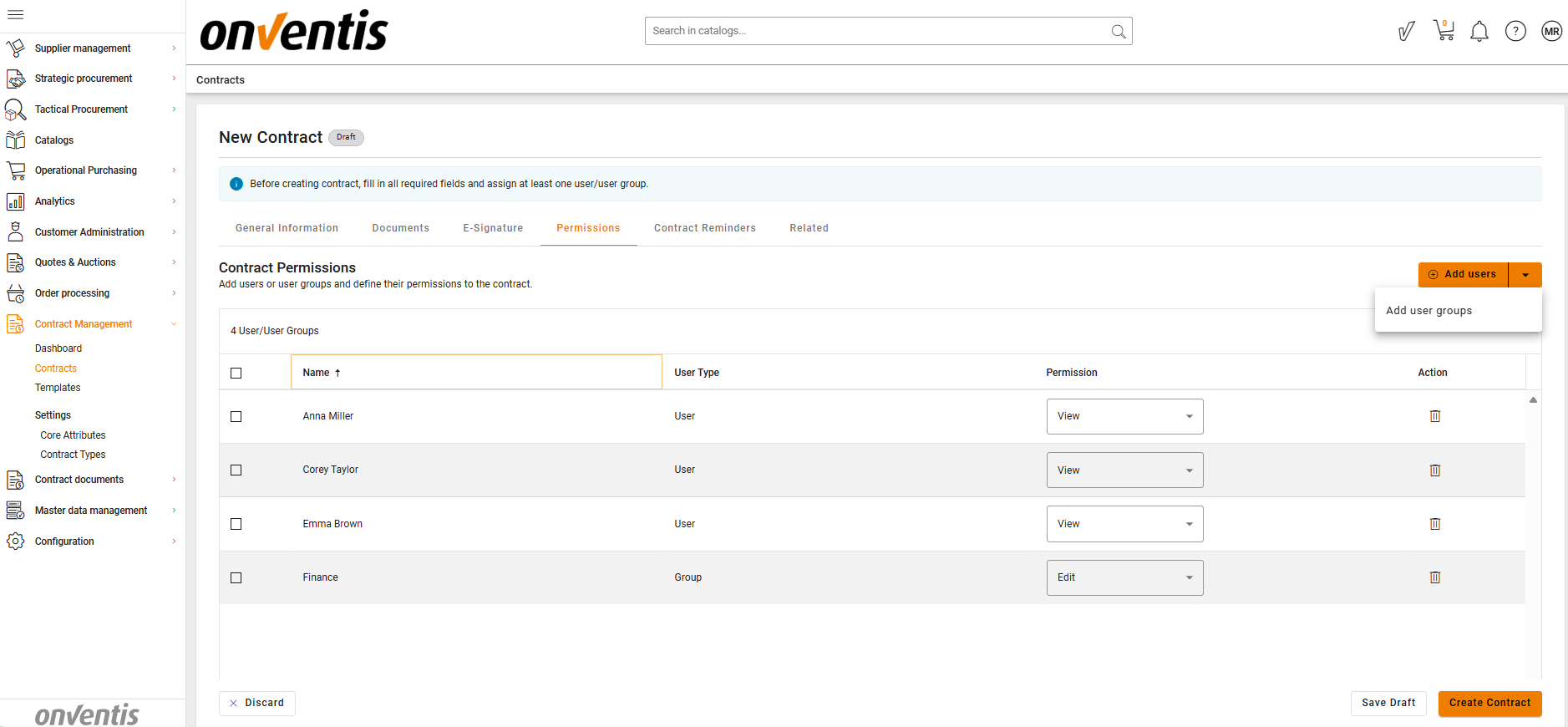
Depending on their permissions, users may have the following access levels:
Viewer – Read-only access.
Editor – Can modify contract details and upload files.
🧩 Note: If a user is assigned both Viewer and Editor roles, the higher level of access (Editor) applies.
💾 Saving and Publishing
Save as Draft – Saves the contract in Draft mode for internal preparation; visible only to the CLM Power Users.
Create Contract – Moves the contract to the Authoring phase, making it accessible to users and groups defined in User Permissions.
When published, notifications are automatically sent to all relevant participants.
⚠️ Important: If a document fails the AV check, the system will display an error message, and the contract cannot be saved until the issue is resolved.
Best Practices

💡 Tips for Effective Use:
Use this method for non-standard or one-off contracts that do not require a predefined template.
When uploading documents, clearly mark them as signed or unsigned, and define whether they are for external use to control signature eligibility.
Save frequently while drafting to prevent data loss, especially when uploading large files.