
Contract Repository

The Contract Repository is your central workspace for searching, filtering, and viewing all contracts you have access to.
🗺️ Overview
The Contract Repository is built on a powerful grid component that provides a fast and intuitive way to browse and manage contracts. Users can sort, filter, and customize columns to quickly find the information they need.
The repository always displays up-to-date contract data and strictly follows CLM access rights and permissions, ensuring users only see contracts and information they are authorized to access
🎯 Purpose
The repository provides a complete, real-time overview of your organization’s contracts.
It allows users to:
Quickly find contracts by matching attribute values
Narrow down your list by applying filters to specific columns (e.g., contract type, owner, status)
Organize the grid by sorting columns in ascending or descending order
Personalize your view by showing or hiding specific columns according to your needs
Access full contract details and attached documents directly from the repository grid without leaving the page
It’s designed for both strategic and tactical users who require easy navigation and visibility into agreements across the organization.
🧭 Layout and Navigation
Area | Description |
|---|---|
Grid view | Displays contracts in scrollable table. Scroll to the bottom to load more data. Columns can be resized and swapped. |
Column selector | Customize which system core metadata columns are shown or hidden. The contract repository does not support adding custom attributes as the grid columns. |
Action panel | Contextual options to Export Contracts, Bulk Change contracts and configure User Preferences. |
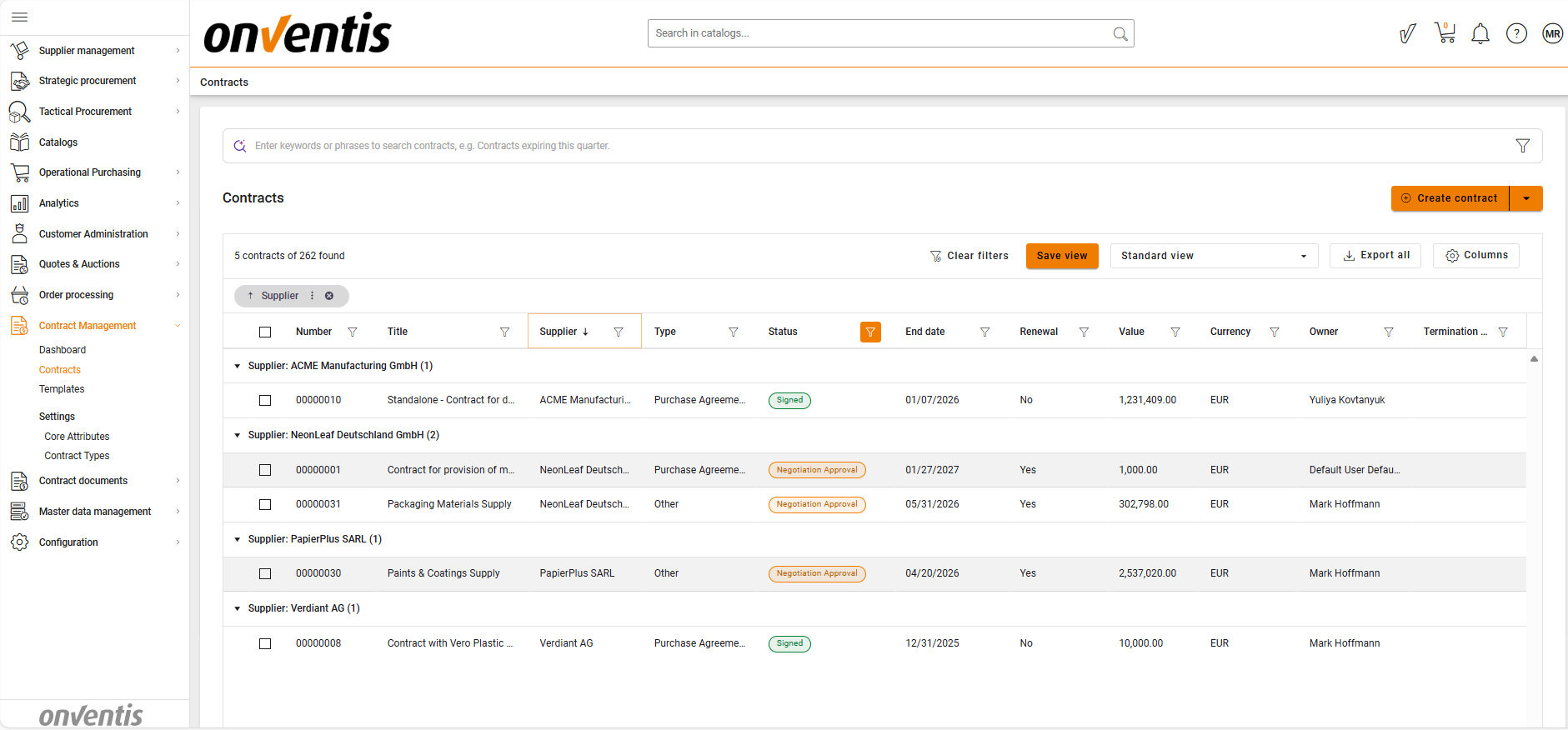
Grouping | Group contracts by any visible column (for example, Status, Supplier, or Contract Type). |
🖇️ Filtering
How to Filter Contracts
Open the Filter Menu on required Column.
Select Condition and the Value (e.g., Contract Type = Services, Status = Active).
Click Apply.
The grid instantly updates with matching records.
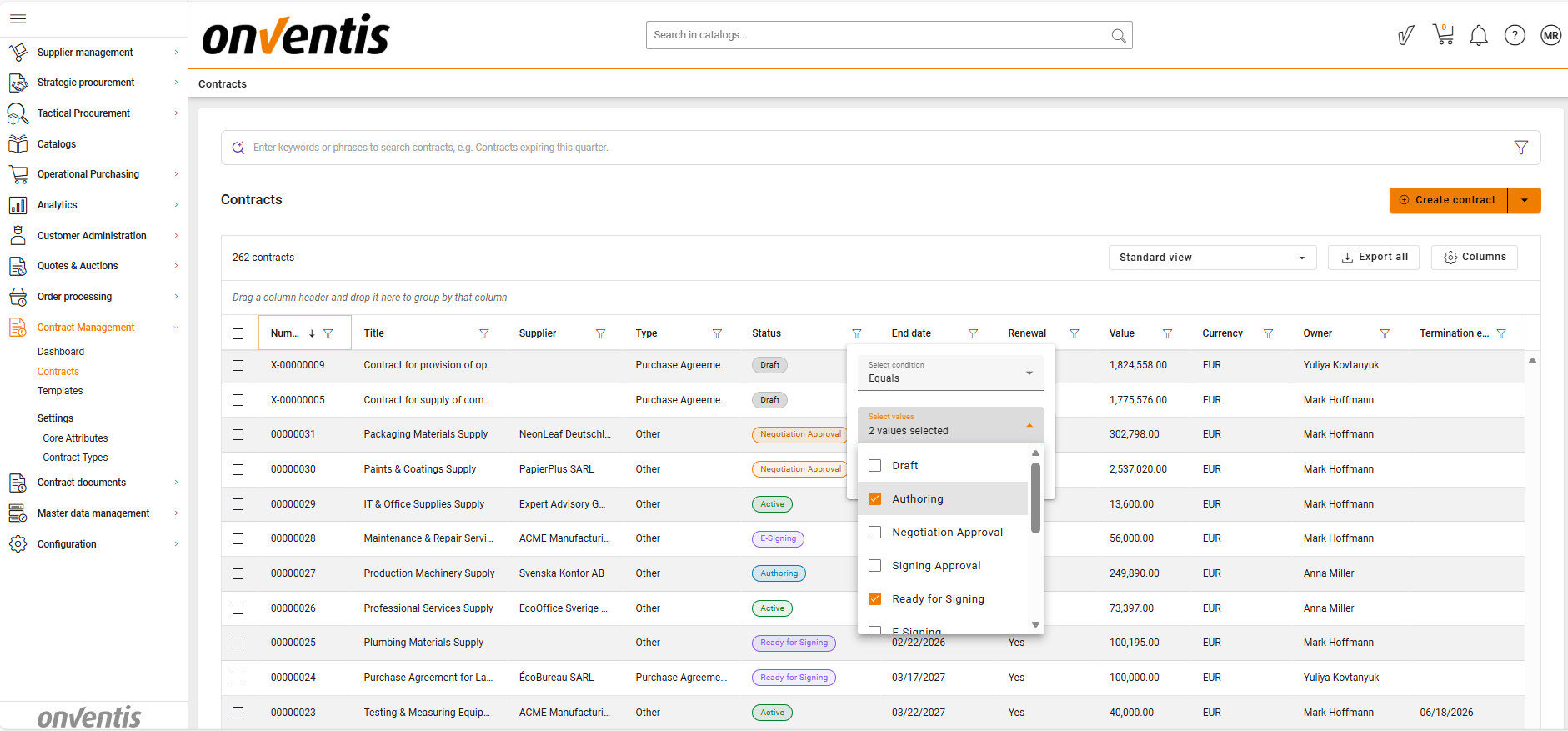
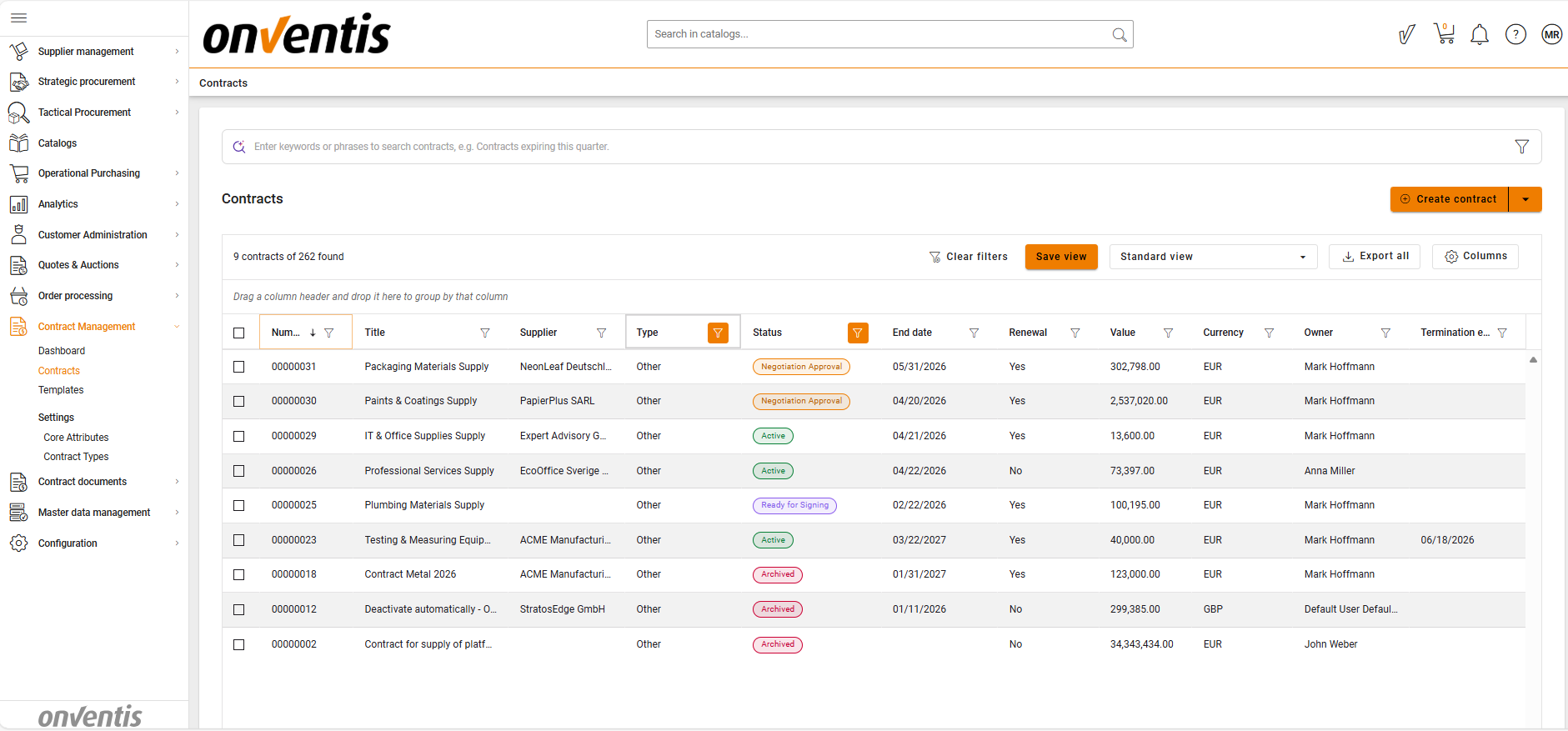
You can apply multiple filters simultaneously. Filters are combined using “AND” logic (e.g., Active + Owner = Me).
🔍 Multi-Column Sorting
Multi-sorting allows users to sort the data in a grid by multiple columns at once — for example, sorting first by Supplier, then by Status, and finally by Value.
This feature helps users organize and analyze tabular data more efficiently when multiple criteria are important.
The Default soring for Number Column is in descending order.
Single-click on a column header → sorts the data by that column (in ascending order);
Click again → reverses the sort direction (in descending order);
To remove sorting on the column, click it once again.
🗃️ Clear Filters
When multiple filters are applied to a grid, a Clear Filters option becomes available next to the Columns selector.
Click Clear Filters to remove all active filters at once and return the grid to its default, unfiltered view.
⚙️ Customizing the Grid
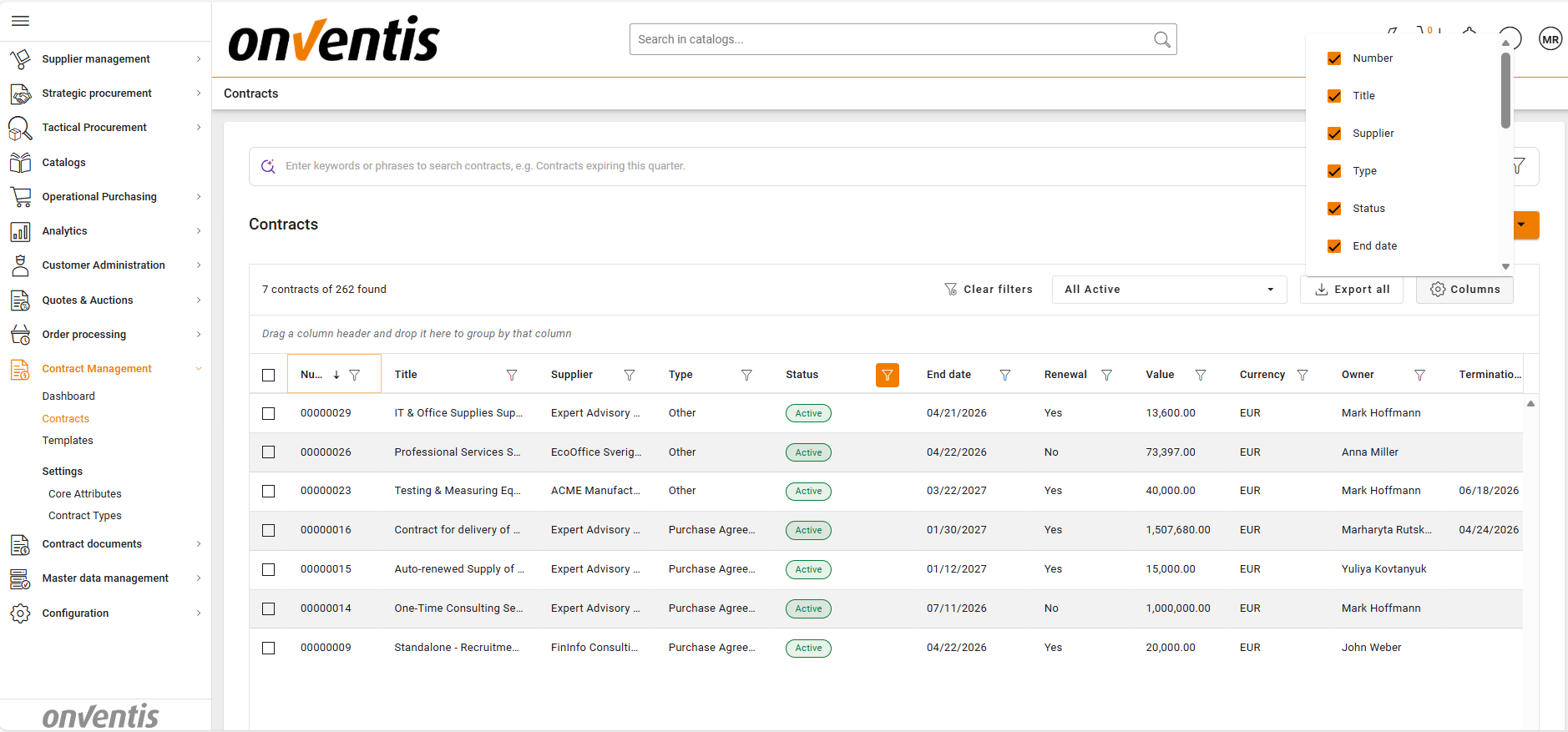
How to Adjust Columns
Click the Columns Selector (⚙️ icon).
Check or uncheck fields to show/hide metadata columns.
Drag column headers to rearrange order.
Resize columns by dragging their edges.

The grid remembers your sorting and filtering preferences, selected columns, and column order, so your personalized view is preserved the next time you access the repository
📄 Opening a Contract
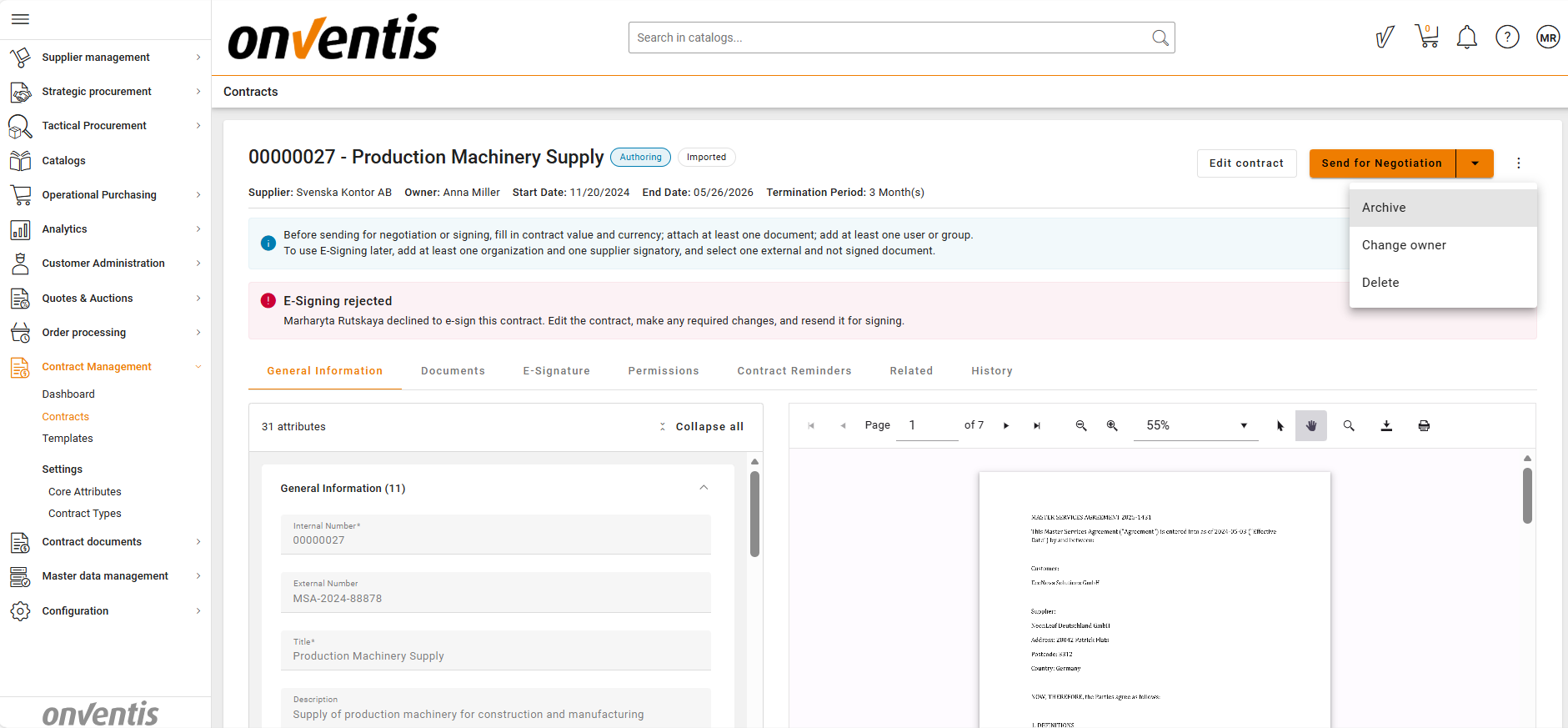
Click a contract title to open the Contract Overview page.
The summary displays key metadata, status, and preview of main document (pdf files only)
Depending on your access rights and permissions, you may:
Create → Create new contracts
View → Access contracts in read-only mode
Edit → Modify contract details or upload files
Own a contract → Be responsible for the contract lifecycle and key decisions
Change Contract Owner → Assign a different owner to an existing contract
Move to Authoring → Start or continue drafting and editing the contract
Move to Negotiation → Share the contract for external supplier review and collect feedback before signing
Perform Manual Signature → Manually record contract signing outside the system
Perform E-signing → Send the contract for legally binding electronic signature within the system
Activate → Make the contract legally effective
Renew → Extend the contract according to its renewal terms
Terminate → Formally end the contract by scheduling its termination according to contractual notice and lock‑in rules
Deactivate → End the contract’s validity while keeping it for reference
Delete → Remove the contract from the active workspace (soft delete)
Move to Archive → Archive contracts that are no longer active or required for daily operations
Approve / Reject → Approve the contract to allow it to proceed in the lifecycle, or reject it with a reason for further revision
🔒 Note: Restricted contracts and files will be hidden or display limited metadata depending on your access rights.
🔐 Access and Permissions
The repository only shows contracts you have access based on your role, organization unit and access permissions.
Access rights are inherited from the CLM permission model.
⚡ Performance and Caching
The Grid dynamically loads pages for performance optimization.
Updates from CLM are reflected in real time — no manual refresh needed.