
Contract Authoring Phase

The Authoring phase allows multiple users to collaboratively edit a contract before it proceeds to signing.
🗺️ Overview
During this phase, users with appropriate permissions can modify contract metadata, documents, permissions, and relations.
🧑🦱 Who Can Use This
CLM Power Users can edit everything except:
Internal number
Template
Contract type (if created from a Template)
Users with Edit Permissions (from the User Permissions tab) can edit:
Contract metadata (e.g., title, value, effective dates, other attributes)
Linked documents (add, replace, edit, upload new versions, set main document)
Related contracts (add or remove relationships)
Users with Edit Permissions cannot edit:
Internal number
Contract Owner
Template
Contract type (if created from a Template)
Org units
User permissions tab
➡️ Transitioning to the Authoring Phase
A contract can be moved to the Authoring phase when all of the following conditions are met:
All required attributes in the General Info tab are entered and pass validation.
At least one user or user group is assigned in the Permissions tab.
All assigned user groups belong to the selected or updated organizational units.
Once published, the contract becomes visible to users and groups listed in the User Permissions tab. These users automatically receive email notifications informing them that access has been granted.
Note: CLM Power Users can view the contract from the Draft phase even before publishing.
✅ Accessing Contracts in the Authoring Phase
When a user clicks a contract with the status In Authoring in the grid, the Contract Overview page opens in View mode by default.
Users with editing rights can switch to editing by selecting Edit Contract on the Contract Overview page.
🔒 Locking and Editing Behavior
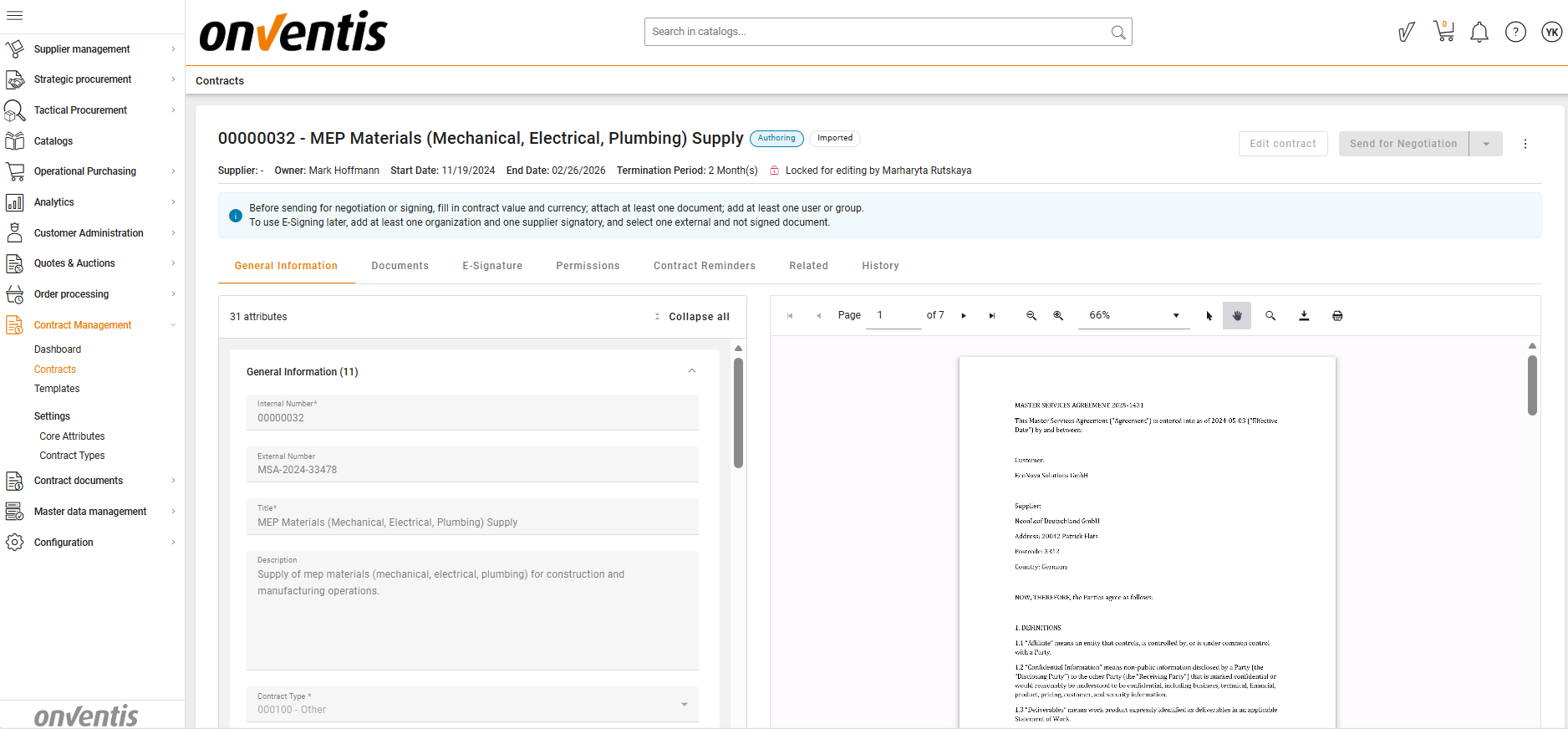
To ensure data consistency, contracts are locked for editing when one user is actively editing.
When a contract is locked, other users see:
“Locked for editing by [Alex Klein]” on the Contract Overview page.
The Edit button should be disabled for other users until the lock is released.
⏭️ Next Steps After Authoring
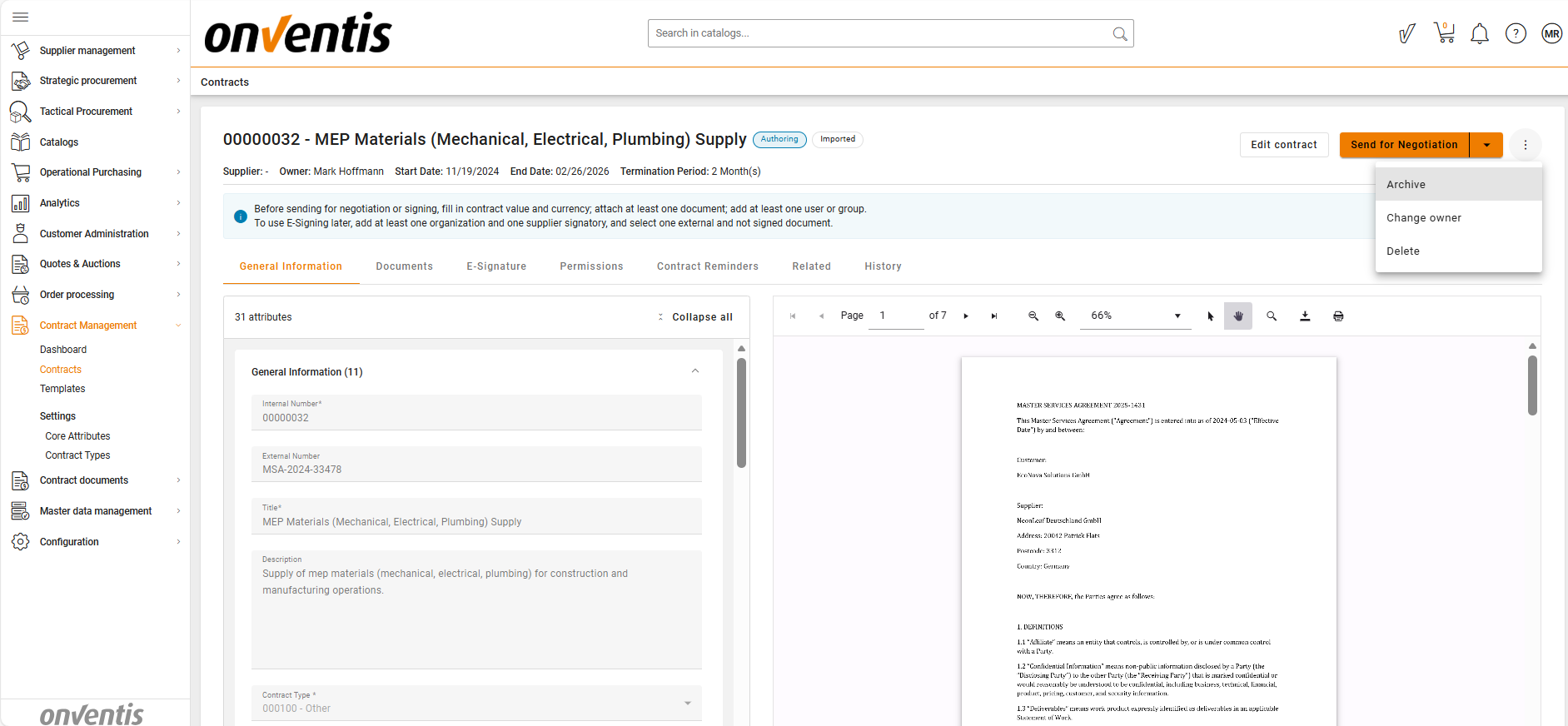
After completing the Authoring phase, CLM Power User can move the contract to one of the following next stages:
🗣️ Negotiation – for external supplier review.
✍️ Signing – for contracts ready for signature collection.
🗑️ Delete Contract – users can perform a soft delete to remove the contract from the active workspace if it is no longer relevant.
📂 Archive – for contracts that are no longer active but still have business value and should be kept for reference, audits, reporting, and historical tracking.
⚠️ Note: Contracts cannot be moved directly to the Active phase from Authoring - even if one or more attached documents have the Signed status. The contract goes through Signing process before Activation.
Manual activation is only available from the Draft phase for Imported contracts.
Best Practices

💡 Tips for Effective Use:
Ensure only relevant users/groups have edit rights to avoid content conflicts.
Regularly save progress to prevent data loss during collaborative sessions.
Transition to the next phase only if it is not actively being edited by another user, as this may lead to lost changes.